






When AI-powered chatbots and image generators first came on the scene, I was admittedly a little skeptical. It was mostly because the news headlines—at least, the ones my algorithm was feeding me—were fear-inducing (see: People fear being replaced by AI and ChatGPT). But it was also because I didn't know how any of it worked.
However, as my brilliant teammate Elena put it, the best way to stop being afraid of AI is to use AI. So I decided to dive in with one of the more interesting tools, especially for writers: ChatGPT.
In a pleasant turn of events, I discovered no fewer than 28,349 ways ChatGPT alone can help me be better at my job. For example, it can help me create rough outlines for blog posts. It can even act as my own personal writing coach.
If you're also eager to take ChatGPT for a spin, but you're not sure where to start, you're in the right place. Here's how to use ChatGPT.
This article focuses on the specific steps of how to use ChatGPT.
How to use ChatGPT
Here's the short version of how to use ChatGPT:
- Go to chat.openai.com or the mobile app, and log in or sign up (it's free).
- Type your prompt in the message box on the ChatGPT home page.
- Once ChatGPT spits out a response, you have a handful of options:
- Enter a new prompt.
- Regenerate the response.
- Copy the response.
- Share the response.
- Like or dislike the response.
Now let's take a closer look at the finer details of using ChatGPT.
Create your OpenAI account
To get started with ChatGPT, you first need to create an OpenAI account (it's free). To do this, go to chat.openai.com, and click Sign up. You can use an email address, or you can sign in with your Google or Microsoft account. If you use an email address, you'll be required to do a phone verification to confirm that you're really a human and not, ironically, a bot.
Already have an OpenAI account? Click Log in to start chatting.
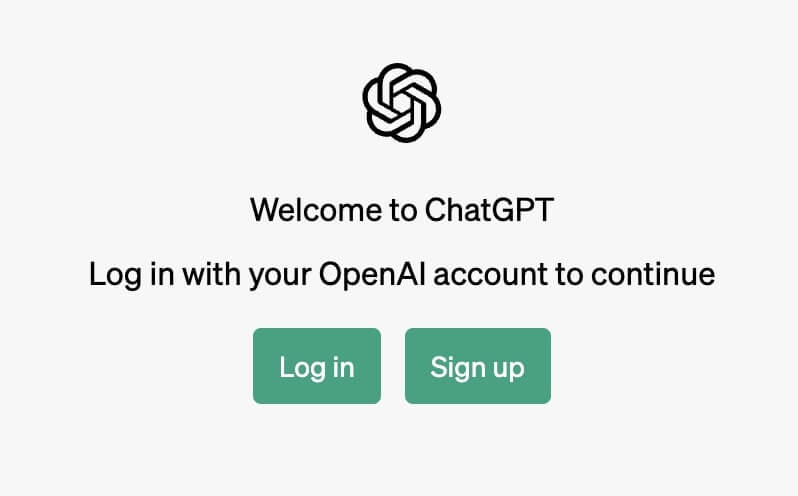
If you're having trouble signing up or logging in, your best bet is to reload your page. For specific login issues, check out OpenAI's troubleshooting tips.
By default, anyone can access GPT-3.5-turbo—the less powerful GPT model—for free. To use the more advanced GPT-4, you'll need to upgrade to OpenAI's paid subscription, ChatGPT Plus.
Ask ChatGPT a question
Type your ChatGPT prompt (i.e., text query) in the message bar of the home page, and hit Enter (or click the send icon, which looks like a paper plane).
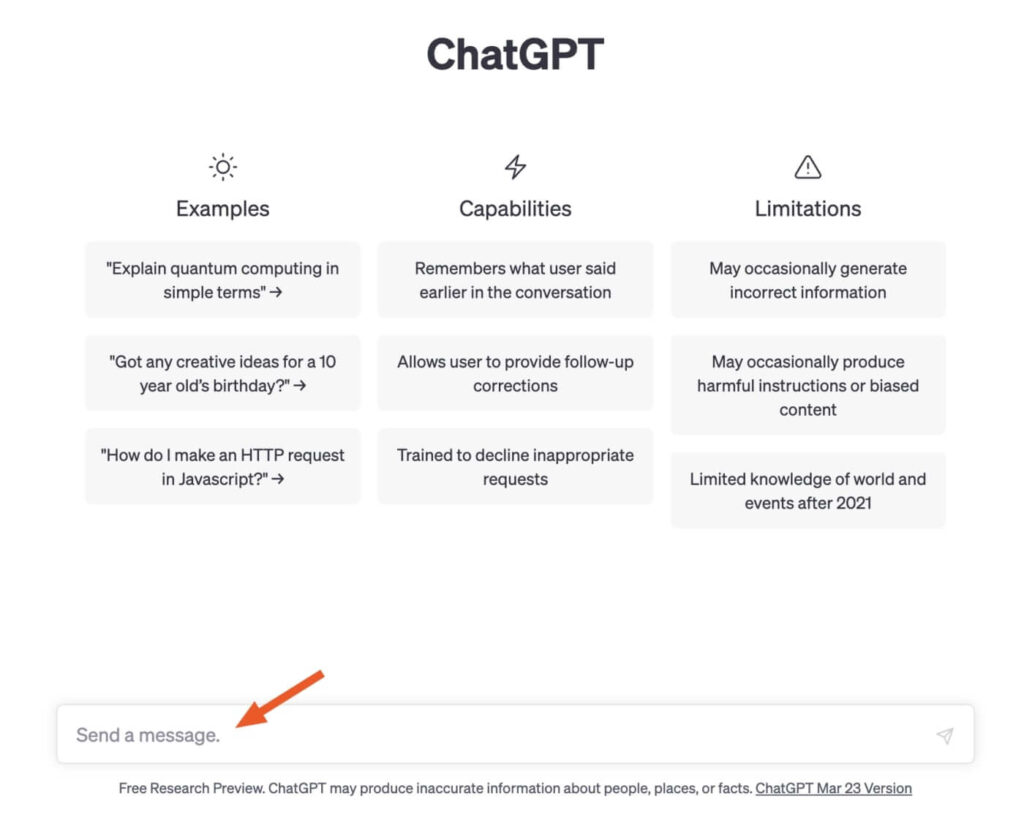
If you have ChatGPT Plus, you can enable ChatGPT's internet browsing feature (in beta, as of this writing). This way, you'll get a response based on current information—not just data before September 2022—complete with direct links to sources. Click GPT-4, and then select Browse with Bing.
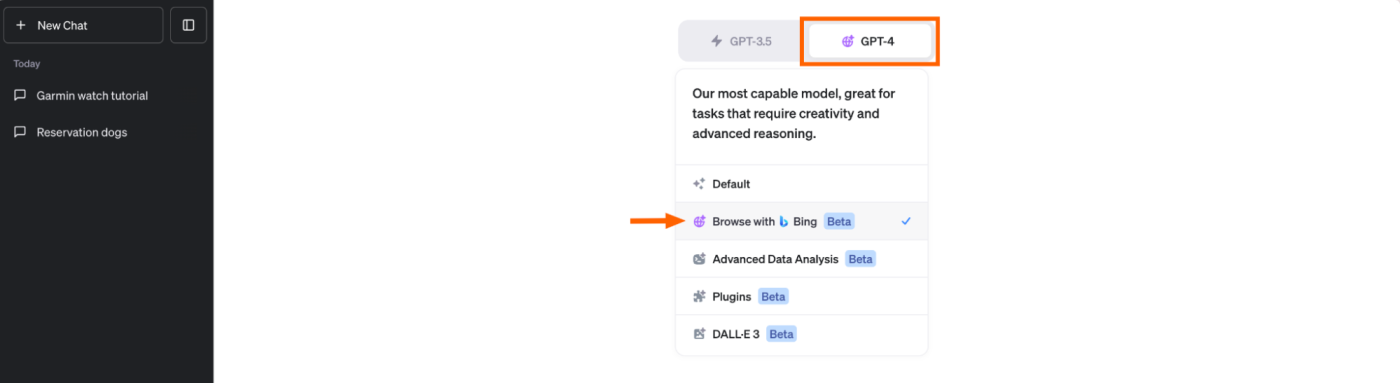
If this feature isn't visible to you, you may need to first adjust your settings.
- Click your profile and select Settings & Beta.
- In the Settings window that appears, click Beta features.
- Click the toggle next to Browse with Bing.
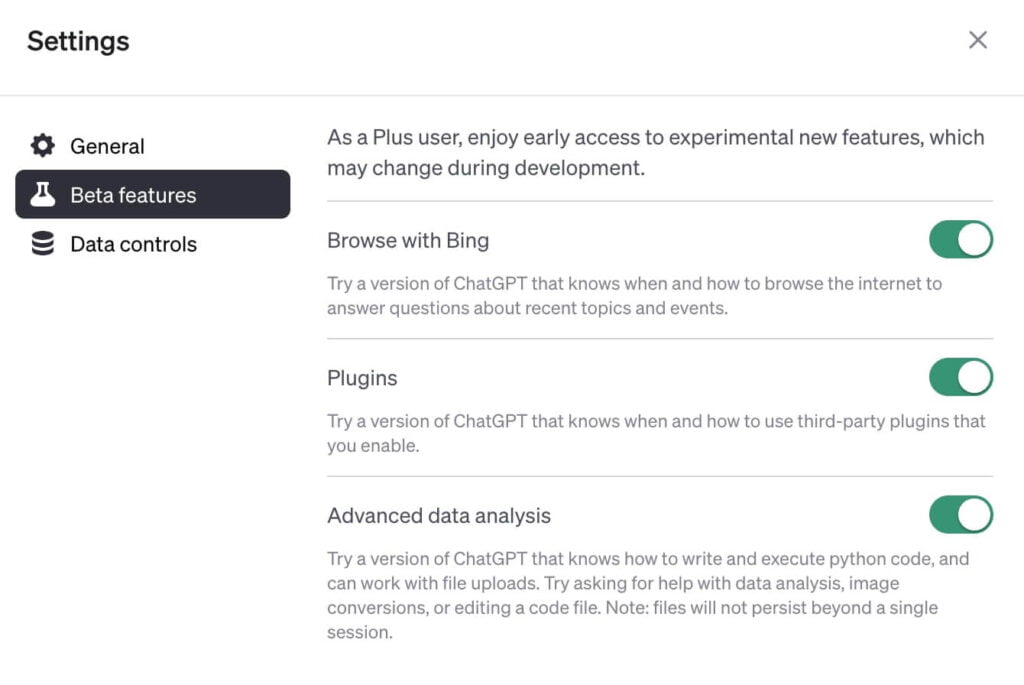
Now Browse with Bing should appear in your dropdown of GPT-4 capabilities.
To get the best results from ChatGPT, write a clear prompt with sufficient context. Need help refining your text query? Here are tips to help you write an effective GPT-3 or GPT-4 prompt.
Interact with ChatGPT's responses
In a matter of seconds, ChatGPT will spit out a reply. Here's the text ChatGPT generated in response to the prompt, "Explain how ChatGPT works to a 10-year-old kid."
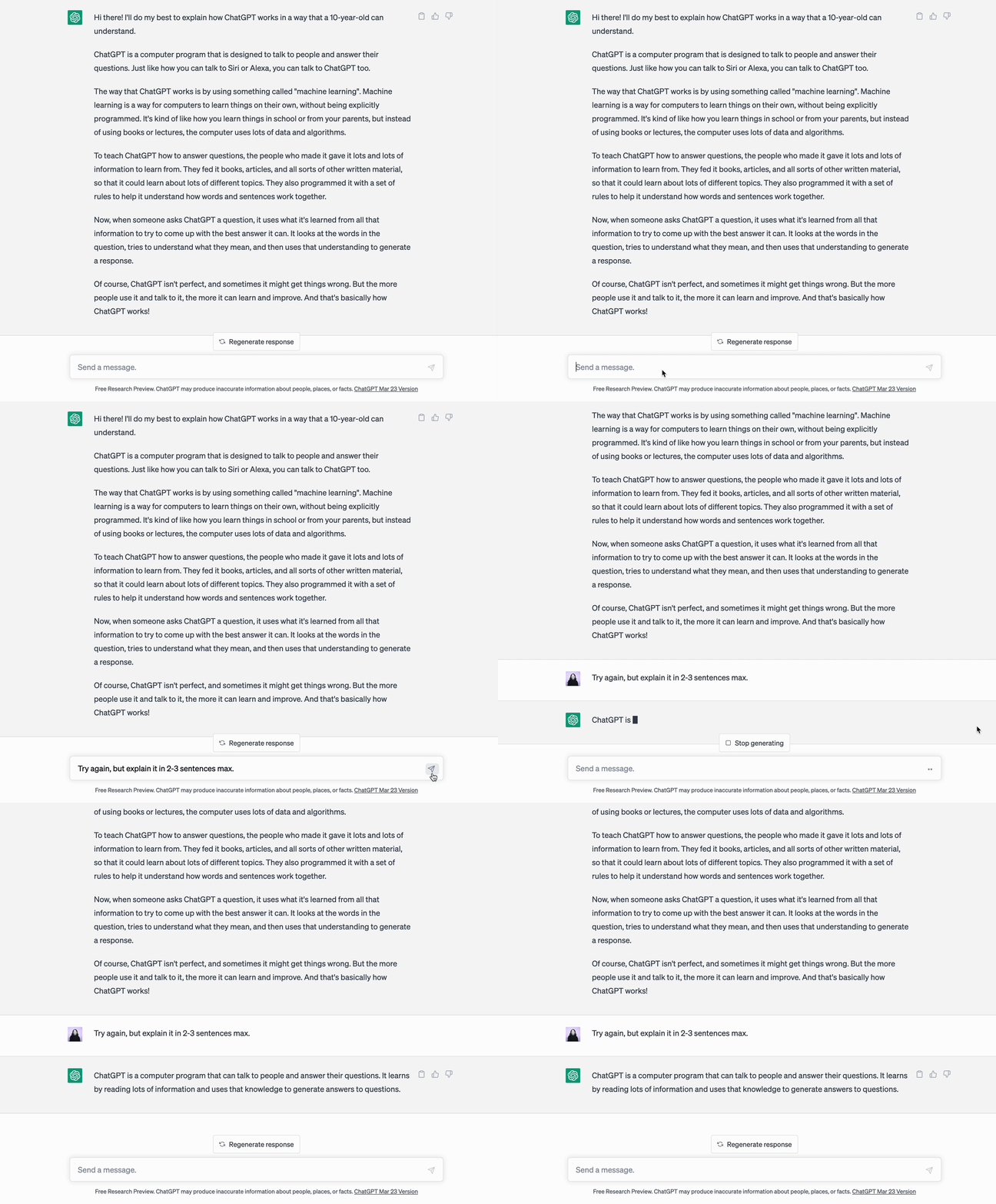
Once ChatGPT spits out a response, you have a number of options.
Enter a new prompt
One of ChatGPT's key features—and the one that makes it feel like having a real back-and-forth dialogue—is that it can "remember" the conversation you're having with it. This means you can ask ChatGPT to modify its response without repeating yourself or starting from scratch. ChatGPT will simply refer back to whatever you were discussing before, and then use that to inform its response. Let's build on our initial prompt. To get a shorter explanation, I entered, "Try again, but explain it in two to three sentences max."
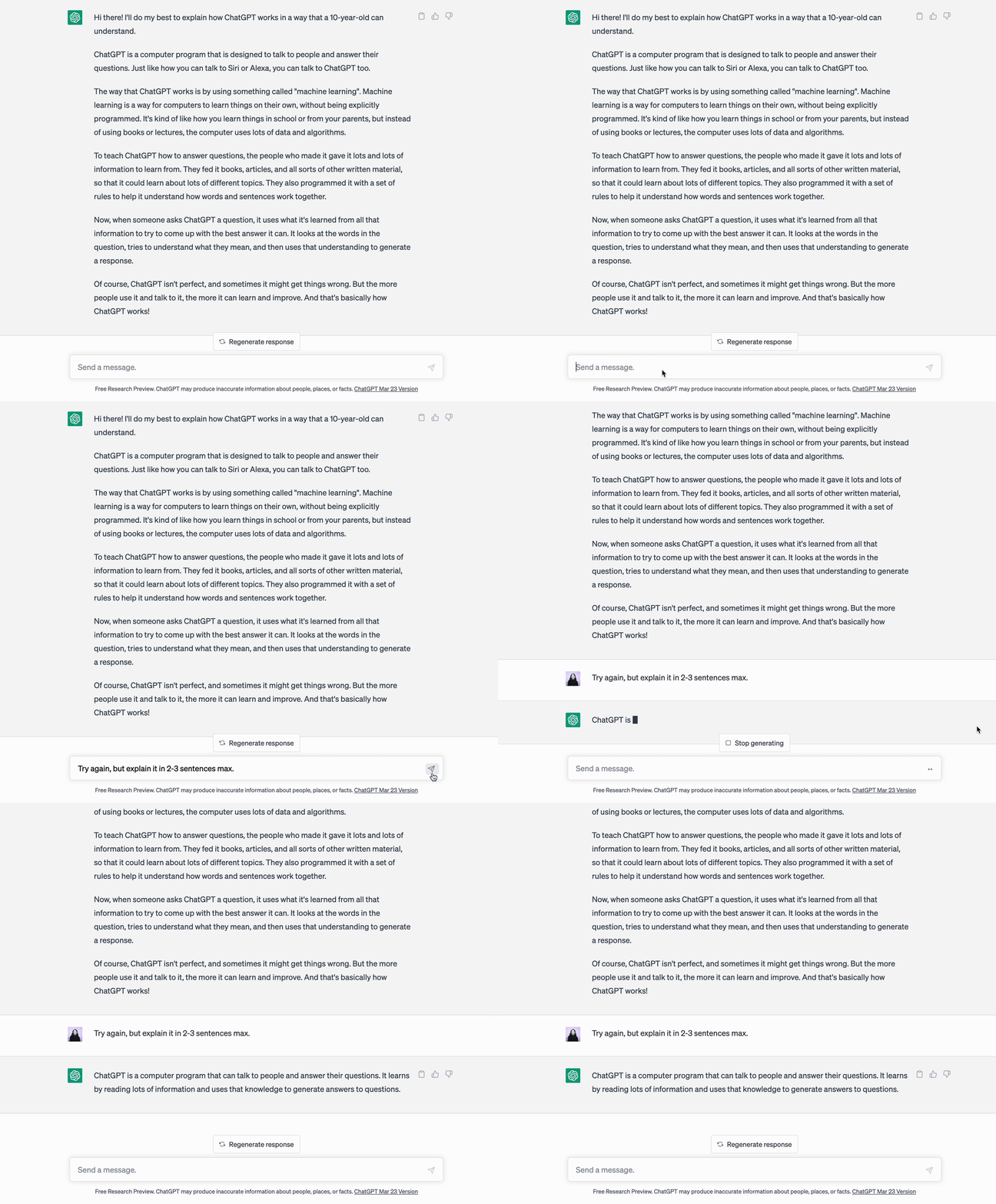
Notice how I didn't have to specify what "it" was in the second prompt? Or remind ChatGPT that the explanation should be suitable for a 10-year-old child? The default model, GPT-3.5-turbo, can hold 4,097 tokens in its "memory," which is equal to roughly three pages of text. This means that after a few thousand words or so, GPT-3.5-turbo will forget earlier parts of your conversation. The newest variant of GPT-4, however, can remember nearly 50 pages of content.
Get a new response
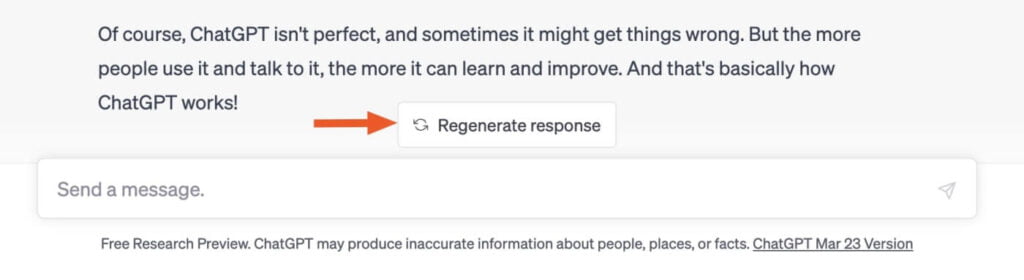
If the response isn't quite what you're looking for, and you want to use the same prompt, click Regenerate response to get ChatGPT to try again.
Copy the response
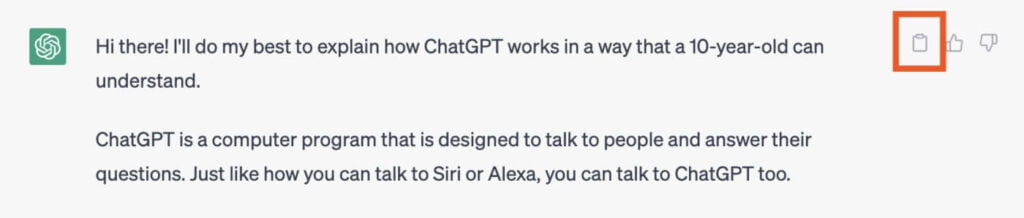
If you like ChatGPT's answer and want to share it somewhere else, click the clipboard icon beside the response to copy it. Once you do this, the icon will turn into a checkmark to indicate that it's been successfully copied. This button saves you from having to highlight the text and then using a keyboard shortcut to copy it.
As ChatGPT's been known to produce "plausible-sounding but incorrect" answers, be sure to review or fact-check every response before broadcasting it more widely.
Share your conversation
Instead of screenshotting bits and pieces of your conversation with ChatGPT to share with your friends and colleagues, click the Share chat icon, which looks like an upward-facing arrow. This will generate a unique URL for that specific conversation, which you can then share. When the person you shared the link with opens the chat, they can even pick up where you left off.

Like the response
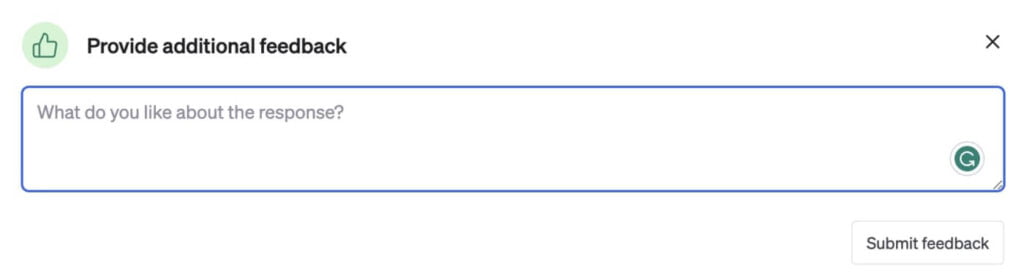
Since ChatGPT doesn't have the ability to think like humans do, it can't determine whether a response is good or bad on its own. Instead, it relies on humans to provide that data to help it learn. So, if the response was helpful, click the thumbs-up icon beside it. You also have the option to share what you liked about the response to help ChatGPT improve.
Dislike the response
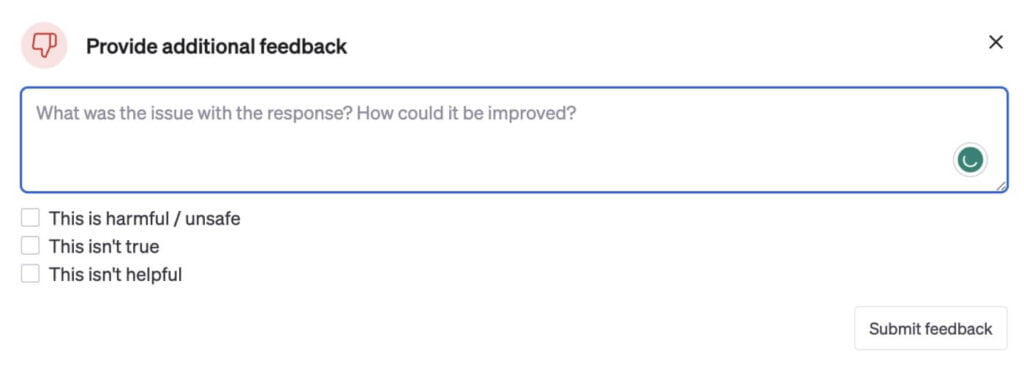
Alternatively, you can click the thumbs-down icon beside ChatGPT's response to dislike it. Again, you'll have the option to provide additional feedback by manually entering your response, or you can click any of the quick-select feedback options: This is harmful or unsafe; This isn't true; and This isn't helpful. (You can select more than one option.)
How to use ChatGPT's custom instructions
If you find yourself prompting ChatGPT with the same instructions every time you interact with it—like "Write the response in Python" or "Keep the tone casual"—now you can use custom instructions to get the answer you need, without having to repeat yourself. Here's how.
Note: The custom instructions feature is available for ChatGPT Plus users as of this writing, but access will be granted to all users in the near future.
First: How to use ChatGPT's custom instructions from a desktop
- With ChatGPT open, click your name, and select Custom instructions.
- In the Custom instructions window that appears, click the Enable for new chats toggle. (To turn this feature off, click the toggle again.)
- Enter helpful background information and instructions you'd like ChatGPT to consider in its responses.
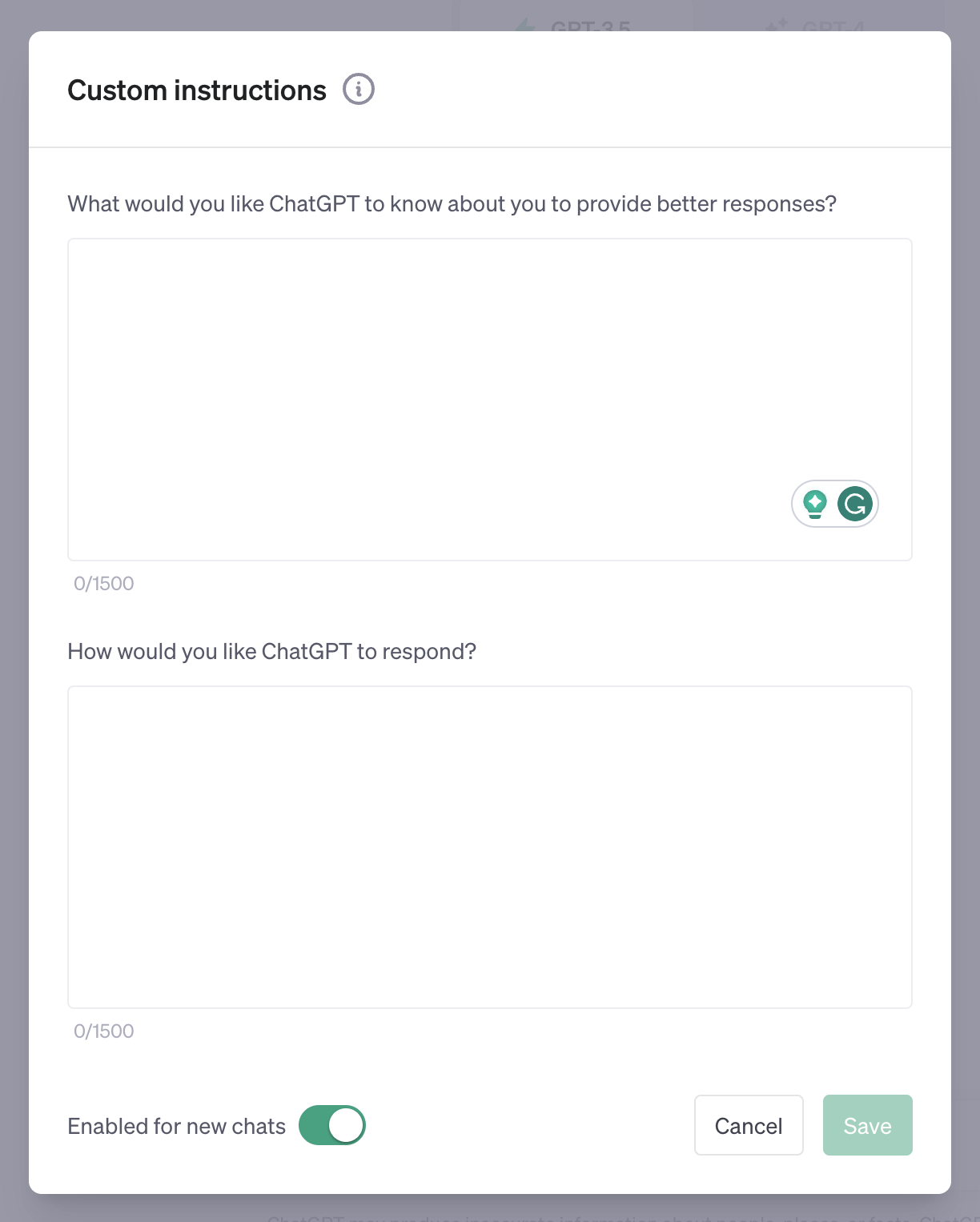
- Click Save.
Second: How to use ChatGPT's custom instructions from the mobile app
- With the ChatGPT app open, tap the menu icon, which looks like an ellipsis (
...). - Tap Settings.
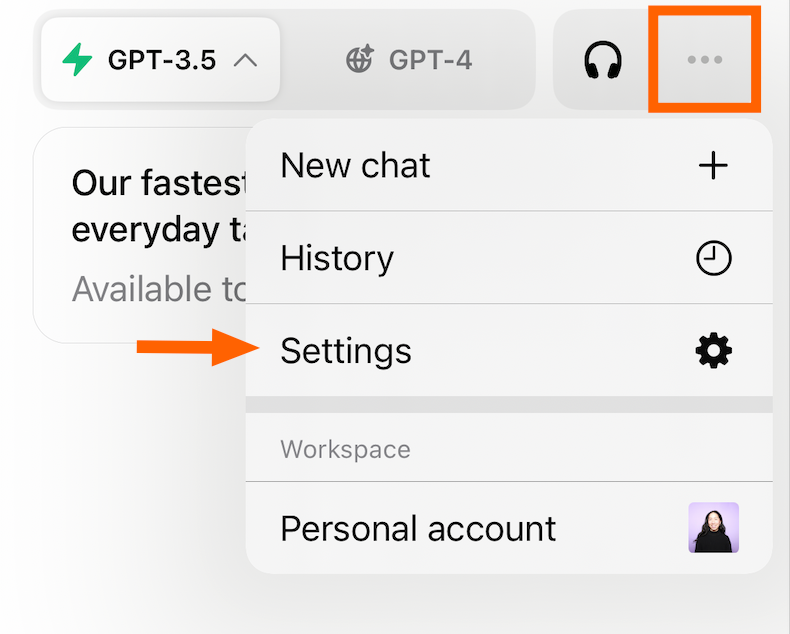
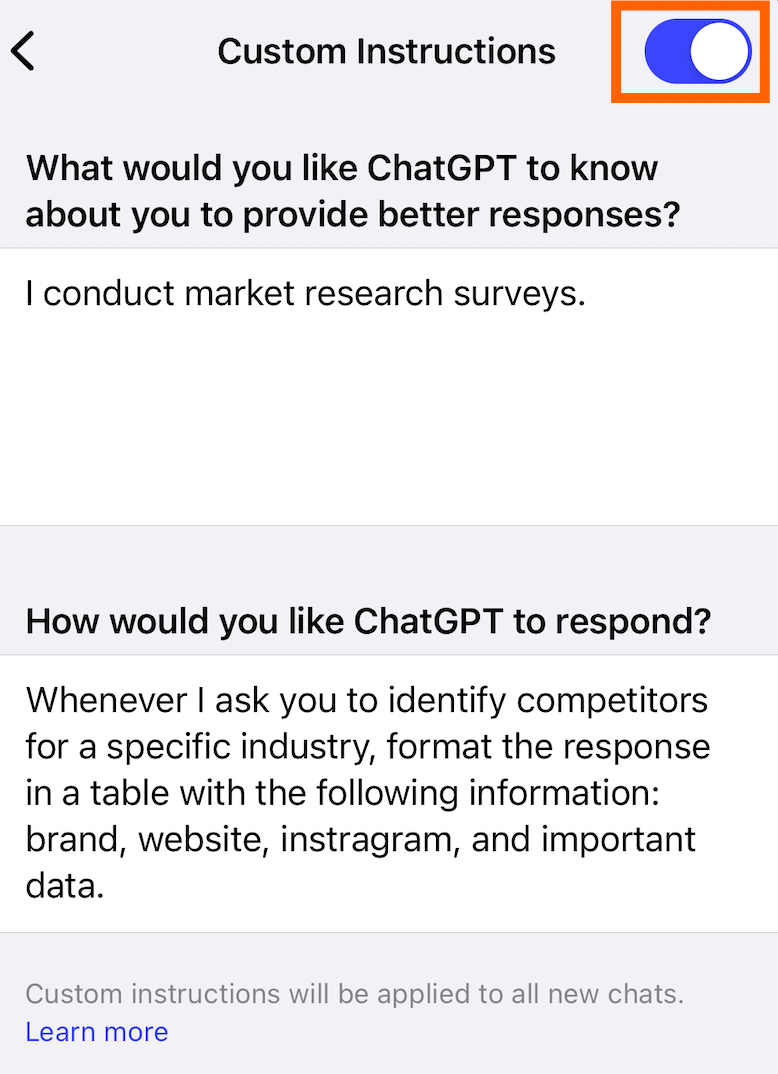
- Tap Custom Instructions.

- Tap the toggle beside Custom Instructions to turn the feature on. (Tap the toggle again to turn it off.)
- Enter helpful background information and instructions you'd like ChatGPT to consider in its responses.
Third: How to use ChatGPT's voice and image capabilities
ChatGPT recently launched voice and image capabilities (both in beta) for Plus and Enterprise users.
It's worth mentioning that these features don't work in tandem with Browse with Bing. This means that if you use the voice and image capabilities, ChatGPT's responses will be limited to data prior to September 2021.
Fourth: How to use voice with ChatGPT
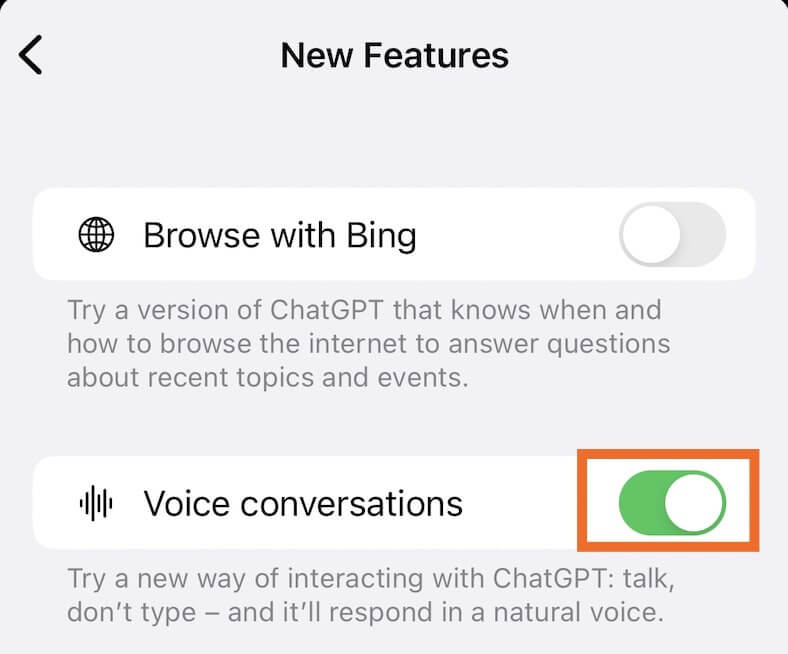
Instead of typing in your prompt, voice capability lets you verbally communicate back and forth with ChatGPT. As of this writing, this functionality is available only on iOS and Android. Before you get started, you have to enable voice capability.
- Tap the menu icon (
...). - Tap Settings.
- Tap New Features.
- Tap the toggle beside Voice conversations.
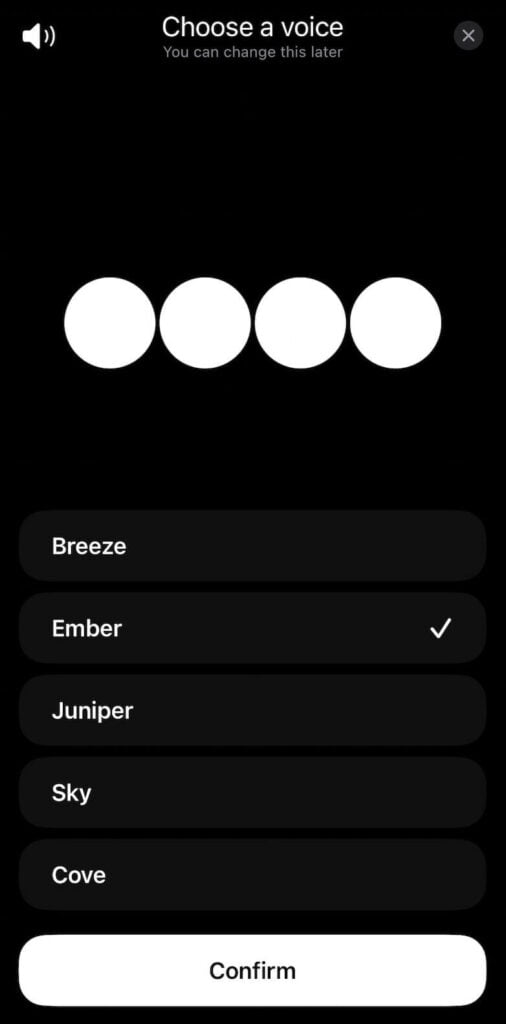
You can also choose a voice for ChatGPT. In the Settings menu, tap Voice. Select one of the five options, and then tap Confirm.
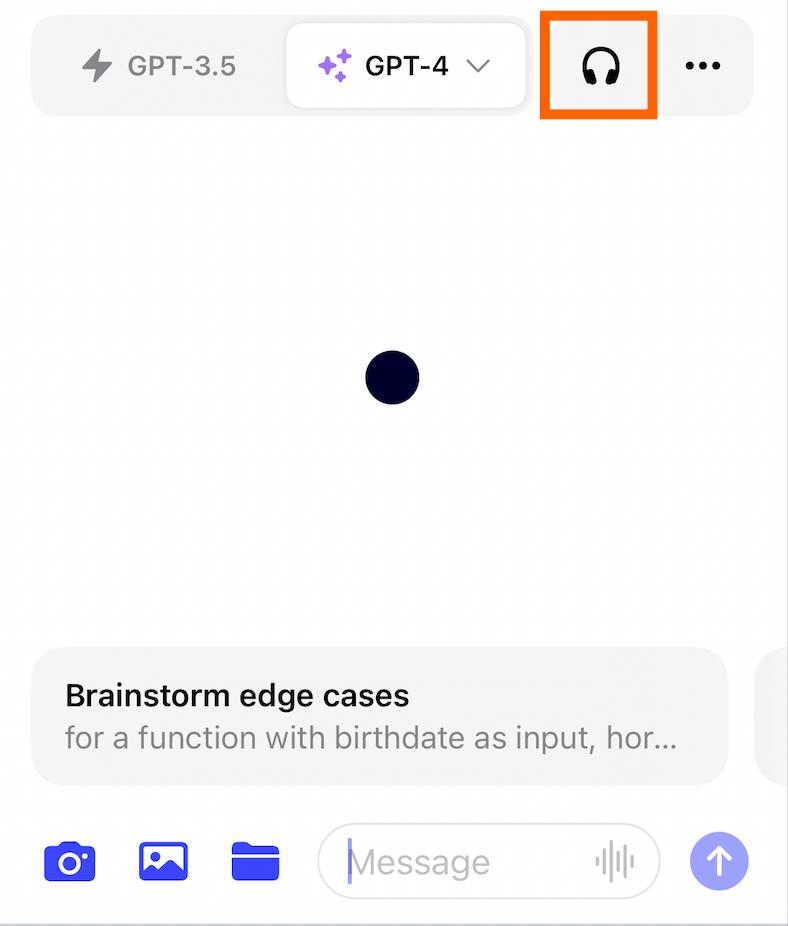
Now you're ready to chat with ChatGPT.
- Tap the headphone icon on your home screen.
- Once the screen prompts you to Start speaking, say your prompt.
- Once you've finished speaking, ChatGPT will process your request (no need to hit send) and voice its response to you. Need to pause ChatGPT? You can't. But, for some reason, you have three different ways to cut it off entirely: tap anywhere on the screen, the
X, or the stop icon.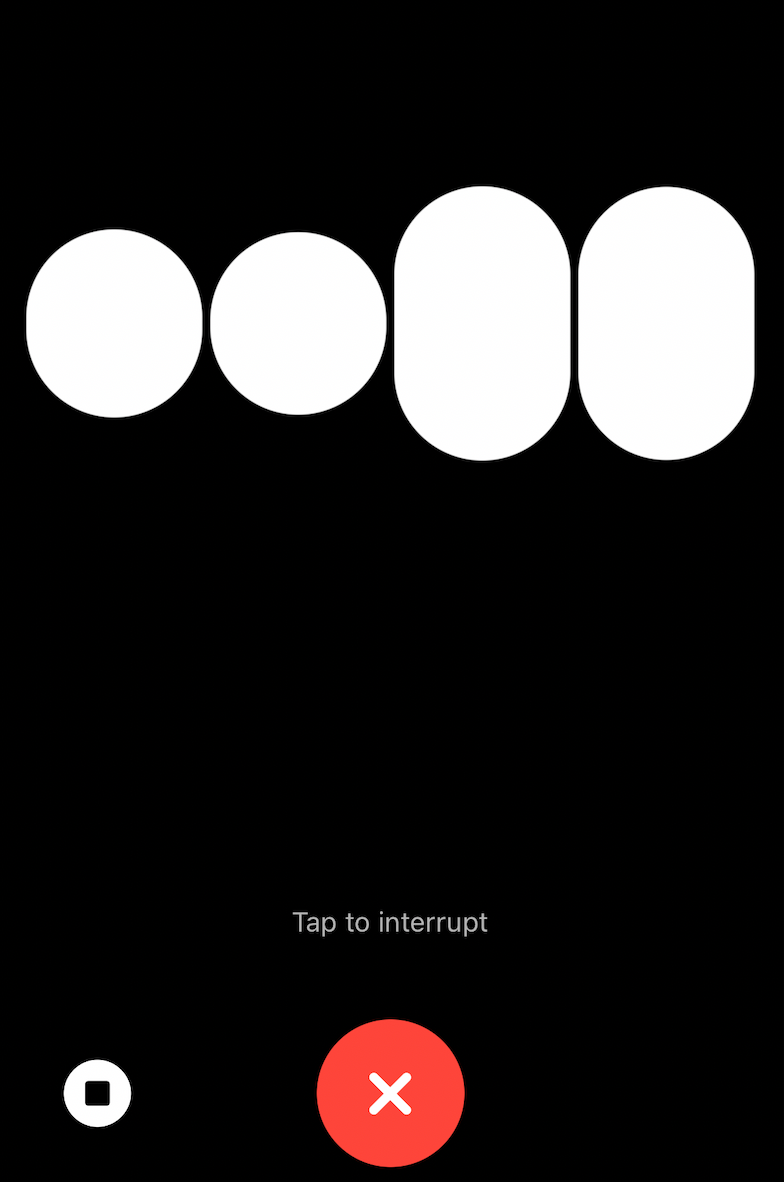 If you do interrupt ChatGPT, though, a text version of your entire conversation is automatically saved in your History.
 - If you want to continue the conversation, say your next prompt once Start speaking appears on your screen again.
How to use images with ChatGPT
ChatGPT's image input capability lets you share an image with your text prompt. This way, you can do things like take pictures of a neighborhood dog and ask ChatGPT what breed it is. Or ask it to create a recipe based on an image of the remnants of your fridge, like so:
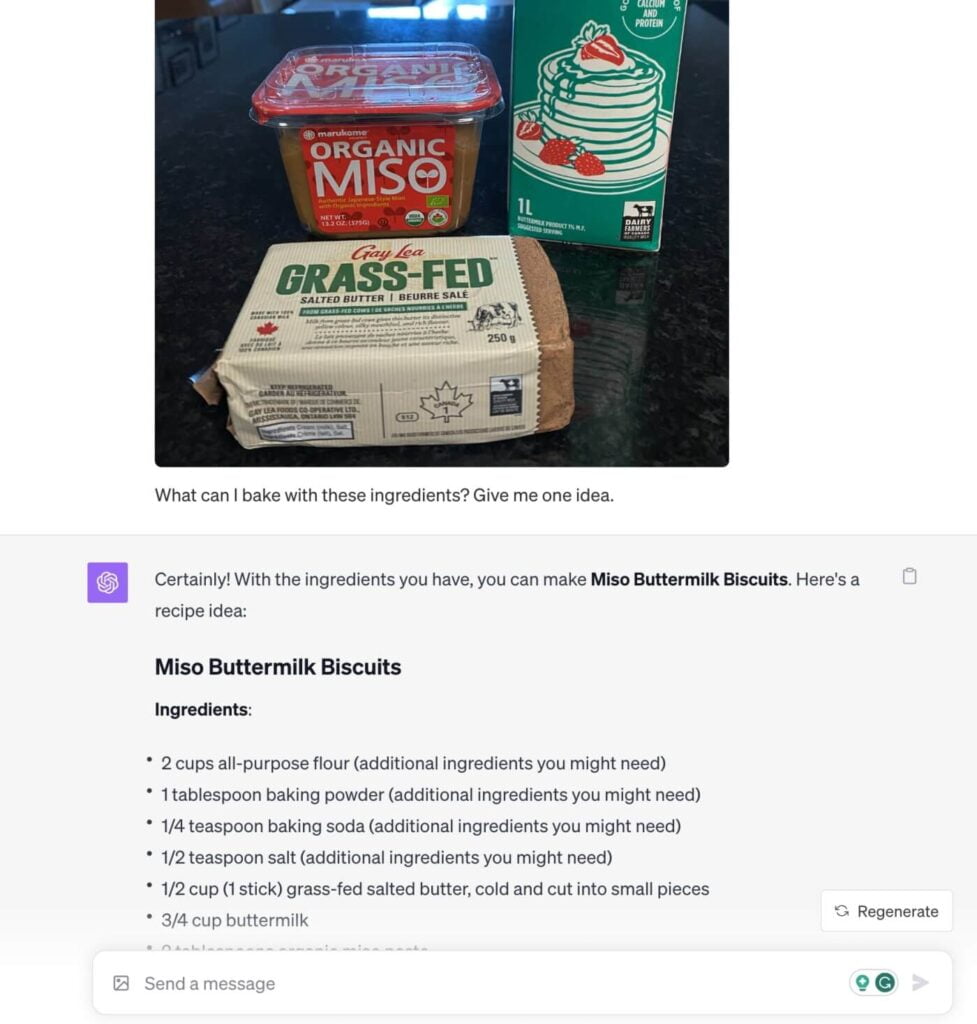
Here's how to use ChatGPT's image feature:
- Click the Attach images icon in the message bar. (In the mobile app, you can choose to take a photo or upload an image or file.)
- Select the image or file you want to share. You can select multiples.
- Enter your accompanying prompt in the message bar.
How to create AI images with ChatGPT
ChatGPT's not limited to just generating text and audio responses. OpenAI recently incorporated DALL·E 3, the latest version of its AI image generator, with ChatGPT for Plus and Enterprise users. This means you can ask ChatGPT to create an image of, say, a dog dressed as a mop pushing a mop bucket, and the AI would generate a few images (usually four) that match your idea.
- Click GPT-4 on the ChatGPT home screen.
- Click DALL·E 3.
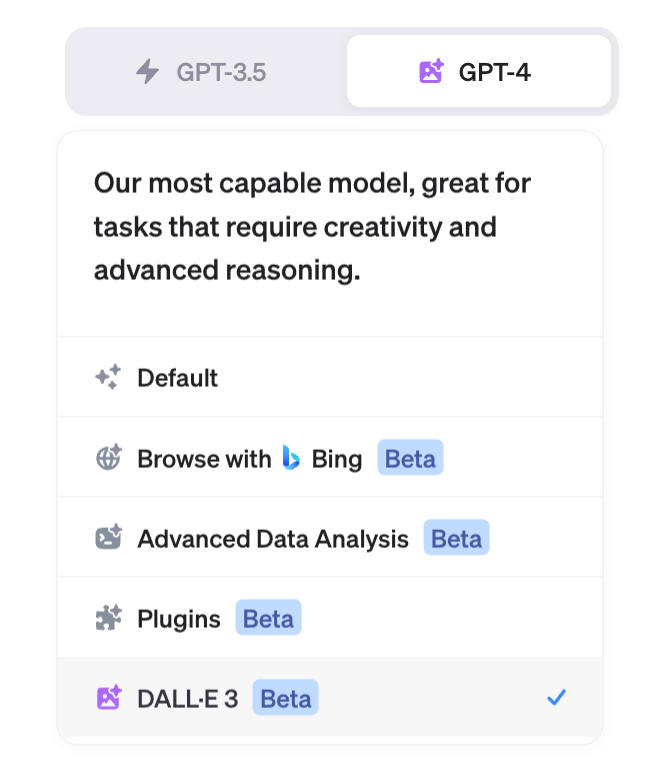
- Enter your text prompt as you normally would, and watch as ChatGPT brings your idea to life.
Here's what that mop-dog pushing a mop bucket would look like, according to AI.
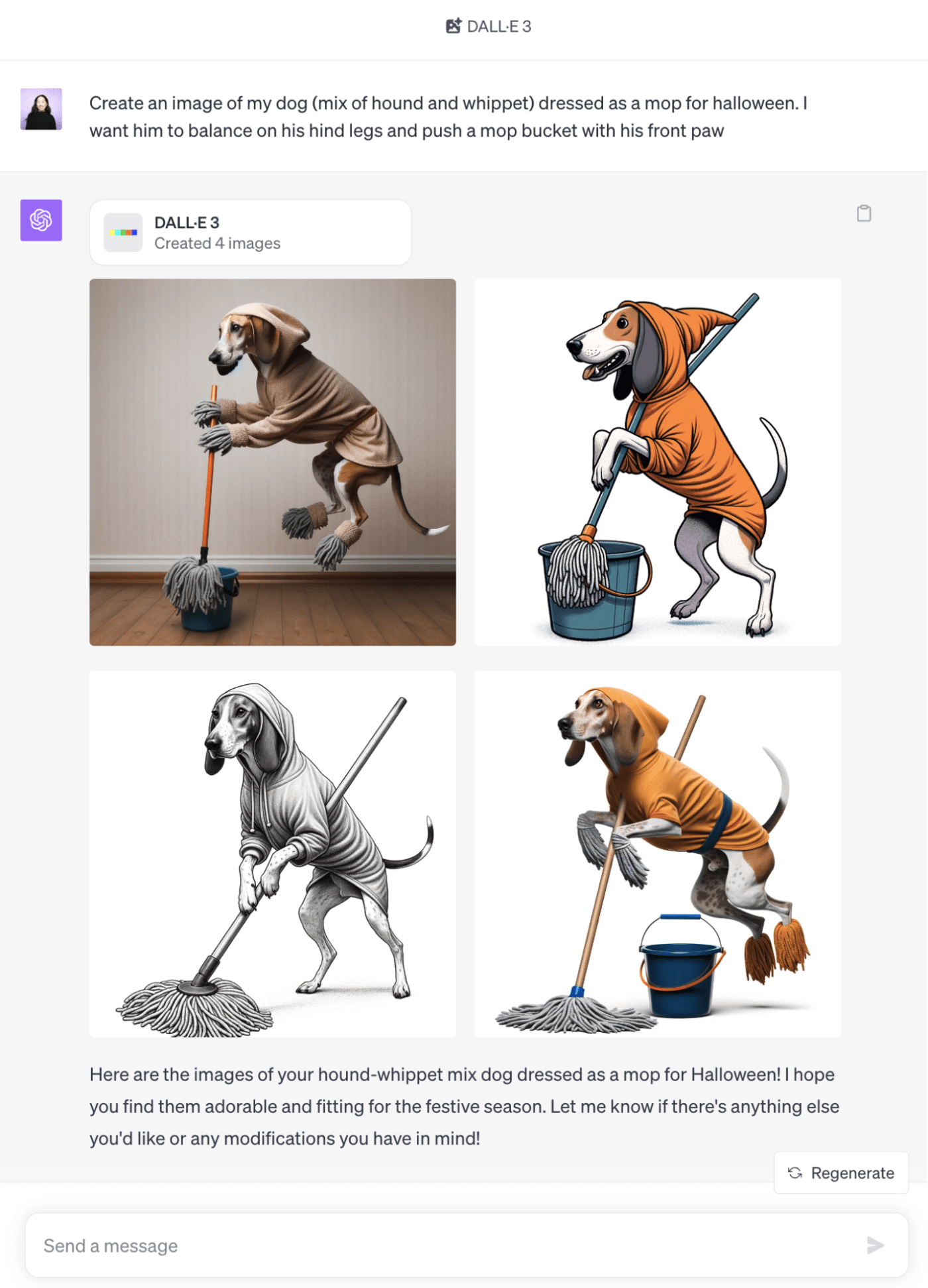
Note: Unlike using DALL·E on its own, which requires users to purchase image generation credits, it seems Plus and Enterprise users get unlimited access to DALL·E 3 with ChatGPT.
Can ChatGPT refuse to answer my prompts?
For its part, OpenAI has expressed its commitment to keeping AI "safe and broadly beneficial." To do this, they've introduced various safeguards, including the ability for ChatGPT to reject inappropriate, offensive, or illegal content.
And, to get specific, here's what ChatGPT told me when I asked, "What prompts won't you respond to?"
ChatGPT: As an AI language model, I don't respond to prompts that involve any form of inappropriate, offensive, or illegal content, including but not limited to:
1. Requests for explicit or offensive material.
2. Prompts that promote or encourage hate speech, discrimination, or violence against any individual or group.
3. Prompts that violate the privacy of individuals or organizations.
4. Prompts that involve illegal activities or encourage such activities.
5. Requests for personal information such as passwords, credit card details, or social security numbers.
Furthermore, I might not be able to respond to prompts that are too ambiguous or lack context. Please ensure that your prompts are clear and specific to receive the best possible response from me.
To be clear, this isn't a complete list of rejection-worthy prompts. But if you're ever wondering about ChatGPT's limits, like "Can ChatGPT remember my passwords?" (it can't), or "Can ChatGPT give me medical advice?" (also a hard no), just ask it yourself.
How to manage your data in ChatGPT
By default, your conversations in ChatGPT can be viewed by OpenAI and used as training data to improve its system. (This is a key reason why you shouldn't enter any personal or private data into ChatGPT.)
You can also access your account's entire chat history in the side panel of the home page.
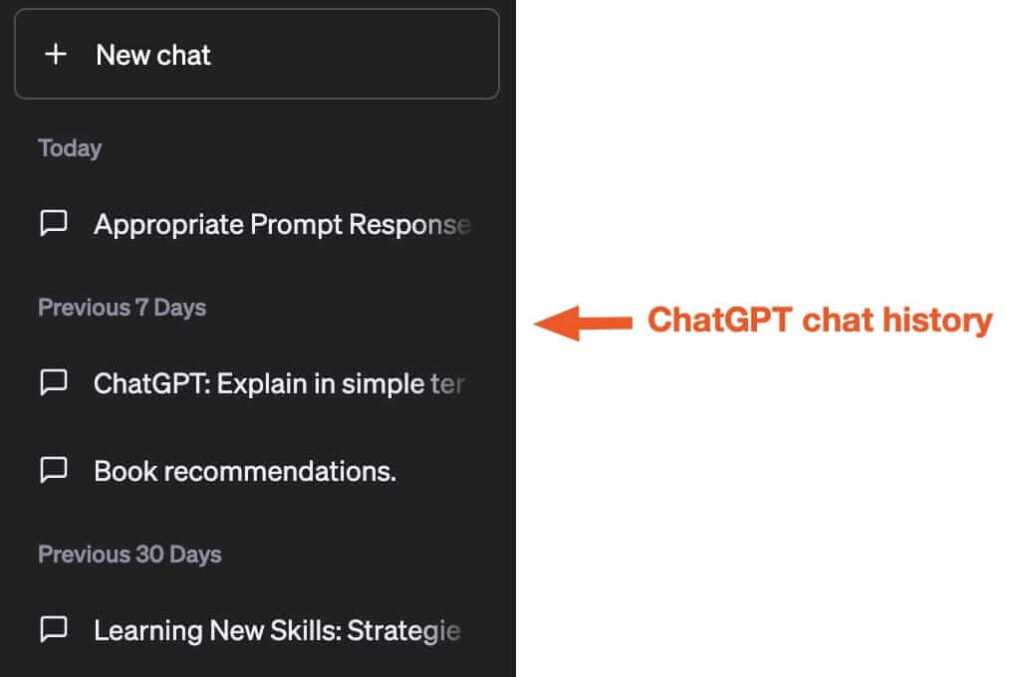
How to turn off your chat history in ChatGPT from a desktop
If you don't want ChatGPT to store your chat history, it's easy to turn this feature off. Here's how.
- Click on your profile in the sidebar, and then click Settings & Beta.
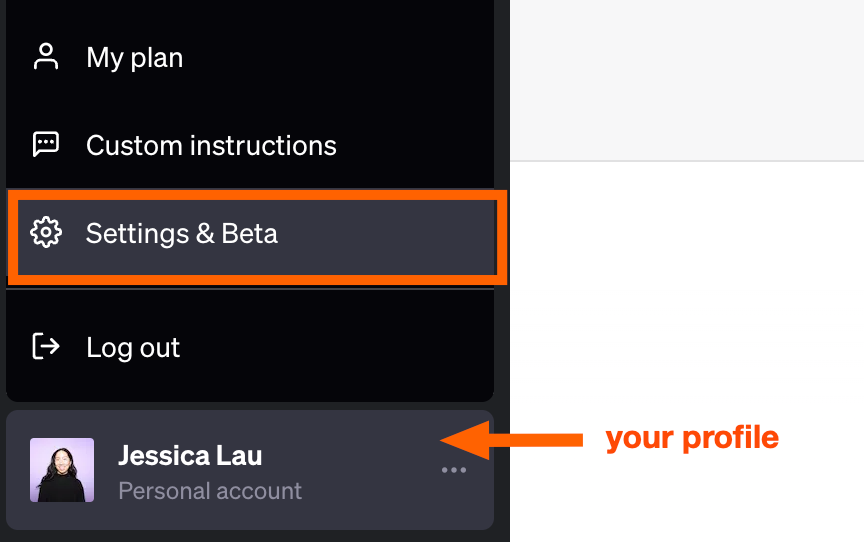
- In the Settings pop-up window, click Data controls.
- Click the toggle beside Chat History & training.
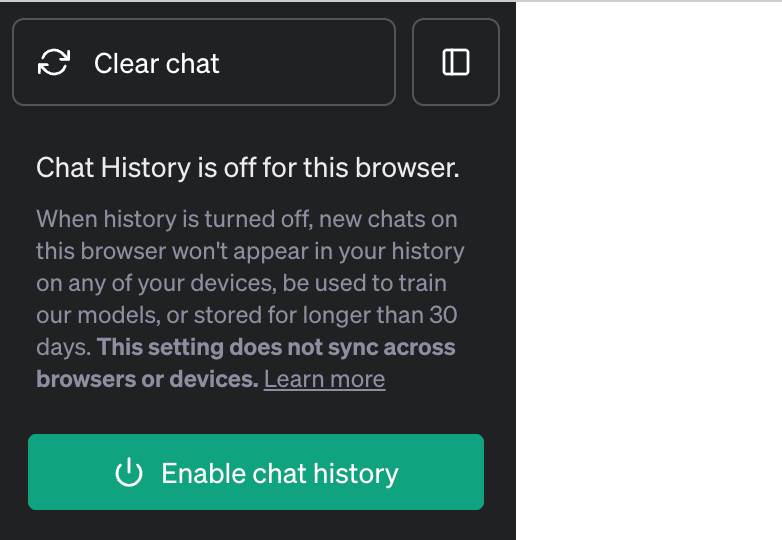
Once you do this, the sidebar of the home page will display a message that reads, Chat History is off for this browser (the setting doesn't sync across browsers or devices—even if you're logged in with the same account).
It's worth mentioning that if your chat history is turned off, you also won't be able to click through your chat history on any of your devices. If you want to access your history, you'll have to turn it back on again. To quickly do this, click Enable chat history in the sidebar.
How to delete your ChatGPT history from a desktop
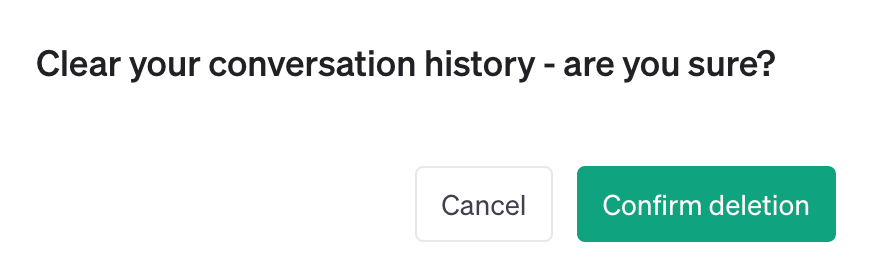
To delete all of your past conversations, here's how to do it in one fell swoop from your desktop.
- Click on your profile in the sidebar, and then click Settings & Beta.
- Beside Clear all chats, click Clear.
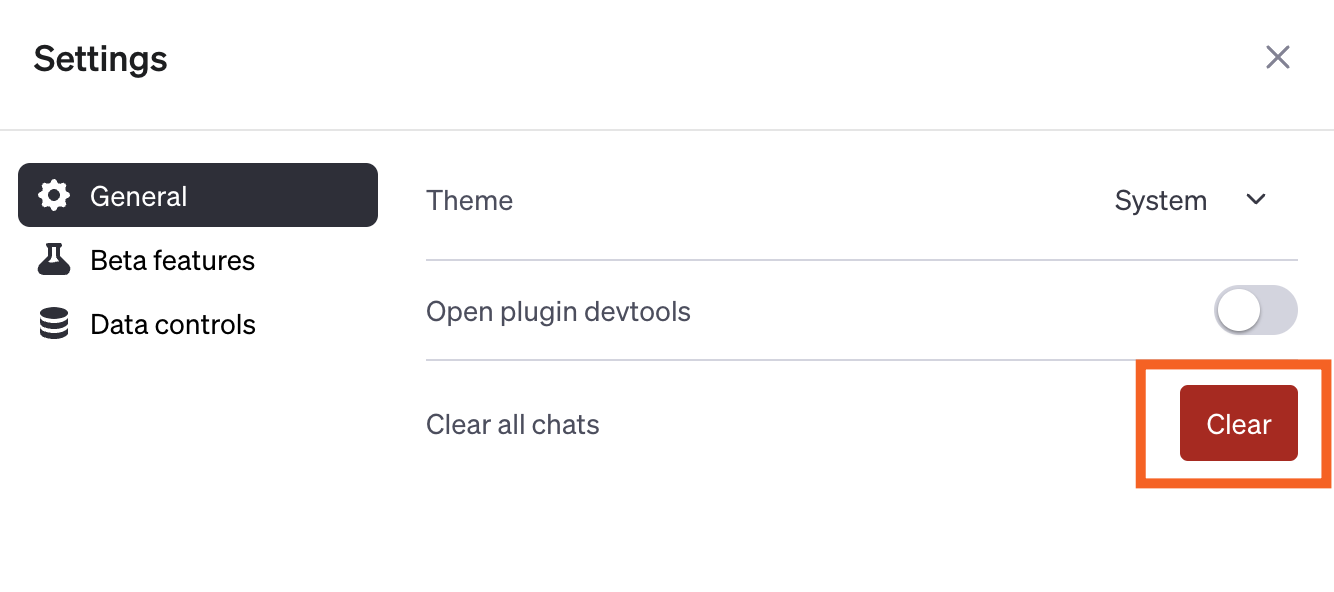
- In the confirmation pop-up that appears, click Confirm deletion. (There's no undo button.)
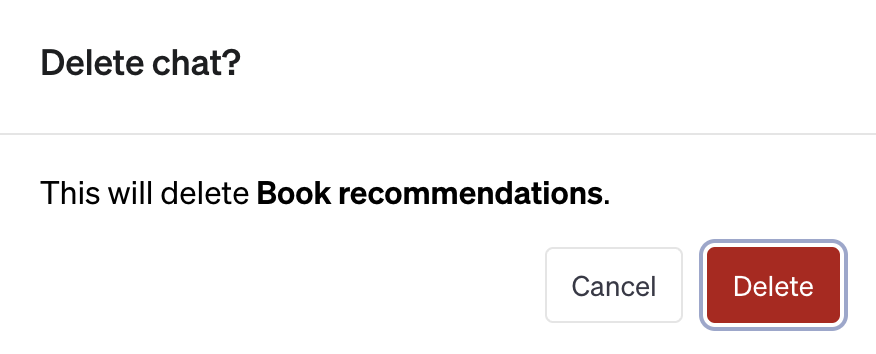
You can also delete specific conversations in your chat history. Here's how.
- Click the conversation name, and then click the delete icon, which looks like a garbage can.
- In the confirmation pop-up that appears, click Delete.
How to turn off your chat history in ChatGPT from the mobile app
- Tap the menu icon (
...). - Tap Settings.
- Tap Data Controls.
- Tap the toggle beside Chat History & Training. (To save new chats, tap the toggle again.)

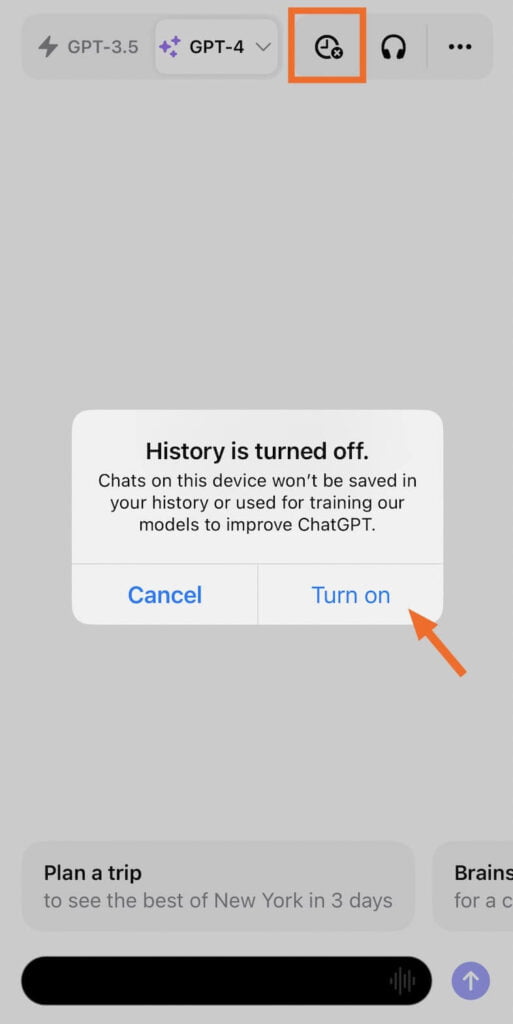
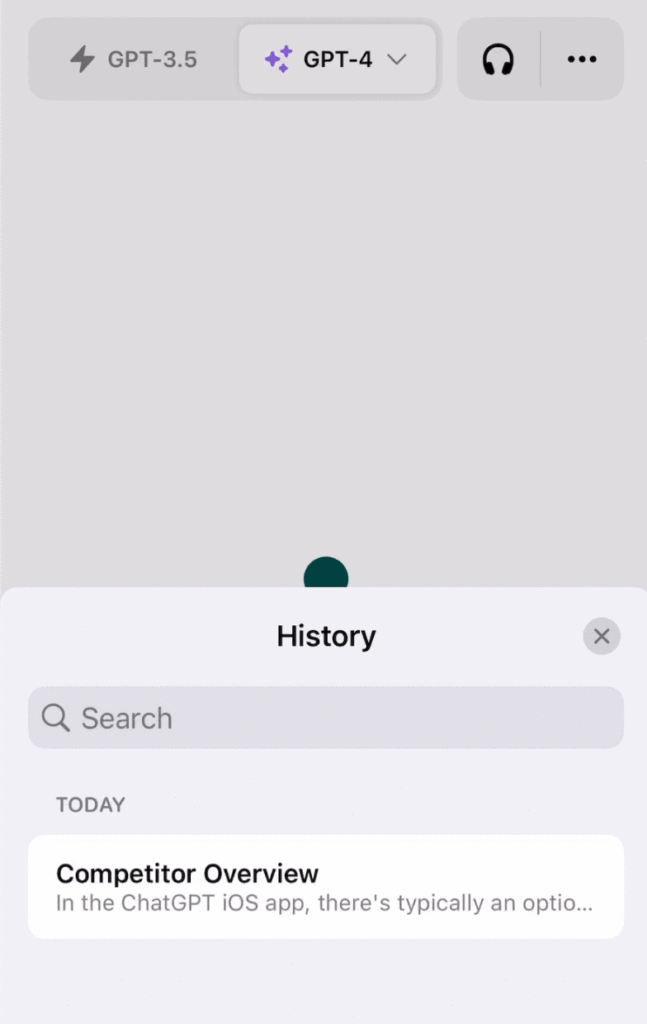
To turn your chat history back on, tap the history icon, which looks like a clock. Then tap Turn on.
Cách xóa lịch sử ChatGPT khỏi ứng dụng di động
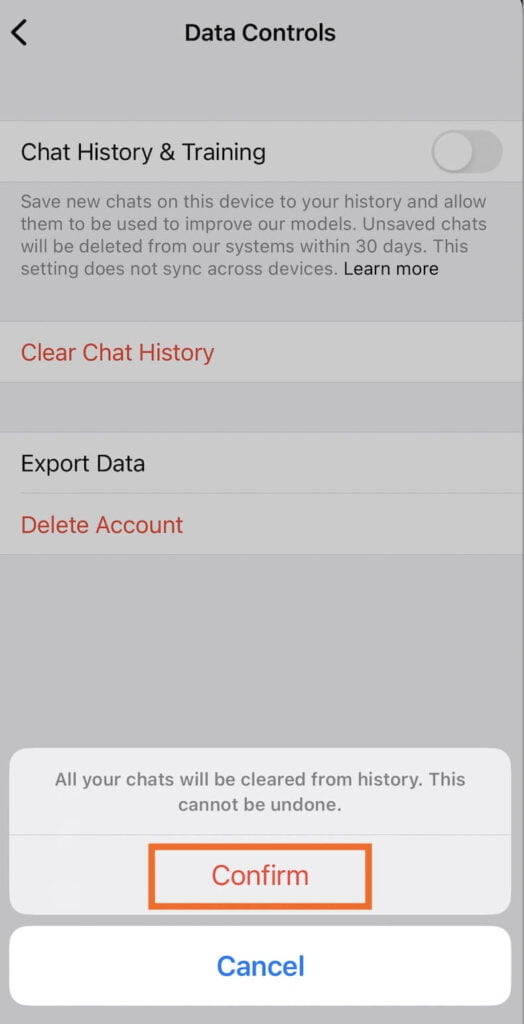
- Nhấn vàobiểu tượngmenu (
...). - Nhấn vàoCài đặt.
- Nhấn vàoKiểm soát dữ liệu.
- Nhấn vàoXóa lịch sử trò chuyện.
- Nhấn vàoXác nhận.
Dưới đây là cách xóa các cuộc trò chuyện cụ thể trong lịch sử trò chuyện khỏi ứng dụng di động.
- Nhấn vàobiểu tượngmenu (
...). - Nhấn vàoLịch sử.
- Vuốt sang trái trên cuộc trò chuyện trong lịch sử trò chuyện mà bạn muốn xóa. Nhấn vàobiểu tượngxóa, có hình giống thùng rác.
ChatGPT Plus là gì?
Trước sự phổ biến ngày càng tăng của ChatGPT (hay nói cách khác: đôi khi bị gián đoạn do lưu lượng truy cập cao), OpenAI đã giới thiệu gói đăng ký ChatGPT Plus. Với mức phí 20 USD/tháng, thành viên trả phí nhận được các quyền lợi sau:
- Quyền truy cập ChatGPT nói chung, ngay cả trong thời gian cao điểm
- Lựa chọn các mô hình ChatGPT
- Thời gian phản hồi nhanh hơn
- Quyền ưu tiên truy cập các tính năng và cải tiến mới, chẳng hạn như duyệt internet cùng khả năng sử dụng giọng nói và hình ảnh.
Đáng lưu ý là chỉ người đăng ký ChatGPT Plus mới có thể truy cập mô hình mới nhất, GPT-4 (với giới hạn 50 tin nhắn mỗi ba giờ).
Hóa ra không phải mọi từ viết tắt đều giống nhau. Chẳng hạn, bạn không thể gọi ChatGPT là GPT-4 (và ngược lại) vì chúng hoàn toàn không phải là cùng một thứ. Dưới đây là 12 công cụ viết nội dung AI tốt nhất dành cho blogger năm 2024.
