






The quickest method: open the repository on GitHub, go to Settings → Security and quality → Advanced Security, enable Dependency graph if necessary, then enable Dependabot alerts and Dependabot malware alerts. Malware alerts currently support Composer, Go, Maven, npm, NuGet, pip, RubyGems, and Rust (according to docs.github.com).
This article is for beginners with administrative or equivalent permissions on the repository. The goal is not to see “no alerts,” but to have all three switches enabled, the dependency graph correctly identifying the dependency files, and the team prepared to respond if an alert appears. Dependabot does not detect every new piece of malware: the package must be linked to security advisory data recorded by GitHub, and the manifest or lockfile must be recognized.
Distinguish the three features before enabling them
Dependabot alerts notify you about dependencies with known vulnerabilities. Dependabot malware alerts focus on packages or versions identified as malicious, such as a package whose release account has been compromised or that contains harmful behavior.
Dependabot security updates are a separate feature that can suggest or create pull requests to update dependencies and address alerts. Enabling security updates does not automatically replace enabling Dependabot alerts and malware alerts.
Both types of Dependabot alerts rely on the dependency graph and the GitHub Advisory Database. This database can receive malware advisories from sources such as the npm security team and the OpenSSF Malicious Packages repository (according to docs.github.com). This is therefore not a standalone malware scanner that you need to install on your computer.
Check the requirements and supported scope
- You have administrative access to the repository or permissions granted by your organization’s GitHub policies to change security features.
- The repository contains at least one manifest or lockfile from a supported ecosystem.
- The default branch contains the actual dependency that needs to be monitored.
- For private or internal repositories, your organization may have policies or a GitHub license that affect feature availability. If you do not see the enable button, check your permissions and organization policies instead of creating a new YAML configuration.
Dependabot malware alerts support the following common file groups. These examples show what to look for in the repository; recognition also depends on the project structure and dependency type.
| Ecosystem | Common files | Related tool or language |
|---|---|---|
| Composer | composer.json, composer.lock | PHP |
| Go | go.mod | Go modules |
| Maven | pom.xml | Java, Scala |
| npm | package.json, package-lock.json | JavaScript, Node.js |
| NuGet | .csproj, packages.config | .NET |
| pip | requirements.txt, Pipfile.lock | Python, PyPI |
| RubyGems | Gemfile, Gemfile.lock | Ruby |
| Rust | Cargo.toml, Cargo.lock | Cargo, crates.io |
For example, a Node.js repository typically needs package.json and may contain package-lock.json A Python repository may use requirements.txt or Pipfile.lock. Open Dependency graph after enabling it to confirm that GitHub has actually detected the file, rather than inferring this solely from the language name.
Enable alerts in the repository interface
1. Open Advanced Security
- Sign in to GitHub and open the repository you want to protect.
- Select the Settingstab. If the tab is not visible, open the options menu next to the repository name and select Settings.
- In the sidebar, select Security and quality, then open Advanced Security.
If you cannot see Settings or Advanced Security, you may lack the required permissions, be in the wrong repository, or be subject to an organization policy that prevents changes to these features. Ask the repository administrator to investigate instead of unnecessarily modifying configuration files.
2. Enable Dependency graph
- Find Dependency graph.
- If it is disabled, select Enable.
- Wait for GitHub to build or update the dependency graph before assessing the results.
Dependency graph is the data GitHub uses to infer direct and transitive dependencies from a manifest or lockfile. If it is already enabled, there is no need to disable and re-enable it. If the graph is still missing files afterward, check whether the files are in the default branch, have been committed, and are in a format supported by GitHub.
3. Enable Dependabot alerts
- On the Dependabot alertsrow, select Enable.
- Wait for the status to change to enabled and for the dependency graph to finish updating.
- Open the dependency graph section to check that the expected manifest or lockfile appears.
Dependabot malware alerts requires Dependabot alerts to be enabled first. If the malware alerts row does not appear, complete this step, reload the page, and check again (see docs.github.com).
4. Enable Dependabot malware alerts
- On the same Advanced Securitypage, find the Dependabot malware alertsrow.
- Select Enable and wait for the interface to confirm that it is enabled.
- Reopen the repository’s security area and check the Dependabot section.
You do not need to create .github/dependabot.yml solely to enable malware alerts. This file primarily configures version updates, such as the schedule for checks and creating pull requests for version updates. Add the file only if you actually want to configure dependency updates; do not treat it as a required step for malware alerts.
Verify without introducing a suspicious package into the project
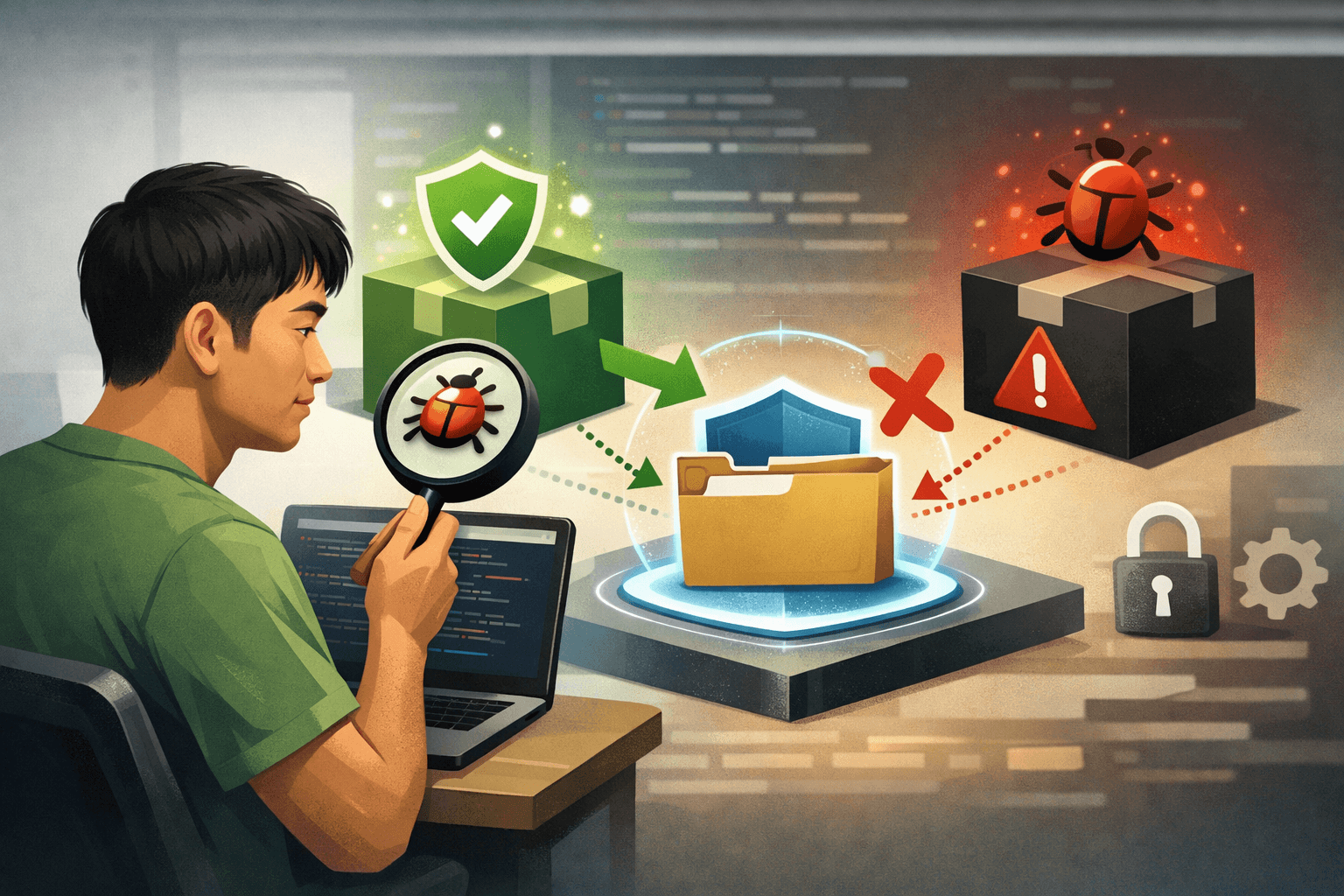
Do not deliberately install a package suspected of being malicious just to test the alert. Instead, verify the following observable indicators:
- Open Settings → Security and quality → Advanced Security and confirm that Dependency graph, Dependabot alerts and Dependabot malware alerts are all enabled.
- Open the repository’s security area, go to Dependabot and look for the Malwarefilter or section. There may be no entries if GitHub has not identified a malicious package in the current graph.
- Open Dependency graph and compare it with the actual files, such as
package-lock.json,requirements.txt,pom.xmlorGemfile.lock. - Check the notification settings for the responsible team or person. Recipients must have the appropriate permissions, be watching the repository, and have security-alert notifications enabled under the account or organization’s policies.
If the Malware section contains no alerts, the correct interpretation is “no matching advisory in the current dependency graph,” not “all dependencies are safe.”
Process for handling a malware alert
1. Determine the scope of impact
Open the alert and record the package name, ecosystem, version, related manifest or lockfile, whether the dependency is direct or transitive, and the fixed version, if GitHub provides one. Preserve the relevant commits, workflows, and build logs to support the investigation.
Do not look only at the direct declaration file. The malicious package may be a transitive dependency pinned in the lockfile, while the manifest shows only a higher-level package.
2. Isolate before continuing the build
- Pause any pipeline or build that is installing or using the affected version.
- Do not rerun the dependency installation command from the affected lockfile until a reviewed course of action is available.
- Do not share logs containing tokens, keys, or sensitive data in a public issue.
- If the package has run on a development machine, build machine, or server with secrets, immediately assess whether those secrets may have been accessed; revoke and reissue the relevant secrets according to the organization’s procedures.
Dependabot provides information about the dependency and remediation options, but it does not replace an incident-response process. Whether you need to investigate logs, isolate a machine, or report an incident depends on the permissions the package had and the data available in the environment.
3. Update, replace, and verify
- If a safe version is available, update the manifest and lockfile, and review the diff before merging.
- If no fixed version is available, remove the package, replace it with another dependency, or lock down the build process so it does not continue downloading the affected version.
- For a transitive dependency, update the higher-level package or use the ecosystem’s override/resolution mechanism after checking compatibility.
- Run the application tests in a clean environment, review the logs, and reopen the dependency graph to confirm that the affected version is no longer present.
Do not dismiss the alert simply because the package is a development dependency. Development dependencies can still run on a developer’s machine or in CI and may be able to access tokens.
Limitations and safe rollback
- It does not detect every malicious package: new malware may not yet have an advisory in the GitHub Advisory Database.
- It depends on dependency data: a missing, outdated, or unrecognized manifest or lockfile will make the dependency graph incomplete.
- Further investigation may be necessary: an internal package that shares a name and version with a public package may generate an alert that requires verification.
- It is not comprehensive behavioral scanning: malware alerts do not replace code review, secret protection, registry controls, sandboxing, or dependency-change review.
- There may be a delay: an alert may not appear immediately when a package is identified or an advisory is updated.
If you only want to stop the alerts, an administrator can disable Dependabot malware alerts under Advanced Security; doing so removes the monitoring layer but does not address the affected package. Do not delete the lockfile to hide the alert. If you have changed the dependency, retain the commit and diff so you can revert to the previous version in a separate branch or commit after assessing the impact. If the package ran with secrets, prioritize revoking and reissuing those secrets before restoring the pipeline.
Completion checklist
- Dependency graph is enabled.
- Dependabot alerts are enabled.
- Dependabot malware alerts are enabled.
- The project's manifest or lockfile appears in the Dependency graph.
- The responsible team member has reviewed and enabled the appropriate security alert notifications.
- The team knows how to open Dependabot → Malware.
- The procedures for isolating dependencies, updating the lockfile and rotating secrets have been documented.
Reference source
- Dependabot malware alerts— GitHub Docs.
- Configuring Dependabot malware alerts— GitHub Docs.
- Global security advisories— GitHub Docs.
- Dependency graph supported package ecosystems— GitHub Docs.
- Managing Dependabot malware alerts— GitHub Docs.
