






WordPress 7.1 plugin and theme testing should be performed before clicking update on a website with users, orders, or advertising campaigns. WordPress 7.1 was released on August 19, 2026; this cycle includes notable changes to responsive styling, the iframe editor, blocks, and developer APIs (according to WordPress.org).
The safe process consists of four parts: creating a list of components to check, backing up and setting up a WordPress staging site, testing real-world scenarios, and only then updating production step by step with a recovery plan. Compatibility should not be assessed solely based on the “tested with the latest version of WordPress” notice on a plugin page.
What needs to be prepared for WordPress 7.1 plugin and theme testing?
First, record the current state so you know exactly what changed after the update. You can create a table containing the plugin name, current version, planned update version, responsible function, importance level, and the person responsible for handling any issues.
- Core components: WordPress, PHP, the database, the parent theme, the child theme, and the server.
- Important plugins: e-commerce, forms, SEO, caching, security, backups, memberships, payments, and CRM integrations.
- Business flows: logging in, registering, searching, submitting forms, placing orders, making payments, sending email, and uploading files.
- Interface: the homepage, posts, product pages, menus, search, 404 pages, pop-ups, and the account area.
- Test data: posts with long titles, large images, tables, nested lists, videos, shortcodes, custom blocks, and multilingual content if the website supports it.
Read the WordPress 7.1 Field Guide and release notes if your theme or plugin deeply integrates with the Block Editor, block registration, Global Styles, the iframe editor, or the new APIs. In 7.1, the post editor runs in an iframe; older blocks using Block API version 2 or lower may need to be updated to version 3 to display and load assets correctly (according to WordPress.org).
Back up before updating WordPress and setting up staging
1. Create a restorable backup
A backup before updating WordPress must include both files and the database. Backing up only the wp-content directory is not enough, because orders, users, plugin settings, and content are all stored in the database.
- Back up all WordPress files, especially
wp-content,wp-config.phpand any related server configuration files. - Export the entire database, not just selected tables.
- Download at least one backup to a computer or store it somewhere independent of the hosting provider.
- Check the backup's creation time, size, and whether it can be extracted.
- If the website has orders or members, confirm that the latest data is included in the backup.
WordPress recommends backing up a website before updating so it can be restored if errors occur (according to WordPress.org). I also recommend trying to restore the backup in a separate environment at least once; a backup file that has never been restored is only an assumption, not yet a contingency plan.
2. Create a WordPress staging site that matches production
The WordPress staging site should be copied as closely as possible from the live website: the same PHP version, server configuration, theme, plugins, cron jobs, email services, and sample data. If staging uses different PHP or cache settings from production, the test results may be misleading.
- Set a password or restrict IP addresses so search engines cannot index the staging site.
- Disable real email sending, real payments, and any webhooks that could cause duplicate transactions.
- Mask or replace personal data if the staging site is shared with multiple people.
- Record the staging URL, test accounts, and the process for refreshing the data.
Do not deploy a WordPress beta or release candidate to production. Prerelease versions are designed for testing environments, not critical websites (according to WordPress.org).
Theme, plugin, and responsive styling testing checklist
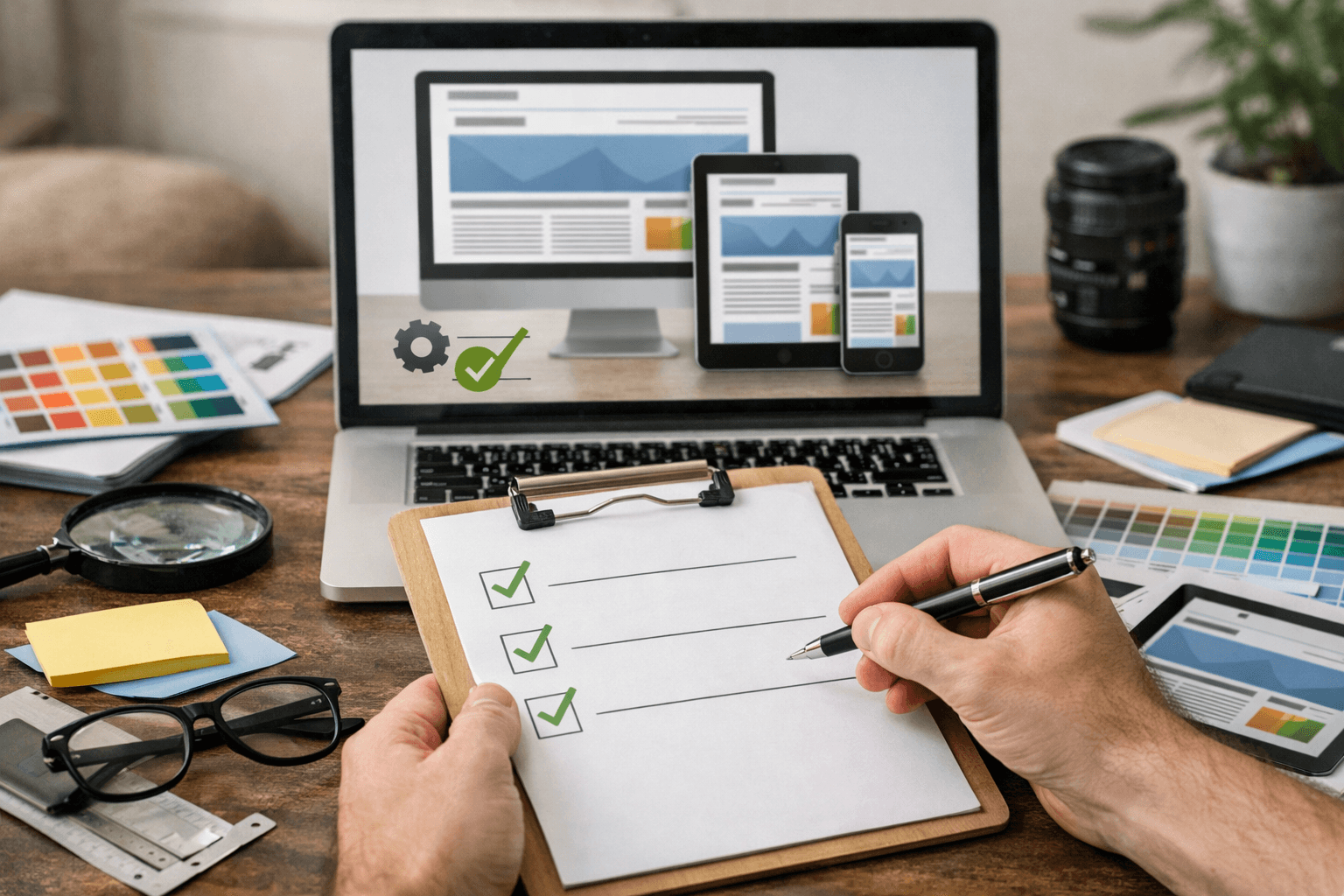
Update staging in groups rather than updating everything at once. This makes it easier to identify the component causing an issue. For important websites, you can test WordPress 7.1 first, then update plugins that directly depend on it, followed by the theme, and finally the less impactful plugins.
Check WordPress 7.1 plugin compatibility
- Activate each plugin and check the Plugins screen for PHP warnings, dependency errors, or migration notices.
- Open the plugin's administrative screens: settings, data lists, the form builder, and the block editor.
- Try creating, editing, saving, and deleting a sample record.
- Check the REST API, shortcodes, custom blocks, cron jobs, and webhooks if the plugin uses these features.
- Check the PHP and server logs after each update group; do not rely only on the interface continuing to load.
For an e-commerce plugin, create a test order from start to finish: add a product, apply a discount code, select shipping, pay in sandbox mode, receive the email, and check the order status. For a form plugin, test valid data, missing required fields, incorrectly formatted files, and recipient email addresses.
Test the theme and responsive styling
The theme needs to be tested in both the front end and the Site Editor. WordPress recommends using Theme Unit Test data to detect issues with long titles, images of various sizes, nested comments, and different HTML elements (according to WordPress.org).
- Check the logo, menu, headings, breadcrumb, sidebar, footer, and search area.
- Check whether posts contain tables, lists, quotes, aligned images, videos, and embedded blocks.
- Try adjusting colors, spacing, typography, and layout in the Site Editor.
- Perform responsive styling checks at phone, tablet, and desktop widths; resize the window to detect unusual breakpoints.
- Check hover, focus, and active states, open menu buttons, and error forms on touchscreens.
The result meets requirements when there is no unintended horizontal scrolling, text is not cut off, buttons are easy enough to tap, images do not overflow their containers, and important content still appears in the correct order. Do not check only the homepage; CSS issues often occur in older posts, product templates, or less frequently visited templates.
Production update and troubleshooting process
Update production only after staging has passed the checklist and you have time to monitor the site after deployment. For e-commerce websites, choose a period with few orders while ensuring technical staff are available on duty.
- Notify relevant stakeholders of the maintenance time and pause content changes if necessary.
- Create a new backup immediately before updating, even if a staging backup already exists.
- Record the current versions of WordPress, the theme, plugins, and PHP.
- Enable maintenance mode if the operation could interrupt transactions.
- Update WordPress 7.1 using the hosting tools or Dashboard; do not directly modify customized core files.
- Log in again, run the database upgrade if WordPress requests it, and clear the cache.
- Quickly check the homepage, login, forms, search, orders, sandbox payments, and email.
- Monitor error logs, uptime, 404 errors, response times, and transactions during the first few hours.
If you encounter a white screen, a critical error, or a business function outage, prioritize restoring service instead of trying to fix the issue directly in production. You can deactivate the problematic plugin using WP-CLI or a file manager, then review the logs and backup. WordPress also notes that the cache should be cleared after an update so changes appear immediately (according to WordPress.org).
Do not restore a backup hastily if the website has received new orders after the update, as this could cause newly generated data to be lost. Capture the current database, clearly record the time, and agree on an approach with the person responsible for the business before rolling back.
In summary, effective WordPress 7.1 plugin and theme testing is not a matter of clicking through a few pages and updating immediately. You need a restorable backup, a staging environment that mirrors production, testing of business flows, a review of the Block Editor, and responsive styling checks across multiple screen sizes. If a plugin or theme has not been confirmed as compatible, postpone that component separately, look for an update from the developer, and deploy it only when you have a clear replacement plan.
Reference source
