






If you still receive iOS or iPadOS update notifications after disabling automatic updates in Settings, you can use a Block OTA configuration to prevent over-the-air (OTA) updates from appearing on your iPhone or iPad. This configuration is provided by a third party, not Apple; the provider also states that it is not affiliated with Apple (according to Beta Profiles). Install it only if you understand the download source, and remember that delaying updates may cause your device to miss security patches.
Below is how to disable automatic updates, install a Block OTA configuration, check its status, delete a downloaded update file, and remove the configuration so the device can receive updates normally again.
Turn off automatic updates first
On your iPhone or iPad, open Settings > General > Software Update > Automatic Updates. Turn off the options for automatically downloading and installing iOS or iPadOS updates if you want to control when updates are installed. Apple still recommends enabling automatic updates so devices receive new features, bug fixes, and security updates promptly (according to Apple Support).
Install the Block OTA configuration
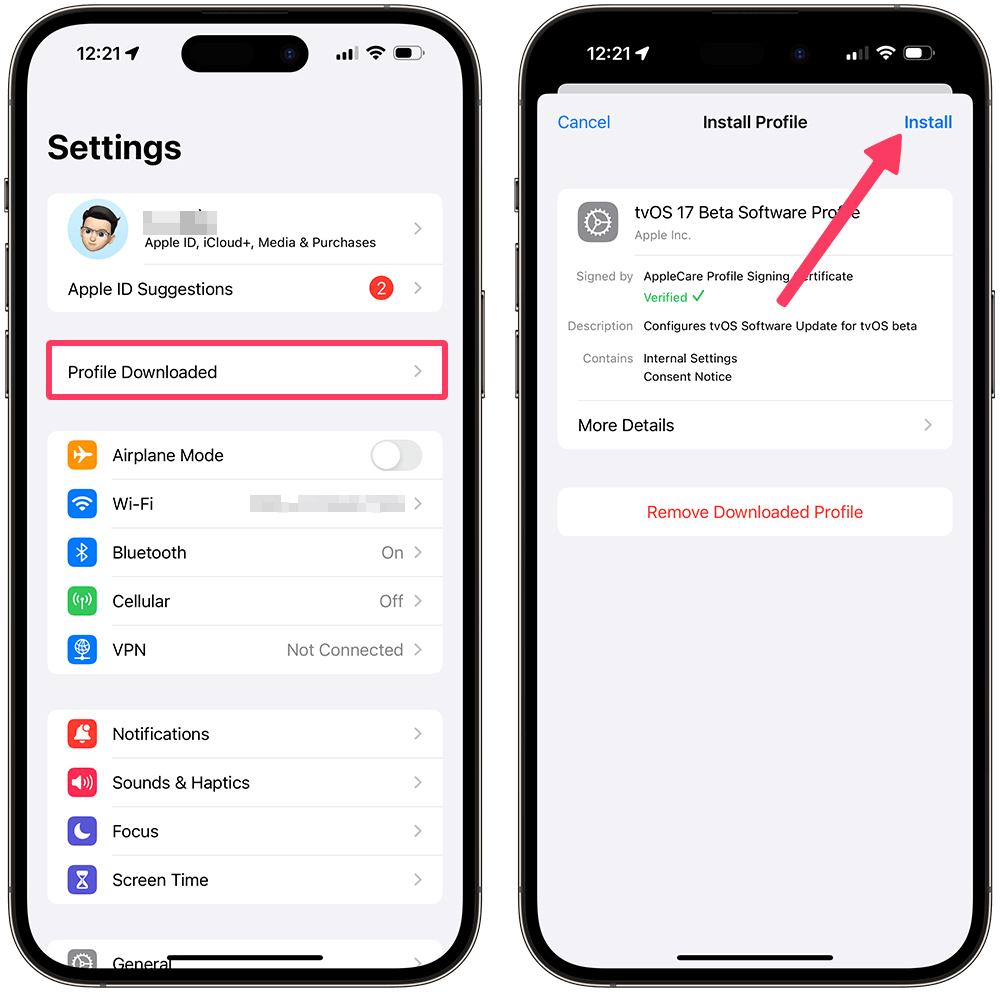
On your iPhone or iPad, open the Block OTA configuration download page and tap the download button. After the file downloads, the device will display a notification. Open Settings, tap Profile Downloaded or the downloaded profile, then follow the onscreen instructions to install it.
The provider currently recommends using a tvOS 26 beta profile to block OTA updates. Depending on the version and implementation, the profile may be named tvOS Beta Profile or OTA Update Blocker.
Note: The configuration may appear under the name tvOS Beta Profile. This does not mean that your iPhone or iPad is being upgraded to tvOS. Do not install configuration files from unknown sources; check the profile name and provider before approving the installation.
Restart and check
After installing the configuration, restart your iPhone or iPad. Then go to Settings > General > Software Update. If the screen says “iOS is up to date” or no OTA update is listed, the configuration may be working as described by the provider.
If the update still appears, go to Settings > General > iPhone/iPad Storage. Find the downloaded iOS or iPadOS update, tap it, and choose Delete Update if that option appears. Then return to the Software Update page and pull down to refresh it.
If the device still shows beta software or beta update options, open Settings > General > Software Update > Beta Updates and select Off. On iOS 16.4, iPadOS 16.4, and later, Apple supports turning off beta updates directly from this menu.
You do not need to change the device’s date and time to block OTA updates. Leave Set Automatically enabled, because manually changing the date can affect other services and apps.
Remove the Block OTA configuration
When you want your device to receive and install updates normally, remove the configuration as follows:
- Open the Settingsapp.
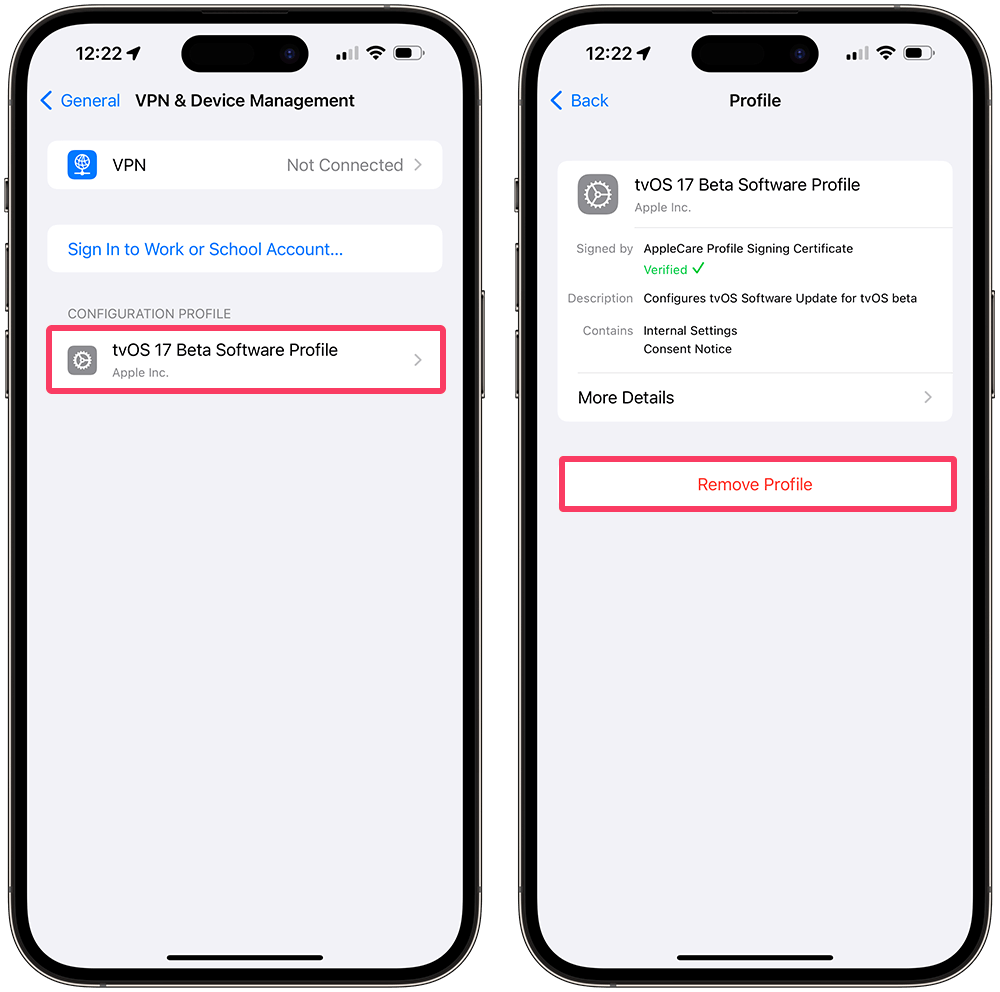
- Select General > VPN & Device Management.
- Tap the OTA Update Blocker, Block OTA, or tvOS Beta Profile currently displayed.
- Select Remove Profile or Remove Profile, then enter the device passcode if prompted.
- Restart the device, then go to Settings > General > Software Update to check for updates.
If you previously used the Block OTA DNS method, remove the old configuration under Settings > General > VPN & Device Management before switching to another method.
After removing the profile, check again at Settings > General > Software Update. If you installed an iOS or iPadOS beta using a computer, removing the profile alone is not enough to return to a public release. Apple says that you must erase and restore the device using a computer; this erases your data, so back up first. Also note that a backup created on beta software may not be compatible with an earlier version of iOS or iPadOS (according to Apple Support).
Recommendation: Block OTA updates only for as long as necessary, especially if you need to delay an update because of app compatibility or testing. When you no longer need the block, remove the configuration and update the device so it can continue receiving Apple’s bug fixes and security patches.
Related reading:
