






The short answer: No public key list can turn every Windows installation into a permanently legitimate license. The correct approach is to download the installation media from Microsoft, select the correct edition, back up your data, and activate Windows using a valid digital license or product key . This article does not provide leaked keys, activators, or public KMS commands.
Microsoft primarily uses two forms of activation: a digital license linked to the device and a 25-character product key. A code being accepted by the system only shows that it can be used in that particular context; you still need a lawful right to use it, such as a license supplied with the computer, a purchase transaction, or an organization’s volume licensing program (according to support.microsoft.com).
Should you choose Windows 11, 10, or 8.1?
| Version | Suitable when | Points to consider |
|---|---|---|
| Windows 11 | The computer meets the hardware requirements and you want to use an operating system that is still supported. | It requires a compatible processor, at least 4 GB of RAM, at least 64 GB of storage, UEFI/Secure Boot, and TPM 2.0. Windows 11 Home and Pro for personal use require an Internet connection and a Microsoft account during initial setup (according to support.microsoft.com). |
| Windows 10 | Older hardware or software that cannot yet move to Windows 11. | Windows 10 reached the end of official support on October 14, 2025; standard editions no longer receive free security updates from Microsoft (according to support.microsoft.com). |
| Windows 8/8.1 | Only when older software or hardware requires this version. | Windows 8.1 reached the end of support on January 10, 2023. It is not a suitable choice for a computer that regularly connects to the Internet (according to learn.microsoft.com). |
If the computer is eligible, Windows 11 should be the preferred choice. Do not use tools that bypass the hardware checks to install Windows 11, because this may affect update availability, stability, and security. For Windows 8/8.1, note that third-party download sites and key lists do not replace a license or installation media supported by Microsoft.
How do product keys, digital licenses, and KMS differ?
Digital license
A digital license is an activation entitlement linked to a device, usually for a specific edition. If the computer was previously activated with the correct edition, you can usually select I don't have a product keywhen reinstalling. After you connect to the Internet, Windows will activate automatically if the license still applies. Before reinstalling, open Settings > System > Activation in Windows 11 or Settings > Update & Security > Activation in Windows 10 to record the activation status.
If you see the message Windows is activated with a digital license linked to your Microsoft account, the license is linked to that account. If the computer has never had a valid license, reinstalling Windows does not create one.
25-character product key
A valid product key typically comes from the computer’s Certificate of Authenticity (COA) label and records, the product packaging, a purchase email, Microsoft Store, an authorized retailer, or an organization’s volume licensing program. The key has the format XXXXX-XXXXX-XXXXX-XXXXX-XXXXX (according to support.microsoft.com).
Generic installation keys, keys reposted on forums, and KMS keys are not proof that you own a retail license. KMS is designed for organizations with volume licensing; pointing a personal computer to a public KMS server does not turn it into a legally licensed retail copy of Windows.
Prepare the official installation USB drive
You need a computer with an Internet connection, a blank USB drive with at least 8 GB of capacity, and a backup of your data. The USB drive will be erased when the installation media is created. Before continuing, copy your documents, photos, authentication keys, and browser data to another drive.
- Go to Microsoft's official Windows download page. Choose Windows 11 or Windows 10 based on compatibility.
- Download the Media Creation Tool or the official ISO. Windows 10 Enterprise LTSC is generally covered by a separate licensing program; download it only if you have the corresponding access rights and license.
- Run the tool using an administrator account, accept the terms, and select the option to create installation media for another PC if needed.
- Choose the language and architecture from the options provided by Microsoft, then select the correctly named blank USB drive.
- Wait for the tool to finish. Do not remove the USB drive while data is being written.
Do not use an ISO with activation already “integrated,” a modified build, or an unidentified download link.
Install Windows from the USB drive
Check before installation
- Back up your Desktop, Documents, and Downloads folders, as well as all data on any partition that could be erased.
- Record the current edition: Home, Pro, Enterprise, or another edition. The edition must match the license.
- If the computer has specialized hardware, prepare the network drivers from the manufacturer's support website.
- For a clean installation, identify the operating-system partition precisely. Deleting the wrong partition can result in data loss.
Steps
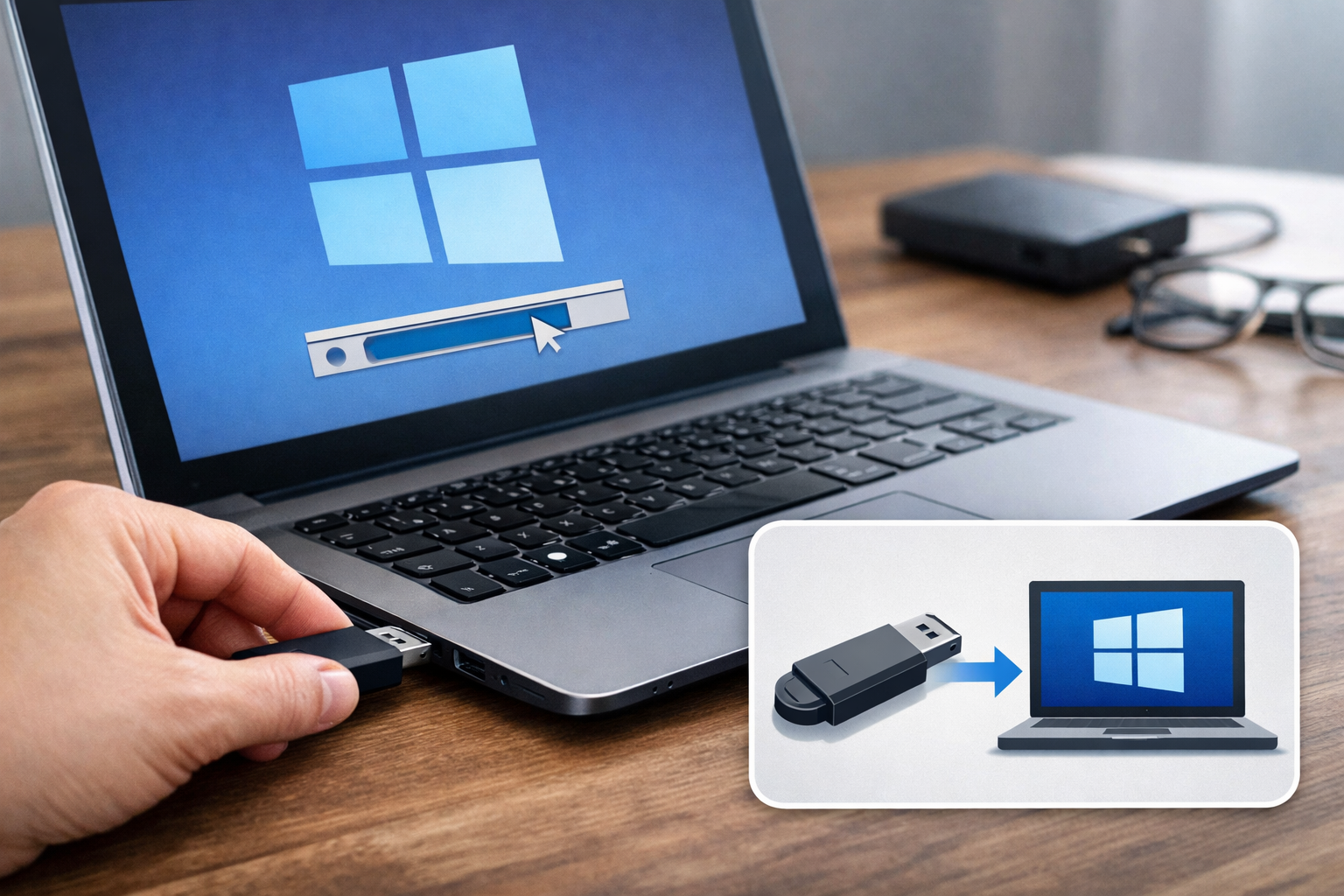
- Insert the USB drive into the computer to be installed, restart it, and open the Boot Menu. Common keys include F12, F9, Esc or Del, depending on the manufacturer.
- Select the entry containing UEFI and the USB drive's name.
- In Windows Setup, choose the language, time and currency format, and keyboard layout, then select Install now.
- When prompted for a product key, enter a valid key. If you have a digital license for the correct edition, select I don't have a product key.
- Select the correct edition, such as Home or Pro. A Home key will not activate Pro, and vice versa.
- Select Custom: Install Windows only for a clean installation. Delete only the partition you have confirmed is the old operating-system partition.
- Select the unallocated space and click Next. The computer will restart several times; once Setup has switched to the internal drive, do not boot from the USB drive again.
- Complete the account, network, and privacy setup. Windows 11 Home/Pro for personal use may require an Internet connection and a Microsoft account.
Example: the computer is running Windows 10 Home with an existing digital license, and you are reinstalling Windows 10 Home. At the product-key step, select I don't have a product key, select Windows 10 Home, complete the installation, connect to the Internet, and sign in to the linked account. The expected result is for the Activation page to report that Windows is activated. This example does not apply if you select Windows 10 Pro or if the computer has never had a license.
Activate and check Windows after installation
Use a digital license
- Connect to the Internet.
- Sign in to the Microsoft account linked to the license.
- Open the Activation page in Settings.
- Check for a message stating that Windows has been activated with a digital license.
If you have just replaced the motherboard, the license may not be automatically recognized again. Use the Activation troubleshooter and select the option indicating that you recently changed hardware. Do not use the seller's account or scripts downloaded from the Internet.
Use a product key
- Windows 11: Settings > System > Activation > Change product key.
- Windows 10: Settings > Update & Security > Activation > Change product key.
- Enter the 25-character product key you are authorized to use and follow the on-screen instructions.
If it is rejected, check the edition, device limit and characters entered. Do not try batches of public keys or run slmgr /skms it with an unfamiliar server.
To verify, open Settings > System > Activation in Windows 11, Settings > Update & Security > Activation in Windows 10, or Control Panel > System and Security > System in Windows 8.1. The Windows is activated message confirms the activation status at the time of the check; it does not replace an invoice, licensing records or proof of origin. Keep your purchase emails, device records and account information.
What to do if you do not have a product key
- The device was previously licensed: install the correct edition, select I don't have a product key and check the digital license after connecting to the Internet.
- The device has no license: install from an official source, then purchase a license through the Microsoft Store or an authorized retailer.
- Business or school device: contact your administrator to obtain the correct license; do not use a public KMS server yourself.
- You cannot purchase a license yet: you may install Windows to assess compatibility subject to Microsoft's terms, but an unactivated installation is not a perpetual license, and you should not use cracking tools.
Final verification checklist
- Choose the appropriate version; prioritize Windows 11 if the device meets its requirements.
- Download the ISO or Media Creation Tool from Microsoft.
- Back up your data and create the installation media using an empty USB drive.
- Install the correct edition.
- Use a valid digital license or product key.
- Open Activation to check the status.
- If you previously ran an activator or KMS tool from an unknown source, back up important data, scan the system with a trusted security tool and consider performing a clean installation from official installation media.
What enables reliable reactivation is not a claim of “permanent activation,” but clean installation media, the correct edition and records proving your right to use the license.
Reference source
- Activate Windows— Microsoft Support
- Find your Windows product key— Microsoft Support
- Create installation media for Windows— Microsoft Support
- Windows 11 System Requirements— Microsoft Support
- Windows 10 support has ended on October 14, 2025— Microsoft Support
- Windows 8.1 end of support on January 10, 2023— Microsoft Learn
- Danh sách Key Win 8 / Win 8.1 cài đặt và Active bản quyền vĩnh viễn— Học IT Ngay
- Danh sách Key Win 10 Pro Active bản quyền vĩnh viễn miễn phí— Học IT Ngay
- Tải Windows 10 Enterprise LTSC 2019 Nguyên gốc từ Microsoft— Học IT Ngay
