






The short answer: Back up your content and theme as two separate files, record the source blog, date, and storage location, and then check the backups in a controlled environment. Also enable 2-Step Verification for the Google Account, do not share passwords, and grant only the lowest role appropriate for the work.
After this article, you will have a backup log, an access-permissions table, and a process for revoking access when a contributor stops working with you. SaibABC Blog is only a proposed illustrative project; this article does not claim that the blog exists, has been backed up, or has been successfully restored.
Identify exactly what needs to be backed up
In Blogger, do not treat “backing up a blog” as a single operation. Separate at least the following three groups:
| Group | What to save | Purpose |
|---|---|---|
| Content | Posts, Pages, and related data such as comments, in a format supported by Blogger | Restore or transfer content |
| Theme | The theme file, layout, and custom code contained in the theme | Return to the state before changing the theme or editing code |
| Administrative resources | Original images, logos, favicons, editorial documents, and domain information, if applicable | Avoid having a backup with the posts but without the resources needed for editing or display |
A content backup does not replace a theme backup, and a theme backup does not contain all of your posts. In the Blogger dashboard, use the content-backup function according to the current instructions; under Theme, download the theme separately. Blogger also describes ways to back up or import content using Blogger tools and Google Takeout (according to support.google.com).
Before you begin: sign in to the correct Google Account, select the correct blog, and prepare a storage folder with controlled access. If you are using a real blog, record its current public URL. For a project without a real address, use [địa chỉ Blogspot thực hành], and do not turn the placeholder into a link.
Create a backup schedule and log
There is no single schedule that is mandatory for every blog. A blog that is updated infrequently can be backed up after each significant round of edits; a blog that is updated often should follow a fixed schedule. Before changing the theme, editing code, importing data, or making a major administrative change, create an additional backup immediately before the operation.
A schedule is useful only when it includes an owner, a storage location, and the next verification date. Do not write only “regular backup.” The following template can be copied into a spreadsheet:
| Date | Blog | Section | File name or location | Person responsible | Verification date | Result |
|---|---|---|---|---|---|---|
| [dd/mm/yyyy] | [địa chỉ blog] | Content | [thư mục lưu] | [tên/tài khoản] | [dd/mm/yyyy] | [chưa kiểm tra/đạt/cần xử lý] |
| [dd/mm/yyyy] | [địa chỉ blog] | Theme | [thư mục lưu] | [tên/tài khoản] | [dd/mm/yyyy] | [chưa kiểm tra/đạt/cần xử lý] |
Name files with the blog, data type, and date, for example [ten-blog]-noi-dung-YYYY-MM-DD or [ten-blog]-theme-truoc-khi-doi-YYYY-MM-DD. Replace [ten-blog] and YYYY-MM-DD with the actual data. Avoid names such as backup-moi-nhat if you regularly overwrite the same file.
Check a backup before treating it as usable
Downloading a file proves only that the download took place. To mark a backup as “passed,” check it in the following order:
- Correct source: Compare the blog name, Google Account, and creation time.
- Correct type: Clearly record whether it is a content or theme backup.
- Opens successfully: Check that the file has a reasonable size and is not an empty folder or a corrupted file.
- Usable: if you need to import content, test it on a test blog or a controlled destination blog; do not import directly into a public blog before reviewing the data.
- Required components are present: for content, check posts, Pages, comments, labels, images, and links; for the theme, open a test blog or use the preview to check the layout, gadgets, and custom code.
A successful import only shows that Blogger accepted the file. After importing, you must still check the displayed content, images, labels, links, and publication status. When you need to transfer content under your management, see also the Blogger content-transfer procedure; this article does not reproduce the full import procedure.
Rollback point: before changing the theme, keep the current theme file and record the blog's status. Before importing content, keep a content backup, record the list of existing posts, and do not delete data from the destination blog. If the result is not acceptable, stop making changes, restore from the backup, or undo each recorded change.
Protect the Google Account that manages the blog
Blogger access is tied to a Google Account. Therefore, even a good backup cannot fully compensate for losing the administrator account. Carry out the following tasks in Google Account management, not in the Blogger editor:
- Use a long, unique password and do not share it.
- Update the recovery email address or phone number that you still actually use.
- Turn on 2-Step Verification .
- Store backup codes in a secure location separate from any device that could be lost.
- Consider using a security key or an authenticator app if appropriate for your use case.
- Review devices, sign-in sessions, and verification methods after losing a phone, changing devices, or detecting unusual activity.
Open your Google Account's Security page, check 2-Step Verification and recovery information, and then complete the confirmation step requested by Google. You should be able to confirm that the verification method still works and that the backup codes have been stored securely; do not mark this as complete merely because you can see the option (according to support.google.com).
Do not send passwords by email, message, or shared document. When someone needs to write posts, invite their own Google Account to the blog with an appropriate role.
Choose a contributor role based on the work
Before inviting someone, clearly define what they need to do: write posts, edit their own posts, change the theme, modify settings, or manage members. Then choose the lowest level of access that meets the requirement.
| Role | Appropriate for | Do not grant by default |
|---|---|---|
| Author | Someone who writes or edits their own content within the limits allowed by Blogger | Permission to change the theme, modify settings, or manage members |
| Administrator | Someone responsible for operations, access control, settings, and major changes | Do not grant this role merely because the person needs to submit posts |
In Blogger, authors and administrators have different levels of access; members need a Google Account to manage the blog or publish posts. Check the member list in the correct blog rather than relying only on an internal tracking sheet (according to support.google.com).
A cautious model for a small team is to maintain one or two trusted administrators while starting writers as authors. This is a practical recommendation, not a requirement. Backup accounts must also be protected; do not make every member an administrator just to “be safe.”
Invite and verify access
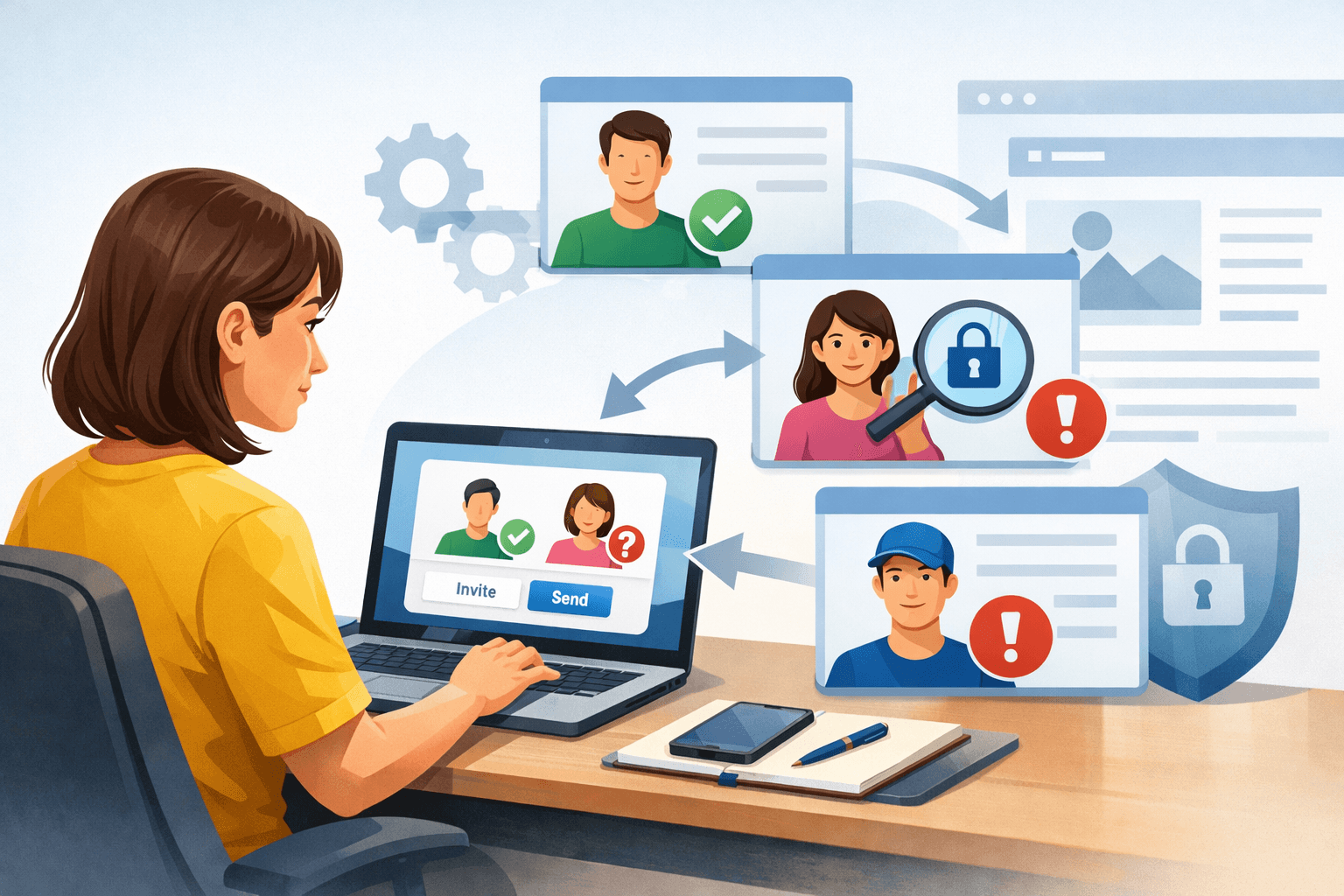
- In Blogger, select the correct blog and open the permissions or member-management section.
- Record the work, email address, and intended role before sending the invitation.
- Enter the recipient's Google Account email address; replace
[email cộng tác viên]with the actual address. - Send the invitation and wait for the recipient to accept it. A pending invitation is not the same as an active member with access.
- Record the account, role, date access was granted, work assignment, and review date.
- Compare the list in Blogger with the internal tracking sheet; confirm that the person joined the correct blog and was not given more access than needed.
| Account | Role | Work | Date granted | Access review date | Status |
|---|---|---|---|---|---|
| [email cộng tác viên] | Author | Write assigned posts | [dd/mm/yyyy] | [dd/mm/yyyy] | Active |
| [email quản trị] | Administrator | Configure settings and manage access | [dd/mm/yyyy] | [dd/mm/yyyy] | Active |
Revoking access when a collaborator leaves the team
Review access as soon as the person stops working with you; do not wait for the regular review schedule:
- Verify the email address and the correct blog before making changes.
- Check whether that person is the only administrator besides you.
- Keep content and theme backups before making major administrative changes.
- Downgrade the person’s role or remove them as a member, depending on the actual need.
- Recheck the administrators, authors and pending invitations.
- Open the public blog and several posts to confirm that the blog is still working.
Distinguish revoking access from deleting content. Removing someone as a member does not mean that their existing posts will disappear automatically; if you want to edit or delete those posts, treat that as a separate editorial decision and check it first (according to Blogger Help).
If you accidentally grant the wrong level of access, downgrade or revoke the access and then recheck the member list. Do not delete old posts just to resolve an access issue. If an administrator leaves the team, first make sure that at least one valid administrator remains and can sign in; if not, record the current state, check the accounts that previously managed the blog, and use the official support channel instead of making a series of broad changes.
Common problems and safe solutions
| Symptom | Possible cause | How to check and roll back |
|---|---|---|
| There is a file, but you do not know what it contains | The content backup was confused with the theme backup | Check the file type, source blog and creation date against the backup log |
| The layout is broken after changing the theme | The previous theme was not saved, or several groups of changes were made at once | Stop editing, restore the theme from before the change, and check each group of changes separately |
| The invited person cannot publish posts | The invitation has not been accepted, the email address is incorrect, or the wrong blog was selected | Check pending invitations, the email address and the member list |
| The former team member still appears on older posts | Revoking access does not mean deleting content | Check the current access separately from the decision about how to handle the posts |
| Administrative access is lost | You are signed in to the wrong account, or another administrator changed the access | Check the correct management accounts, notification emails and remaining administrators |
| The blog is no longer listed | You are using the wrong Google Account, or the blog was deleted | Check the account, deleted blogs and notifications; do not immediately conclude that the blog has been permanently lost (according to support.google.com) |
Exercise: check your procedure
Create a table with two sections: Backup log and Access list. Enter the blog, management account, content-backup date, theme-backup date, storage location, people authorized to read the backups, review date, authors, administrators and pending invitations.
The exercise is complete when you can answer these three questions without guessing:
- If a post is edited by mistake, which content backup do I look for?
- If the layout breaks, which theme backup do I look for?
- If a collaborator leaves today, where do I revoke their access, and how do I verify the result?
Clearly mark each item as passed, not checked or requires action. Do not mark an item as “restored” if you have only downloaded the file.
Next step
The complete process is to save content and the theme separately, give each backup an identifiable name, check the backups, protect the Google Account, assign access based on the task, and revoke access when the collaboration ends. The outcome of this article is a tracking table and review status—not evidence that the blog has actually achieved a successful result.
In the next step of the series, use this table to check links, images, menus and mobile display; continue only when you know which theme backup you can use to roll back:
Blogspot Maintenance: Fix Broken Links, Images, and Slow PagesReference source
- Back up or import your blog — Blogger Help.
- Control access to your blog — Blogger Help.
- Use themes to change how your blog looks — Blogger Help.
- Protecting your personal info with 2-Step Verification — Google Account Help.
- My blog disappeared — Blogger Help.
