






The short answer: review the post in this order: make sure the title matches its promise, the headings are clear, the URL is appropriate, the description reflects the content, the images are licensed for use and have alt text, and the links lead to real pages. Then open the public URL on a phone to check it. For a published post, keep the existing URL unless you have a clear reason to change it.
If your Blogger post already has content but the title is vague, the URL is difficult to read, the images lack alt text, or the links lead to the wrong place, stop before clicking Publish. This article shows you how to optimize a Blogger post using a verifiable process rather than mechanical keyword repetition.
After reading this article, you will know what to revise before publishing a new post, what you can update in an existing post, and what should remain stable. The recurring example is the sample post “5 Things to Prepare Before Starting a Personal Blog” from the SaibABC Blog project. SaibABC Blog is only a proposed illustrative project; this article does not claim that the blog has an actual address, readers, or real traffic results.
Prepare the Correct Draft Before Optimizing
First, open the correct post in the Blogger dashboard using an account with editing permission. Identify the post’s status:
- New post or draft: you can set the title, headings, URL, and description before publishing.
- Published post: you can edit the content, images, headings, description, and links, but you should not change the URL merely to add a few keywords.
- Sample post not yet published on the blog: use one of your actual posts to test the procedure; do not treat a post name in a plan as evidence that it has been published.
Copy the current content into a separate document and record the URL before editing a published post. This copy is a manual reference point and does not replace an official backup mechanism. If you find an error after updating, undo each change using the recorded version; do not delete the post or change its URL merely because of a minor error that can be fixed directly.
If the draft is still missing its promise, examples, or verification criteria, complete the content first. You can use [CWP_LINK:post-3717|quy trình viết bài blog hữu ích] at the step where you define the promise and outline; this shortcode is processed by a plugin and is not an assumed URL for the practice blog.
Write a Title That Matches What Readers Will Receive
The title should tell readers what the post is about and what result they can expect. Do not make the title broader than the actual content. If the post only explains how to prepare before starting a blog, the title should not promise that readers will build an entire website.
For the sample post, an appropriate title is “5 Things to Prepare Before Starting a Personal Blog”. This title clearly states the topic, audience, and scope. It makes no promise about search rankings, traffic, or revenue.
Google may generate the title link shown in search results from multiple signals, including the page title, main heading, prominent content, and link text. Therefore, the title in the editor should match the actual content rather than being written solely to attract attention (according to Google Search Central, https://developers.google.com/search/docs/appearance/title-link).
Title Checklist
- Can readers understand which question this post addresses?
- Does the title promise the result that the body of the post actually delivers?
- Does it contain vague wording such as “everything you need to know,” “perfect,” or “number one” that you cannot substantiate?
- Is the title clearly different from other posts on the same blog?
- Do the keywords appear naturally without making the sentence sound awkward?
Organize Headings So Readers Do Not Get Lost
Use headings to divide the post into genuinely different questions or stages. In Blogger, you can select heading levels in the editor; keep one main heading for the post title, then use subordinate headings in a logical order.
For this post, a sensible sequence is: prepare the draft, revise the title, check the headings, choose the URL, write the description, handle the images, add links, and then check the post on a phone. Each heading should help readers understand what they are deciding or doing.
Avoid two common problems:
- Headings used only for decoration: the subheading does not introduce any new content.
- Skipping heading levels: the article discusses one group of tasks and then jumps directly to a minor subsection without a higher-level heading to explain it.
You can check this by reading only the title and headings. If you can still understand the post’s problem, sequence, and outcome, the structure is clear enough. If the headings look like a keyword list, rewrite them as sentences describing an action or decision.
Choose an Appropriate URL for a New Post and Keep an Existing One Stable
Permalink or permalink is the part of the URL that points to a specific post. For a new post, choose a short, readable path that reflects the main topic. In Blogger, do this from the web dashboard: open the post, go to Post Settings > Permalink, select Custom Permalink, enter the path, then save or publish the post (according to Blogger Help, https://support.google.com/blogger/answer/41373?hl=en).
An example for a new post is:
toi-uu-bai-viet-bloggerUse this string only if the post is genuinely focused on optimizing a Blogger post. The URL does not need to contain every secondary keyword, such as “tieu-de-duong-dan-mo-ta-anh-lien-ket-noi-bo-dien-thoai.” An overly long URL is harder to read and does not help readers understand the topic more quickly.
Do not change the URL of a published sample post just to optimize it further
If “5 Things to Prepare Before Creating a Personal Blog” has already been published, record its current URL and prioritize keeping it unchanged. Changing the URL can cause old links to point to the wrong location. If a change is genuinely necessary, first record the old URL, identify the links that point to it, learn about the appropriate redirection mechanism in Blogger, and check the new URL after saving. If you have not confirmed how the redirect works, keeping the old URL is safer.
| Situation | Safer approach |
|---|---|
| The title is unclear, but the URL is still appropriate | Revise the title and content, but keep the URL unless there is a clear technical reason to change it. |
| The URL contains a typo, but the post already has links pointing to it | Assess the impact, record the old URL, and prepare a redirection plan before changing it. |
| The post has not been published | Choose the URL again before making the post public to avoid handling changes later. |
Write a search description when Blogger provides the option
A search description is a short summary that helps readers understand what a page is about before opening it. It is not a place to copy the entire title or list keywords.
In the Blogger dashboard, you can enable and set the search description under the blog’s meta tag settings; for individual posts, the option’s location may depend on the current settings and interface (according to Blogger Help, https://support.google.com/blogger/answer/9691230?hl=en). If you do not see the exact field name, look for the equivalent settings group instead of pasting code whose effect is unclear.
An example description for this post is: “Review the title, URL, description, images, internal links, and mobile display with this checklist before publishing a Blogger post.”
- State the post’s main topic.
- Explain what readers will be able to do or understand.
- Match the content that is actually present; do not promise results beyond its scope.
- Read naturally as a brief introduction, not as a string of keywords.
You do not need to claim that Google will always display exactly the description you enter. Search engines may generate a different snippet depending on the query and page content.
Optimize images with descriptive content, not keyword stuffing
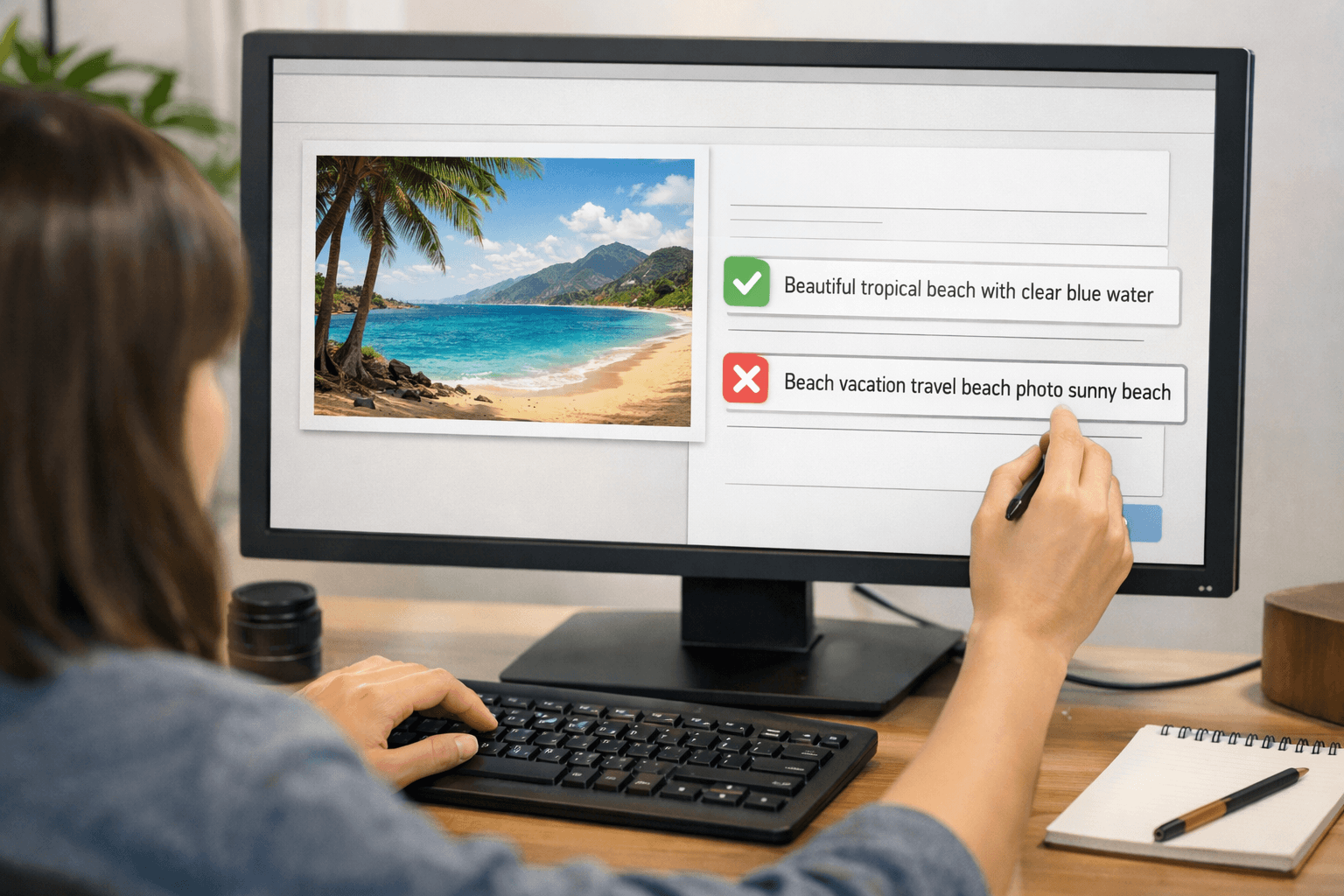
Before inserting an image, check that you have permission to use it. After inserting the image into the Blogger post, select it, open the image properties editor, and enter the alt text. Button names may vary depending on the interface language.
For example, if the image genuinely shows a notebook listing five things to prepare before creating a blog, the alt text could be “Notebook listing five things to prepare before creating a personal blog”. Use this sentence only if the image genuinely shows that content. If the image is merely an abstract illustration, do not describe it as though it were a screenshot of the Blogger interface.
Google recommends using descriptive file names, the context surrounding the image, and descriptive alt text; alt text also supports screen-reader users. Do not repeat a long list of keywords in the alt text, because this degrades the user experience (according to Google Search Central, https://developers.google.com/search/docs/appearance/google-images).
Image checklist
- Is the image directly relevant to the nearby paragraph?
- Would readers lose important information if the image failed to load?
- Does the alt text describe what is visible, rather than merely saying “beautiful image”?
- Does the image overflow its frame on a phone?
- Does the image file have a more understandable name than one in the form
IMG00023.jpg? - If the image is a link, can readers tell where the link will lead?
Add internal links where readers need the next step
An internal link connects one page on a blog to another page on the same website. Add a link when it helps readers understand a prerequisite, complete the next step, or read a more detailed explanation.
For example, in a post about optimizing Blogger posts, you could link to a guide on writing useful content in the section about completing the promise and outline. Do not place links in a context-free list merely to increase the number of links.
Anchor text is the text readers see and click. Use wording that accurately describes the destination, such as “useful blog post writing process”, rather than simply “click here.” Clear anchor text helps readers and search engines understand what the destination page is about (according to Google Search Central, https://developers.google.com/search/docs/crawling-indexing/links-crawlable).
Check every link
- Open the link in the preview or after the post has been published.
- Check that the destination page’s title and content match the anchor text.
- Check that the URL does not contain a placeholder such as
[địa chỉ Blogspot thực hành]. - If the destination page does not yet exist, remove the link or leave it in your working notes; do not turn a placeholder into a URL.
- If the link leads to an external website, verify the domain name and content before publishing.
In the sample project, pages such as “Learn Blogger,” “About,” or the “Content Writing” label may still be planned components. Do not add them to the post or menu as active destinations until they have a real URL and you have verified that they work.
Check the post from a reader’s perspective on a phone
Do not check the post only while signed in to the Blogger dashboard. After saving or publishing, open the public URL in a private window or a browser where you are not signed in. If the blog has restricted access, record that as a testing limitation; do not conclude that the post is publicly accessible.
- Is the title obscured or wrapped in a way that makes it difficult to read?
- Do the headings stand out from the body text without being excessively large?
- Does the image fit the screen width?
- Is there any unexpected horizontal scrolling?
- Do the links have enough spacing to tap comfortably?
- Do the menu, back button, or comment area obscure any content?
- Does the opening paragraph immediately explain what the post helps readers do?
The Blogger app for Android supports creating, editing, saving drafts, and publishing posts, but some blog settings, interface options, and layout adjustments must be performed in the web dashboard. Therefore, use the public URL and a physical phone to check how the post is displayed rather than relying only on the editor (according to Blogger Help, https://support.google.com/blogger/answer/9484964?hl=en).
Complete checklist before publishing or updating
You can copy the following checklist into your working document:
- [ ] The title accurately describes the question and outcome addressed by the post.
- [ ] The introduction’s promise is fully delivered in the body.
- [ ] The headings follow a clear order and do not merely repeat keywords.
- [ ] A new post has a short, readable URL that fits its topic.
- [ ] The URL of a publicly available post has not been changed arbitrarily.
- [ ] The search description, if used, accurately summarizes the content.
- [ ] The images are authorized for use and have suitable alt text.
- [ ] The images do not cause horizontal overflow on a phone.
- [ ] Internal links lead to real, working pages and have clear anchor text.
- [ ] No placeholder URLs, broken links, or temporary titles remain.
- [ ] The post has been opened from the perspective of a reader who is not signed in.
- [ ] The post has been checked at least once on a phone screen.
Exercise using the sample post
Open the improved version of the post “5 Things to Prepare Before Creating a Personal Blog” and create a table with three columns: Component, Planned change, Verification result. If SaibABC Blog does not yet exist, apply the exercise to your own blog; do not mark the sample project’s results as completed.
| Component | Planned change | Result to verify |
|---|---|---|
| Title | Keep it or rewrite it so that it accurately conveys the five preparations. | The reader understands the scope immediately from the title. |
| Headings | Separate the five tasks into sections that are easy to scan. | The headings can be read on their own while still conveying the sequence. |
| URL | Choose a new one only if the post has not been published. | The URL is short and readable; an older post keeps its URL if it already has links pointing to it. |
| Images | Choose images that are genuinely relevant and add alt text. | The alt text accurately describes the image; the image does not overflow on a phone. |
| Links | Link to posts or pages that already exist. | Each link opens the correct destination in a private window. |
What proves that the post is ready?
The post passes the checklist when a reader who is not signed in can open the correct URL, understand what the post promises, read the headings, view images without them breaking, click the links, and read the content on a phone without having to guess what to do next.
This checklist does not prove that the post has readers, has been indexed, ranks in search results, or generates revenue. It only confirms that the post has been prepared and checked at points you can observe directly.
Next, record the changes made, the inspection date, and the current URL. Once the post is stable, you can use these results to choose the next topic or decide whether to update the existing post instead of rewriting it from scratch.
Reference source
- Help people find your blog on search engines – Blogger Help
- Manage your blog’s settings – Blogger Help
- Influencing Title Links in Google Search | Google Search Central
- Image SEO Best Practices | Google Search Central
- SEO Link Best Practices for Google | Google Search Central
- Use the Blogger mobile app on Android – Blogger Help
