






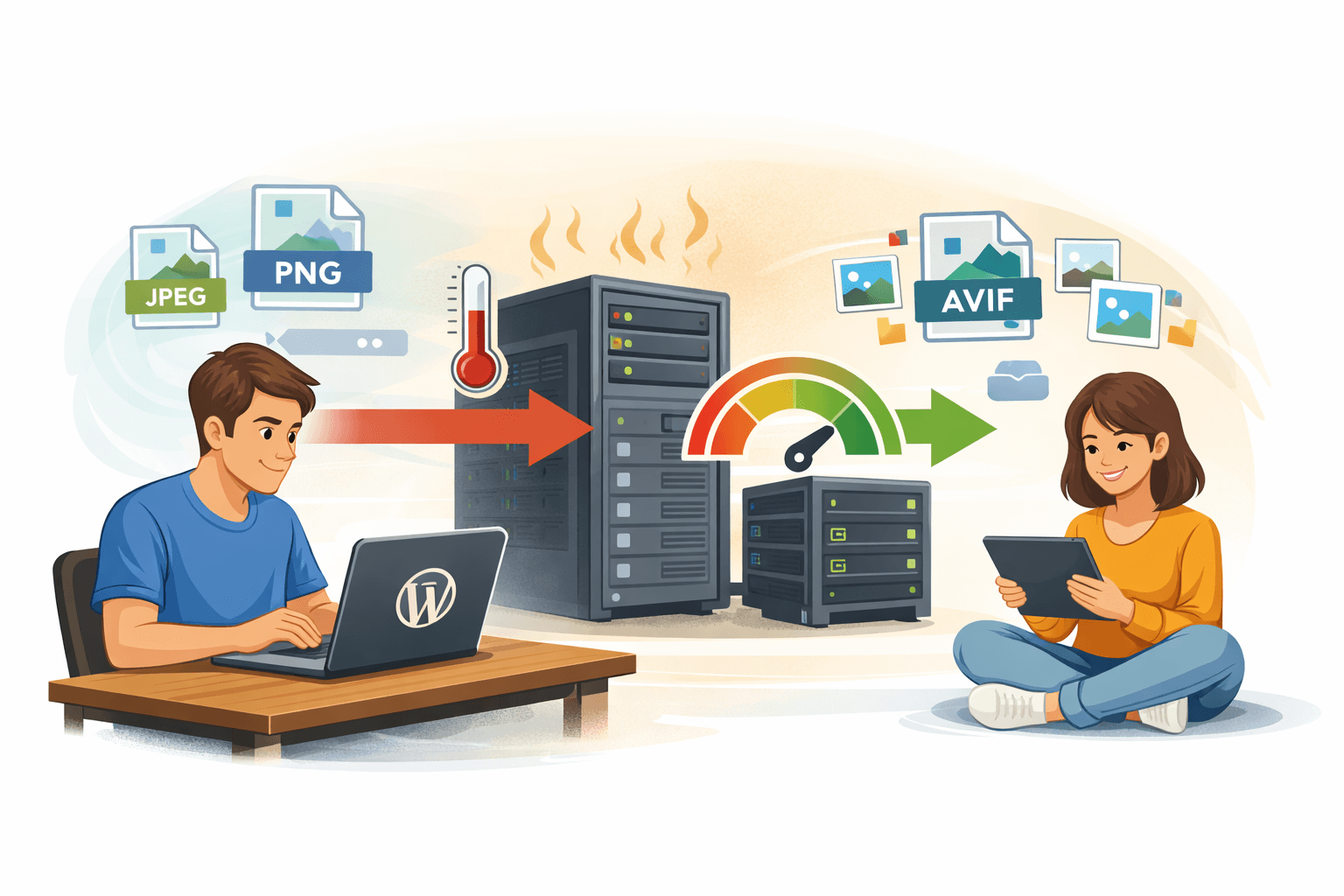
WordPress 7.1 AVIF and HEIC changes how WordPress processes images during uploads: the browser can decode, compress, resize, and generate derivative images before sending the data to the server. As a result, PHP no longer has to handle the entire resource-intensive image-processing workflow. This is particularly useful for AVIF images, HEIC images from iPhones, and shared-hosting servers with CPU, RAM, or PHP execution-time limits.
The new mechanism uses a WebAssembly build of libvips running in a Web Worker. This is a progressive enhancement; it does not eliminate server-side processing entirely. If the browser or device does not meet the requirements, WordPress can still fall back to the previous processing workflow.
How does WordPress 7.1 process AVIF and HEIC images?
In the traditional workflow, the user uploads the original image to the server, after which WordPress calls GD or Imagick to generate thumbnails, intermediate images, and responsive sizes. With large images, this can increase PHP memory usage, extend response times, or trigger out-of-memory errors.
In WordPress 7.1, the browser can perform the following steps before the upload:
- Decode JPEG, PNG, WebP, AVIF, and some HEIC/HEIF formats.
- Resize images according to WordPress image-size settings.
- Compress and re-encode images using a libvips pipeline running through WebAssembly.
- Generate derivative images and send each processed file to the server.
- Retain the original HEIC image as an accompanying source file when necessary.
WordPress's official introduction states that this workflow reduces server CPU and memory usage while supporting AVIF, HEIC, and HDR gain maps in the new media system (according to WordPress.org).
Importantly, you generally do not need to install WebAssembly libvips manually over SSH or add a PHP library. The pipeline is loaded on demand by the editor rather than significantly increasing the initial JavaScript bundle.
How to reduce PHP load when uploading images in WordPress 7.1
1. Meet the browser and device requirements
The full WebAssembly workflow is designed primarily for modern Chromium-based browsers and devices with sufficient resources. WordPress's test documentation notes that browser-side processing requires more than 2 GB of RAM and a stable connection in applicable scenarios (according to WordPress.org).
HEIC support also depends on the platform codec. Chrome, Edge, or Brave on macOS may process HEIC through the available codec; Windows requires HEVC support; and Safari may use its own HEIC processing path. Therefore, you should not assume that every browser converts HEIC in the same way.
2. Keep image-size settings reasonable
Moving processing to the browser does not mean that you should allow excessively large originals. Check the sizes under Settings → Media and keep only the sizes actually used by the theme or blocks. Too many sizes increase processing time on the uploader's device and create additional files in the media library.
For example, a news website might retain a large size for lead images, a medium size for post lists, and a square size for social media cards. Avoid generating numerous sizes simply because an old plugin once required them.
If you are upgrading both a plugin and a theme, consult the WordPress 7.1 testing checklist before deploying the changes to a website where users actively upload content.
3. Check the server-side fallback path
Not every file is processed in the browser. Unsupported formats, underpowered browsers, or devices lacking WebAssembly capabilities may fall back to server-side processing. The server therefore still needs GD or Imagick to operate reliably for fallback cases.
In DevTools, open the Networktab, upload a JPEG or AVIF image, and observe the media requests. Then compare CPU, RAM, and PHP-FPM processing time before and after enabling WordPress 7.1. Reliable results should be based on the same image type, dimensions, and number of files—not simply on the impression that uploads are faster.
To reduce update-related risk, you should also review the plugin pre-update testing process and test on a staging copy before changing the production website.
Limitations and common errors in browser-based image processing
| Scenario | Possible cause | What to do |
|---|---|---|
| HEIC image cannot be uploaded | The browser lacks the required codec or cannot run the appropriate processing path | Try Chrome or Edge on a device with HEVC support, or convert the image to JPEG |
| HDR AVIF image fails | The WebAssembly pipeline or encoder does not fully support the color depth | Use 8-bit AVIF or check the fallback path on staging |
| The user's device becomes slow | The image is too large or the device has limited RAM | Reduce the image dimensions before uploading and avoid processing excessively large batches |
| A plugin no longer runs as before | Some server-side image-processing hooks are not called when client-side processing is active | Check the plugin documentation and use the server-side workflow when necessary |
Gutenberg's developer documentation states that some hooks, such as wp_image_editors, image_make_intermediate_size and image_memory_limit may not be called when client-side processing is active (according to github.com). This is an important point to check if the website uses a watermarking plugin, a CDN, image optimization, or a custom post-processing workflow.
In practice, the safest approach is to treat client-side processing as a performance layer, not as a reason to disable server-side image processing altogether. Check three metrics: upload completion time, PHP-FPM utilization, and the size of the generated files. If all three improve while image quality remains acceptable, WordPress 7.1 is delivering the expected benefits.
Reference source
