






The short answer: Prioritize a Blogger theme with a simple layout, sufficiently large text, contrasting colors, images that do not overflow and a menu that is easy to tap on a small screen. Before changing anything, download a backup of the current theme; then apply changes one group at a time, open the public URL on a computer and phone, and restore the backup if the result does not meet your requirements.
This process is for beginners who have editing access to a Blogger blog. You need a post or sample content to test, a web browser and the blog’s public URL. If the blog is not public, you can still preview it while signed in, but you cannot fully confirm the experience of a visitor who is not signed in.
The example used throughout is SaibABC Blog, a hypothetical project name on Blogger. This does not mean that the blog has been created, has an address or readers, or has achieved any real-world results.
Choose a Theme for Readability
For a how-to blog, the theme should make titles, paragraphs, headings and links stand out. Readers should be able to focus on the content instead of having to zoom in, close elements that cover the article or hunt for the menu.
Blogger lets you choose a theme from the Theme section and customize elements such as the background, width, font, text color and font size in the customization area (according to support.google.com).
Six Criteria to Check Before Choosing
| Criterion | Question | Signs to look for |
|---|---|---|
| Readability | Are the paragraphs wide enough, with sufficient contrast? | The background and text are clearly distinguishable, lines are not too long and links are easy to identify. |
| Mobile display | Does the layout adapt to a small screen? | There is no horizontal scrollbar; images and text fit within the screen width. |
| Navigation | Can readers find recent posts, labels or important pages? | The menu is concise, clear and does not cover the content. |
| Post page | Do the title, headings, images and widgets become visually mixed together? | The main content stands out from the sidebar and supporting elements. |
| Customization | Can you change the colors, typography and width without editing code? | Basic settings are available in Customize. |
| Reversibility | Can you go back if the theme is unsuitable? | A theme backup was downloaded before making changes. |
This is a usability criterion, not a guarantee that the blog will attract readers, be indexed or rank highly. If a theme looks attractive but has difficult-to-read text or a broken layout on mobile, reject it even if its preview image is appealing.
Why Start with a Built-In Theme?
Beginners should prioritize themes built into Blogger. You can choose and customize them through the dashboard while reducing the number of factors you need to verify, such as unfamiliar code, licensing, injected advertising and compatibility.
For SaibABC Blog, there is no need to choose an elaborate theme yet. Start with a simple background, a clearly defined content area, readable text and minimal reliance on widgets. Once you have a real post, you can evaluate the theme by how the content is displayed rather than by looking only at the preview image.
If you are still unsure whether Blogger suits your type of website, read the article comparing Blogger and Blogspot before investing substantial time in customization. This article focuses only on choosing and applying a theme.
Back Up the Theme Before Changing It
This step is required before applying a new theme or making major edits. The backup file gives you a restore point if the layout breaks, widgets disappear or the text color becomes difficult to read. It contains only the theme; it is not a backup of all posts, pages, comments or the account.
- Sign in to Blogger with an account that has editing access, and select the correct blog.
- In the left-hand menu, open Theme.
- In the current-theme section, open the options menu next to the Customize button.
- Select Backup or an equivalent option, then select the option to download the theme file.
- Save the file in a secure location with a recognizable name, such as
saibabc-theme-truoc-khi-doi.xml.
Expected result: you have a downloaded theme file and know that it represents the state before the change. If you cannot find the backup option, check that you are in the correct Theme, blog, and account; do not continue changing the theme until you have a recovery point. Blogger separates theme backups from blog-content backups, so important content must be saved separately (according to support.google.com).
Apply and Customize the Theme
Apply a Built-in Template
- In Blogger, select the correct blog in the upper-left corner.
- Open Theme from the left-hand menu.
- Review the available templates and choose one that is close to the layout you need.
- Check it against the six criteria in the table above.
- Select Apply or the equivalent button to apply it.
Expected result: the new theme is set as the blog’s theme. Open the homepage, a post, a static page if the blog has one, and the menu area before making further changes. Record each change so you can identify which element caused a problem if the result is unsatisfactory.
Adjust Colors and Text Before Adding Gadgets
In Customize, make the following lower-risk changes in order:
- Choose a background with clear contrast against the text.
- Use a readable font for the main content.
- Increase the font size if paragraphs appear too small on a phone.
- Use one consistent accent color for links and elements that need attention.
- Keep the layout simple before adding gadgets.
After each group of changes, select Save if the theme requires it, then open the public blog to check the result. Do not change the colors, font size, width, and custom code at the same time; if a problem occurs, it will be difficult to identify the cause.
At this stage, you do not need to edit HTML or CSS. Blogger supports HTML editing and custom CSS, but third-party code can alter the layout or create errors that are difficult for beginners to diagnose (according to support.google.com).
Check from the Reader’s Perspective
Do not conclude that the theme works simply because the preview in the admin interface looks fine. Open the blog’s public URL. If the blog is public, use a private window or a browser in which you are not signed in to avoid confusing administrator privileges with the reader’s experience.
Desktop Checklist
- The logo or blog name does not cover the post title.
- The post title stands out more than secondary text.
- Paragraphs have enough spacing for continuous reading.
- Headings make the content easy to scan.
- Links have a color or visual style that makes them easy to recognize.
- The sidebar does not overpower the main article.
- The menu leads to the correct destinations and contains no placeholder links.
- Images are not stretched out of proportion or wider than the content area.
Mobile Checklist
- Open the URL on a real phone; if one is not available, reduce the browser window size to simulate a small screen.
- Read a long passage from the post “5 Things to Prepare Before Creating a Personal Blog.”
- Check whether a horizontal scrollbar appears.
- Tap the menu, links, and the button for returning to the homepage.
- Check that the title is not cut off unusually.
- Check that images do not make the page wider than the screen.
- Read the end of the post, where links or gadgets often appear.
- Open a post in a window where you are not signed in if the blog is public.
Pass result: readers can open a post, read the content, identify the headings, tap the menu and links, and view images without a horizontal scrollbar appearing. The Blogger mobile app primarily supports writing and managing posts; theme, layout, and many settings should be changed through the web dashboard (according to support.google.com).
Record the State Before and After the Change
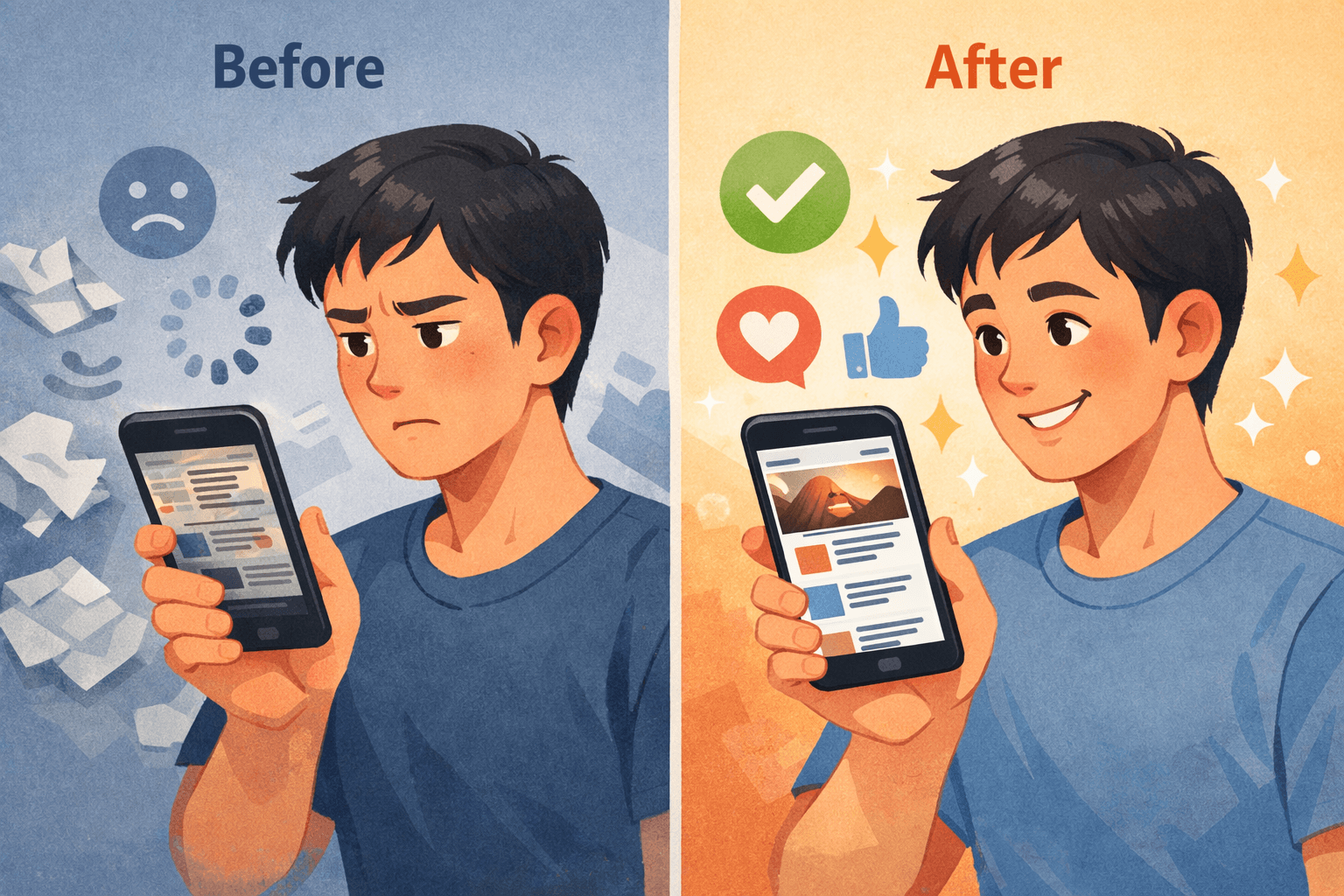
Record the blog’s actual state; do not enter expected results in place of your observations. Use the table below as a practical template:
| Item | Before the change | After the change | Action |
|---|---|---|---|
| Reading a post on a computer | [Ghi kết quả thật] | [Ghi kết quả thật] | Keep / adjust font size |
| Reading a post on a phone | [Ghi kết quả thật] | [Ghi kết quả thật] | Pass / fix layout |
| Images in posts | [Ghi kết quả thật] | [Ghi kết quả thật] | No overflow / resize images |
| Menus and links | [Ghi kết quả thật] | [Ghi kết quả thật] | Correct / fix destination |
| Sidebar and gadgets | [Ghi kết quả thật] | [Ghi kết quả thật] | Supports the post / causes distraction |
| Horizontal scrolling | [Có / không] | [Có / không] | Keep / address the cause |
Text in square brackets indicates fields to fill in, not results verified for SaibABC Blog. The illustrative project has not been confirmed to have a theme or actual results.
If You Use a Third-Party Theme
A third-party theme may offer layouts or features that built-in themes do not, but it also increases the number of things you need to verify:
- Download source: prioritize the author’s or provider’s website, with clear information; avoid reuploaded files from unknown sources.
- License: check whether the theme is free, a trial, or paid; review the rights to modify it, use it commercially, and remove copyright links.
- Updates and support: an outdated theme may contain structures or code that are no longer compatible.
- Display: a demo is for reference only; you must still test it on the actual blog.
- Embedded code: check for advertisements, external links, tracking scripts, and unnecessary gadgets.
- Rollback: do not upload anything until you have backed up the current theme.
Do not enter or paste HTML/CSS code if you do not understand what it does or how to undo it. If a third-party theme removes gadgets, adds unexpected advertisements, creates horizontal scrolling, or makes the page difficult to read, stop editing and restore the saved backup. This article does not provide download links for any third-party themes.
Restoring an Unsuitable New Theme
- If the problem is limited to colors or font size, reopen Customize and undo the setting you just changed.
- If the layout breaks after you edit the code, do not keep pasting in more code to fix it before you know the cause.
- If the new theme is unsuitable, open Theme, open the backup menu, and select the restore option or upload the saved XML file according to the instructions shown.
- After restoring, open the public URL on a computer and a phone to check the scrolling, menus, posts, and images again.
Expected result: the blog returns to the theme contained in the backup file, or to the most recent state represented by that file. If the file cannot be uploaded, stop trying files from unknown sources; check the format, select the correct downloaded file, and read the error message in Blogger.
Restoring a theme does not restore all posts, pages, or comments. If content has been lost, use a separate content backup; do not treat a theme file as a full backup of the blog.
Common Errors and Safe Fixes
| Symptom | Possible cause | How to fix it |
|---|---|---|
| Looks good only on a computer | The theme or a gadget is not responsive to small screens. | Check it on a phone, reduce the number of gadgets, and return to a built-in theme if necessary. |
| Text is difficult to read | Low contrast, a small font size, or lines that are too long. | Change the background or text color, increase the font size, and check a long post again. |
| Images cause horizontal overflow | An image or embedded code is wider than the content area. | Resize the image, remove unnecessary embedded code, and check again. |
| A menu leads to an error page | The destination does not exist, or the URL was pasted incorrectly. | Link only to existing posts, pages, or labels; open each link to test it. |
| Gadgets disappear after changing the theme | The new theme does not preserve the location or structure of the previous gadgets. | Check Layout; if you cannot fix the issue, use the theme backup. |
| You do not know how to revert | You did not download a backup before making changes. | Stop making further changes, record the current state, and check which options are still available in Theme. |
Result-verification exercise
Apply the process to your blog and record these four details:
- The name of the theme currently in use.
- The name of the downloaded backup file and where it is stored.
- Three changes made to the colors, typography, or layout.
- The results of testing on a computer and a phone, including at least one remaining issue if there is one.
Consider the exercise complete only when you can open the blog from a reader’s perspective, read a post, tap the menu on a phone, and identify which file to use for restoration. If the blog is not public, record that as a limitation of the test rather than marking the public experience as verified.
The next step is to complete the site’s visual identity and layout, including the logo, favicon, menu, sidebar, and footer. Add links only to pages or labels that actually exist; mark planned new elements as proposed.
Reference source
- Use themes to change how your blog looks — Blogger Help.
- Change the design of your blog — Blogger Help.
- Back up or import your blog — Blogger Help.
- Use the Blogger mobile app on Android — Blogger Help.
