






The short answer: To enable Google to crawl your website, verify it in Google Search Console, make sure public URLs return valid content and are not blocked by robots.txt or noindex submit a sitemap, and create internal links to important pages. Then use URL Inspection to check each URL you want to prioritize.
Search Console is not a crawler. Googlebot is the component that accesses your website. Submitting a sitemap or requesting indexing only sends a signal and a processing request; Google does not guarantee that every URL will be crawled, indexed, or ranked.
Understand the Difference Between Crawling, Indexing, and Appearing on Google
- Crawling: Googlebot accesses a URL and downloads its content.
- Indexing: Google analyzes the content and relevant signals, then decides whether to store the URL in its index.
- Appearing in search results: Google selects the page that best matches each query. Even an indexed URL may not appear prominently or may not appear for every keyword.
Therefore, a “sitemap submitted” or “URL known to Google” notification does not mean that the page has been indexed. After an issue is fixed, processing may take time, and there is no guarantee as to when it will be completed (according to Google Search Central).
Check Your Website Before Adding It to Search Console
Perform the following checks in a private browser window while signed out. This more closely simulates how an ordinary user accesses the website.
The URL Must Be Public and Return Valid Content
Open a complete URL, such as:
https://example.com/bai-viet-moi/The page should open without requiring a password, entering a continuous redirect loop, or returning a server error. A status code of 200 is a common sign that a page was accessed successfully; status codes 3xx, 4xx or 5xx need to be investigated according to the specific purpose (according to Google Search Central).
If you have access to Terminal or Command Prompt, run the following command on your computer and replace https://example.com/bai-viet-moi/ with the actual URL:
curl -I -L --max-redirs 5 "https://example.com/bai-viet-moi/"The result should end with a successful response such as HTTP/2 200 or HTTP/1.1 200 OK. If you encounter a DNS error, check the DNS records and domain name; if you encounter a connection error or 5xx, check the server, firewall, or hosting service. This command checks only the HTTP response and does not replace URL Inspection.
Check robots.txt and noindex
Open the following address, replacing the example domain with your actual domain:
https://example.com/robots.txtThe following rule blocks Googlebot from accessing the entire website:
User-agent: *
Disallow: /
If you want Google to crawl a page, make sure that the page path does not fall under an unintended Disallow rule. In the HTML source code, look for the directive:
<meta name="robots" content="noindex">Remove noindex or change the corresponding setting in your content management system if the page should appear on Google. Also check the HTTP header X-Robots-Tag, because the server may send this directive instead of the HTML tag. Do not both block the URL with robots.txt and expect Google to read it noindex: when a URL is blocked, Google may not see that directive (according to Google Search Central).
For WordPress, also check Settings > Reading and the indexing settings in your SEO plugin. You can also refer to the beginner’s guide to website SEO to review your platform settings.
Add and verify your website in Google Search Console
Sign in to Search Console with a Google account that has permission to manage the website, then select Add property. There are two main property types:
| Property type | When to use it | Common verification method |
|---|---|---|
| Domain property | Tracks the entire domain, including HTTP, HTTPS, www, and subdomains. | Add a TXT record to DNS. |
| URL-prefix property | Tracks a specific prefix, such as https://example.com/. | An HTML file, HTML tag, Google Analytics, or Google Tag Manager, depending on the configuration. |
If you can edit DNS, a Domain property is usually more convenient because it covers multiple variants. If you do not have DNS access, a URL-prefix property is a practical option. Enter the correct protocol and domain: https://example.com/ differs from http://example.com/, just as www.example.com differs from example.com in a URL-prefix property (according to Google Search Console Help).
Verify ownership with DNS
- Select Domain and enter the root domain, for example
example.com. - Copy the TXT record provided by Search Console; do not modify its value string.
- Open your domain provider’s DNS management page.
- Create a TXT record using the exact name and value provided. If the interface asks for a Host or Name field, follow your DNS provider’s instructions.
- Return to Search Console and select Verify.
If verification does not work immediately, wait for the DNS record to propagate and try again. Verification only grants access to Search Console data and tools; it does not automatically lead to indexing or improve rankings.
Submit your sitemap correctly
A sitemap is a file listing the URLs you want Google to discover. It is useful for new websites, websites with many URLs, or sites whose internal-linking structure is not yet strong. A sitemap is only a signal; it does not guarantee that every URL will be crawled or indexed (according to Google Search Central).
On many content management systems, the sitemap is available at one of the following addresses:
https://example.com/sitemap.xml
https://example.com/sitemap_index.xml
Open the appropriate address directly and confirm that the file loads. The sitemap should contain canonical, publicly accessible URLs that do not return errors and use the same URL version as your internal links, such as HTTPS.
- Select the correct property in Search Console.
- Open Sitemaps.
- Enter the path after the domain, for example
sitemap_index.xml. - Select Submit.
- Check the processing status and the number of URLs discovered.
If the sitemap reports an error, open the error details instead of resubmitting it repeatedly. Common causes include a missing sitemap, a server error, a URL that is not part of the property, a blocked URL, or a sitemap that uses a different version from the live website.
Check and request indexing for a URL
To check a specific page, open Search Console, select the correct property, and paste the full URL into the inspection field at the top. If you have just updated the page, select Test live URL. Once the check passes, you can select Request indexing for an important URL.
| Check | Expected result | If it fails |
|---|---|---|
| Crawl allowed? | Yes | Check robots.txt, the firewall, and anti-bot systems. |
| Page fetch | Successful | Check DNS, the server, redirects, and the HTTP status code. |
| Indexing allowed? | Yes | Check the meta robots X-Robots-Tag directive and the CMS settings. |
URL Inspection shows what Google knows about the URL and lets you test the live version. After fixing an issue, run a live test before requesting indexing (according to Google Search Console Help).
Do not submit repeated requests. The tool has limits, and resubmitting multiple times does not guarantee that Google will crawl the URL faster. For multiple URLs, fix the cause at the website level and use a sitemap.
Help Google discover and select the correct URL version
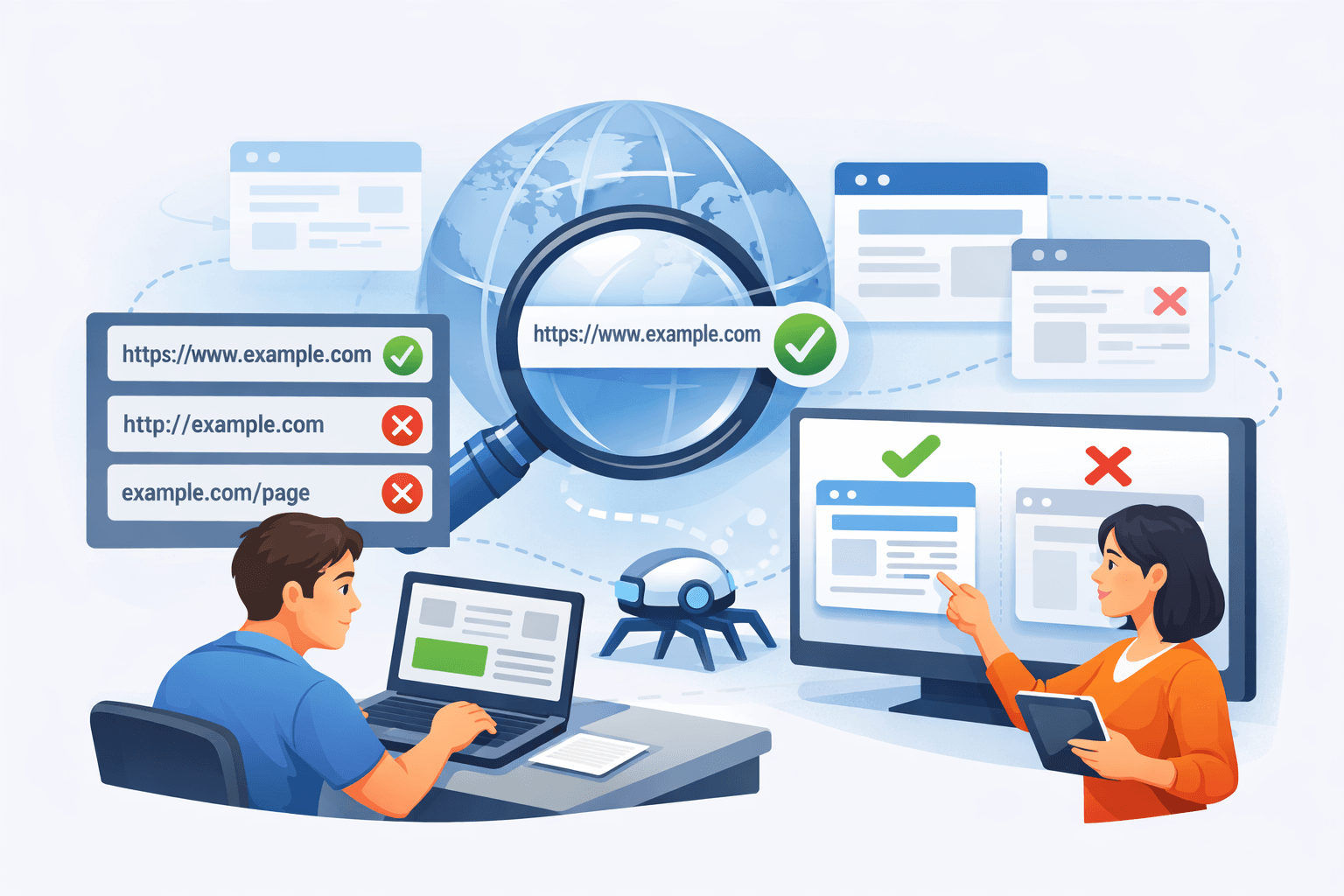
Each important page should have at least one internal link from the homepage, a category page, or a related article. The link should be a standard HTML element:
<a href="https://example.com/huong-dan-seo/">Hướng dẫn SEO</a>Do not rely solely on JavaScript interactions that do not create a clear URL in the rendered HTML. Also avoid placing excessive filtered or parameterized URLs in the sitemap if they are not primary content pages.
If the same content is available at multiple URLs, standardize the preferred version—for example, HTTPS and a consistent trailing-slash convention. In the <head>, the preferred page can declare:
<link rel="canonical" href="https://example.com/bai-viet-moi/">The canonical URL should be absolute and match the preferred URL in the sitemap, internal links, and redirects. Do not use robots.txt to handle canonicalization, because blocking a URL may prevent Google from reading the content it needs to compare.
Practical workflow for a new article
For example, you have just published https://example.com/huong-dan-a/. Follow these steps in order:
- Open the URL in a private browsing window and confirm that it does not require sign-in.
- Check that the page returns content rather than a 404 error or an incorrect redirect.
- Check that there is no
noindexin the HTML or HTTP headers. - Confirm that robots.txt does not block the path.
- Check that the URL appears in the sitemap.
- Add a link from an accessible, relevant page.
- Run Test live URL in URL Inspection.
- If all conditions are met, select Request indexing once.
- Monitor Page indexing instead of repeatedly searching for the article title.
Diagnose an unindexed website
| Symptom | Possible cause | How to fix it |
|---|---|---|
| URL is unknown to Google | Google has not discovered the URL, or the sitemap has not been processed. | Check the sitemap and add internal links. |
| Blocked by robots.txt | Rule Disallow applied unintentionally. | Fix robots.txt, then run the live test again. |
| Discovered but not indexed | Google knows about the URL but has not selected it for processing, or is still evaluating other signals. | Review the content, keep the URL stable, add internal links, and wait for Google’s systems to process it. |
| Crawled but not indexed | There may be duplicate content, inconsistent canonical signals, or unclear primary content. | Compare the content, canonical signals, redirects, and duplicate versions. |
| Alternate page with a proper canonical tag | Google selected a different URL as the representative version. | Compare the canonical tag, sitemap, internal links, and redirects. |
| “URL is not on Google” | The URL has not been indexed; this message alone does not prove that the website has been penalized. | Open the detailed reason, fix the underlying issue, and check again. |
What not to do
- Do not block the entire website with
robots.txtand then expect Google to read the content. - Do not place
noindexon a page that needs to appear in search results. - Do not repeatedly submit large numbers of URL Inspection requests.
- Do not include error URLs, redirecting URLs, or duplicate URLs in the sitemap as the primary URLs.
- Do not treat an accepted sitemap as evidence that the website has been indexed.
- Do not remove the DNS record or verification tag if you still need access to Search Console.
Completion checklist
- The correct Domain property or URL-prefix property is selected.
- Ownership has been verified.
- The website is publicly accessible, HTTPS is working, and the home page returns valid content.
- Robots.txt does not unintentionally block URLs that need to be indexed.
- The page that needs to appear does not contain
noindexunintentionally. - The canonical tag, sitemap, redirects, and internal links all use the same official URL.
- The sitemap opens successfully and has been submitted in the correct property.
- Important URLs pass the live URL test.
- You know where to monitor Page indexing after making changes.
Conclusion
To help Google crawl your website, do not just submit a sitemap. Verify the property, make sure Googlebot can access the site, remove any unintended robots.txt or noindex blocks, use the sitemap correctly, create internal links, and check important URLs with URL Inspection.
Remember: crawling does not mean indexing, and indexing does not guarantee high rankings. If a URL passes the technical checks but does not appear immediately, monitor Page indexing and fix the underlying issue instead of submitting the same request repeatedly.
Reference source
- Ask Google to Recrawl Your URLs — Google Search Central.
- Google Search Technical Requirements — Google Search Central.
- Block Search Indexing with noindex — Google Search Central.
- Build and Submit a Sitemap — Google Search Central.
- Add a website or platform property to Search Console — Search Console Help.
- Inspect and troubleshoot a single page — Search Console Help.
