






The short answer: Sign in to Blogger, select the right blog, open Earnings , and follow the AdSense flow shown. If you already have an AdSense account, continue with that account instead of creating a new one. Before submitting, make sure the blog is publicly accessible, its content provides original value, and the payment information is accurate.
After reading this article, you will be able to choose one of three paths: sign up for a new account, link an existing account, or finish preparing the blog before trying again. The goal is to choose the correct flow and record the status after submission; the article does not guarantee approval, ad serving, or blog revenue.
Choose the right flow before you start
| Situation | What to do | What not to do |
|---|---|---|
| You have never had an AdSense account | In Blogger, select the right blog, open Earnings , and use the account-creation option if it appears. | Do not open multiple forms or sign up elsewhere when Blogger has provided the appropriate flow. |
| You already have an AdSense account | Identify the correct Google Account and the AdSense account that contains your payment information, then continue with the linking flow shown. | Do not create a second account to get around an error message. |
| Blogger does not let you continue | Read the message and check your access, public availability, content, and website information; try again only when you have a clear basis for doing so. | Do not treat a self-imposed number of posts, word count, or visits as a guaranteed approval requirement. |
Google sets requirements for account eligibility, policies, and registration information; for Blogger, sign-up is completed from the Blogger account when the appropriate option appears (according to support.google.com). If the blog still needs preparation, you can review the previous article’s checklist using Get Your Blog Ready for AdSense: What to Check First.
Prepare before opening the form
Check your account and payment information
- Sign in to the correct Google Account that manages the blog you want to link. If your browser has multiple accounts signed in, check the email address before each step.
- If you have used AdSense before, look for your existing account through your email and the Google Accounts you commonly use before choosing to sign up for a new one.
- Use the payee name, address, country or territory, and phone number that accurately reflect your circumstances. Do not use false information or select a country simply because you want to receive payments there.
- Record the current status before making changes. This gives you a reference point if you select the wrong blog or flow.
The payment country or territory is an important choice to consider before submitting because changing it later may be restricted; read the official guidance available at the time you proceed (according to support.google.com).
Check the blog from a reader’s perspective
- Open the homepage and several posts in a private window or a browser where you are not signed in.
- Check the menu, posts, informational pages, and links; do not leave placeholder URLs or blank pages in the main navigation path.
- Use only text, images, and materials that you created yourself or have permission to use.
- Make sure the blog is more than a template interface; readers should understand what the blog is about and who is responsible for it.
- Review the About, Contact, and Privacy Policy pages if they have been created. The content must reflect your actual services and data; do not paste an unsuitable generic template.
Copied content, copyrighted content used without permission, and an unfinished website may cause problems during review. This is a practical checklist, not a quantitative threshold that guarantees approval (according to support.google.com).
Sign up for a new AdSense account from Blogger
Use this path only if you do not already have an AdSense account and Blogger displays a sign-up option. Button names may vary by language or interface; give priority to the message shown on the current screen.
- Do this in Blogger: sign in with the Google Account that has permission to manage the blog, then select the correct blog from the blog list.
- Open Earnings: in the Blogger dashboard, select Earnings. If you do not see the account-creation option, stop here and move to the troubleshooting section below.
- Select the account-creation option: continue only if the displayed blog name and email address are the ones you intend to use.
- Complete the form: enter accurate information, select the correct payment country or territory, and read the terms before accepting them.
- Complete the required information: enter your payment details and verify your phone number if the form requests it. Check every field before submitting.
- Submit and return to Blogger: select Submit or the equivalent button. If Redirectappears, select it only after confirming that the account and blog are correct.
Blogger's official flow consists of selecting a blog, opening Earnings, selecting the option to create an AdSense account, completing the form, entering payment details, verifying your phone number if requested, and submitting the application (according to support.google.com). If the browser session is interrupted, sign in again with the correct account and resume the existing process; do not create a new account to try again.
Link a blog to an existing AdSense account
Do not register again if you already have an AdSense account. First identify the account that contains your payment details and review any outstanding alerts.
- In Blogger, sign in to the correct Google Account and select the blog you want to link.
- Open Earnings and read the displayed email address or account details.
- If an option to continue linking is available, accept it only after confirming the correct email address and account name.
- If you are redirected to AdSense, review the home page, payment information, and alerts, then complete the specific item requested.
- Return to Blogger and reload the Earnings page, then record the new status in your log.
Button labels and screen sequences may change. If Blogger does not display a linking option, do not try to work around this by creating a new account; save the message and use an official support channel. AdSense generally allows only one account per publisher, so a duplicate account may cause the application to be disapproved (according to support.google.com).
If Blogger does not let you continue
| Indicator | What to check | Result to record |
|---|---|---|
| The account-creation button is missing | The correct blog, the correct Google Account, public access to the blog, and the message shown in Earnings. | Record the message verbatim; do not infer a minimum number of posts. |
| The blog has little content or many empty pages | Open the main posts as a reader would; check whether each post addresses a specific need or is merely a template. | A list of URLs that need to be completed or removed from the menu. |
| Content taken from other sources | Usage rights, sources, and the value you added. | Keep only content you have the right to use; do not republish an entire article merely because the source is publicly available. |
| Website information is unclear | About, Contact, Privacy, the menu, and publicly accessible links. | Mark each item as complete, incomplete, or requiring verification. |
| You are notified of a duplicate account | Old email addresses, the payee name, the address, and the message in AdSense. | Continue resolving the existing account according to the message; do not create a second account. |
This article does not use any fixed number of posts, words, or visits as a guarantee of approval. If the message is unclear, leave the current setup unchanged, save the message, and seek official help instead of changing multiple settings at once.
Record and check the status after submission
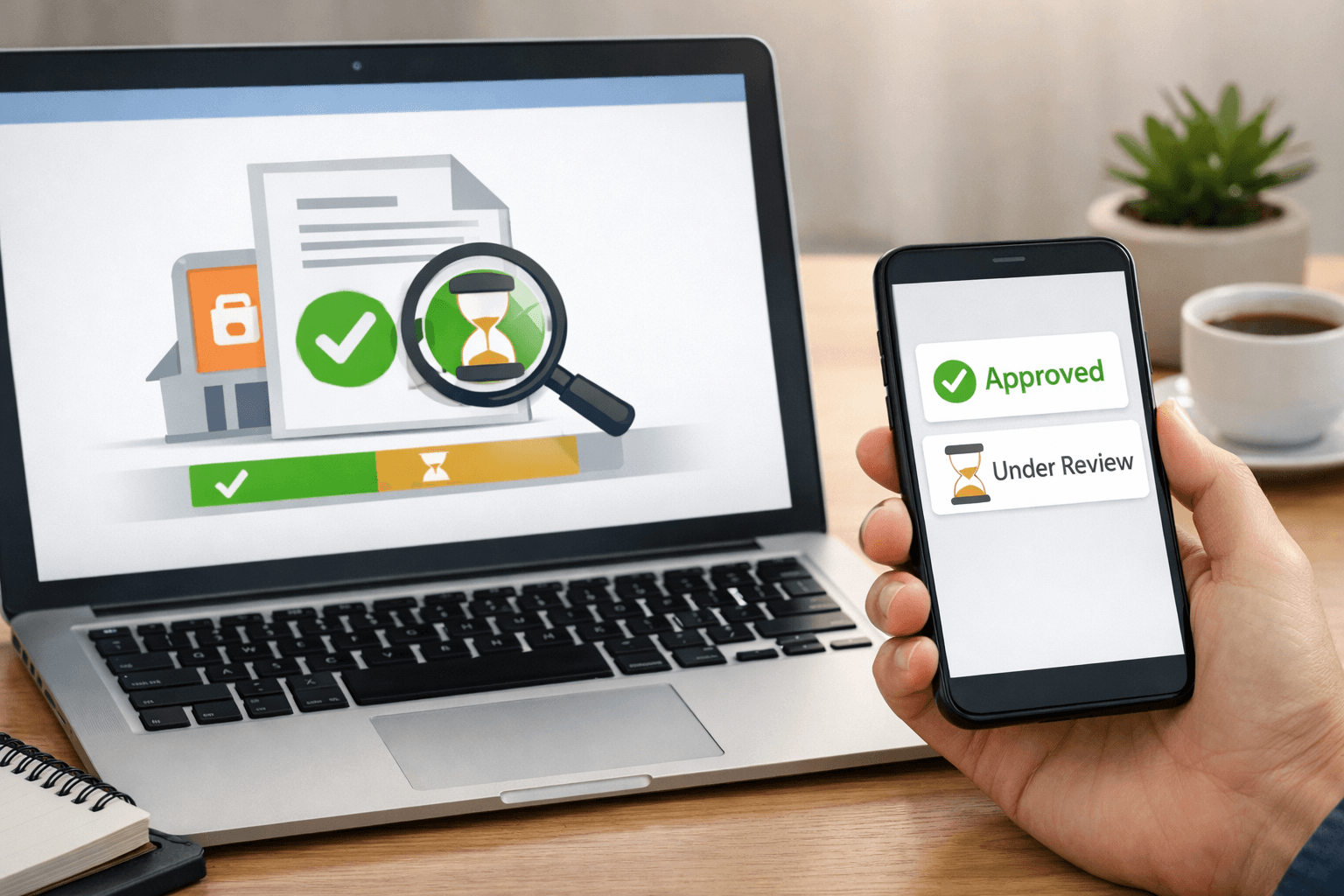
Seeing the AdSense management page does not prove that the blog is authorized to serve ads. Record the status in both Blogger and AdSense, along with the date, time, and next step.
| Date and time | Blog or URL | Account | Status | Next step |
|---|---|---|---|---|
| [ngày giờ thật] | [địa chỉ Blogspot thực hành] | [email quản lý] | [chưa đủ điều kiện/đã gửi/chờ xử lý/yêu cầu bổ sung] | [ghi đúng theo thông báo] |
- Reopen the blog in a logged-out window to confirm that it is accessible.
- Read the warnings on the AdSense home page and in official emails; do not rely solely on an old email.
- Verify that you have selected the correct Google Account, the correct blog, and the correct website address.
- Edit only the requested item, then record the date of the change and the new status.
Common errors and how to safely undo changes
Setup status remains pending
Check whether you have completed all the steps in Blogger and whether the AdSense page displays an option to accept the association. If you are unsure, save the message, time, and account being used, then contact the appropriate support channel. Do not create a new account to try to shorten the wait.
Application not approved
Read the specific reason in the email or on the status page. The issue may relate to a duplicate account, content, usage rights, accessibility, or policy compliance. Fix the stated cause and resubmit only when the system allows it; do not conclude that all content on the blog is incorrect.
Linked but no ads are visible
Account association, approval, and ad serving are different statuses. Do not click your own ads or encourage others to click them. If you need to stop, pause at the setup stage, retain your log, and do not change multiple settings at once.
Undoing changes: if you discover that you selected the wrong blog or account before submitting, stop and return to the previous screen. If you submitted incorrect information, correct it according to the instructions in your account; do not delete or create a new account before understanding the consequences. Keep the emails, messages, and pre-change status for comparison.
Pre-completion checklist
- [ ] You have determined whether you do not have an AdSense account, already have one, or whether the blog is not yet eligible.
- [ ] You selected the correct Google Account and the correct blog.
- [ ] You opened the blog in a logged-out window.
- [ ] You have appropriate rights to use the content, images, and links.
- [ ] The menu and key information pages no longer contain placeholder URLs.
- [ ] The payment information, country or territory, and phone number are accurate.
- [ ] You did not create a second AdSense account to bypass an error.
- [ ] You recorded the submission date, status, and next step.
- [ ] You did not treat submitting the application or seeing the administration page as evidence of approval.
Exercise with SaibABC Blog
SaibABC Blog is a planned illustrative project, not evidence that the blog has been created, linked to AdSense, or approved. You can use your own blog for practice:
- Complete the decision table: whether you already have an AdSense account, whether the blog is publicly accessible, and whether the website information is complete.
- Open Blogger and record the exact item shown under Earnings and save the message verbatim if no option to continue is available.
- If you submit the application, update the log with the date and time, email address, URL, status, and next action.
The exercise is complete when you select the correct path or identify what is still missing. Do not mark it complete merely because you were able to open AdSense.
Next step
After AdSense responds, act according to the status: provide additional information, fix the website issue, wait for review, or check the ad setup when the account is eligible. The next article in the series will focus on reading the response, addressing the cause, ads.txt, and payments; do not click the ads yourself or encourage others to click them.
Reference source
- Advertise on your blog — Blogger Help.
- Eligibility requirements for AdSense — Google AdSense Help.
- Create an AdSense account — Google AdSense Help.
- Make sure your site’s pages are ready for AdSense — Google AdSense Help.
- Your AdSense account wasn’t approved — Google AdSense Help.
