






What Is a Passkey? A passkey is a credential that replaces a password, allowing you to sign in with Face ID, a fingerprint, a PIN, a pattern, or a hardware security key. Instead of remembering and entering a password, your device uses a cryptographic key pair to prove that you own the account.
Passkeys are generally more secure than passwords because the private key is not sent to the website, is not reused across services, and is tied to the specific domain or app where it was registered. As a result, passkeys support passwordless login and offer stronger protection against phishing than password- or OTP-based methods (according to the FIDO Alliance).
In short, you still need a way to unlock your device, but you do not need to create, remember, or enter a separate password for each account.
How Do Passkeys Work?
When you create a passkey, your device generates a key pair consisting of a private key and a public key. The private key is stored in the credential manager on your device or in a synced ecosystem such as iCloud Keychain or Google Password Manager. The online service stores only the public key.
When you sign in, the website sends a cryptographic challenge to your device. You confirm your identity with biometrics or an unlock code. The device uses the private key to create a signed response, while the server uses the public key to verify it. The private key does not need to leave the device during this process.
In terms of standards, passkeys are based on the FIDO ecosystem. Within that ecosystem, FIDO2 is the common term for the combination of W3C WebAuthn and the FIDO Alliance’s CTAP protocol. WebAuthn handles a website’s request for authentication in the browser, while CTAP enables the device, browser, and authenticator to communicate with one another (according to the FIDO Alliance).
Why Are Passkeys More Resistant to Phishing?
- No password to steal: the server does not need to store a password that a user could enter again on a fake website.
- Tied to a specific website: a passkey is linked to a valid authentication origin, making it difficult to use on a spoofed domain.
- Cannot be reused: each account has its own credential, reducing the cascading risk when a service suffers a data breach.
- Private key protected locally: the website receives only the result of a successful authentication, not your biometric data.
This does not mean passkeys eliminate every risk. If an attacker takes over the account that manages your passkeys, gains access to your device, or tricks you into installing malware, your accounts may still be at risk. That is why protecting your Apple or Google account, or your password manager, remains important.
Is Biometric Data Sent to the Server?
Usually, no. Fingerprints and facial data are processed on the device. The website receives only a signal indicating that user verification was successful; biometric data is not transmitted to the sign-in service (according to the FIDO Alliance).
A passkey also does not mean that a website “knows” whether you use Face ID or a fingerprint. Biometrics are simply a way to unlock the authenticator on your device. On some devices, you can use a PIN or passcode instead.
How to Create a Passkey and Sign In Without a Password
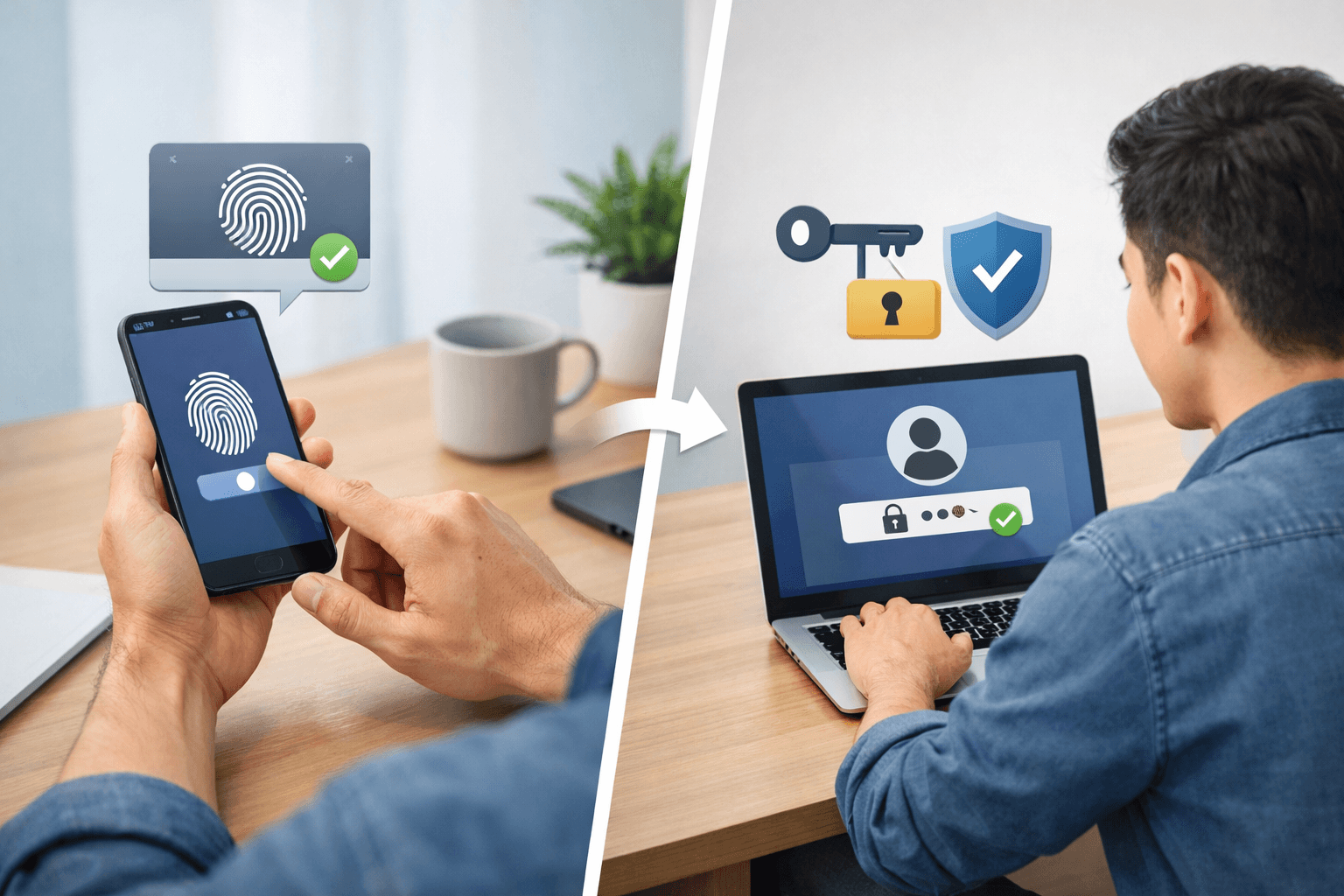
Before you begin, you need an account on a website or app that supports passkeys, a device with a screen lock, a compatible browser or operating system, and an account-recovery method. Not every service supports passkeys; if you do not see the option, you will still need to use a password or another authentication method.
Steps to Create a Passkey
- Sign in to your account: open the website or app using your current password.
- Open security settings: look for sections such as “Passkeys,” “Sign-in,” “Security,” or “Authentication methods.”
- Choose to create a passkey: tap “Create a passkey,” “Add passkey,” or an equivalent button.
- Choose where to save it: use your device’s default credential manager or a trusted third-party password manager.
- Confirm on your device: use Face ID, a fingerprint, a PIN, or your screen-unlock method.
- Check the result: return to the list of sign-in methods and confirm that the passkey appears with the account or device name.
On Android, the typical process is to sign in to the app or website, open your account settings, choose to create a passkey, and then confirm with your screen-unlock method. Google says passkeys can be saved and synced through Google Password Manager or a compatible password manager (according to support.google.com).
On iPhone, passkeys are typically saved in the Passwords app and iCloud Keychain. Apple requires iCloud Keychain and two-factor authentication for your Apple Account to be enabled for full syncing functionality (according to support.apple.com). If you use the Apple ecosystem, also see Apple's guides and guides to managing iPhone and iPad updates to keep your devices secure.
You can also use your phone to sign in on another computer. When the website displays a QR code or the “Passkey from a nearby device” option, scan the code with your phone and confirm on the phone. This is useful when the passkey is not stored directly on the computer.
How to check whether a passkey works
- Sign out of the website or open a private browsing window.
- Enter your account name or email address, but do not enter your password yet.
- Select the passkey icon or the passwordless sign-in option.
- Confirm with Face ID, your fingerprint, a PIN, or your screen lock.
- Check that you were signed in to the correct account.
After a successful test, do not immediately delete your backup password if the service does not offer another recovery method. Some accounts may require a password to handle situations such as device loss, switching ecosystems, or recovering access.
What are the drawbacks of passkeys, and what should you keep in mind?
Passkeys offer a strong security model, but the experience depends on the device, operating system, browser, and how each service implements them. Before switching entirely to passkeys, you should understand the limitations below.
| Scenario | Risk or inconvenience | What to do |
|---|---|---|
| Lost phone | Signing in may be difficult if the passkey is stored only on that device. | Use a synced passkey, another device, a security key, or the service’s account recovery process. |
| Switching ecosystems | Transferring between password managers may work differently. | Check synchronization support before switching devices, and keep a backup sign-in method. |
| Compromised account managing passkeys | An attacker may gain access to synced passkeys. | Enable strong authentication, use a unique password, and review the devices currently signed in. |
| Website does not support passkeys | You cannot sign in entirely without a password. | Continue using a password manager and enable multifactor authentication if available. |
| Shared device | Someone else may be able to unlock the device and use the passkey. | Do not save passkeys on public computers; prefer a personal phone or security key. |
On personal devices, synced passkeys are generally more convenient because they can be recovered when you switch phones. For administrator, business, or high-value accounts, consider using a device-bound passkey or a hardware security key, while maintaining a controlled recovery channel.
A common mistake is creating a passkey without knowing where it is stored. Open your operating system’s password manager to view the list of passkeys, service names, and associated accounts. If you cannot sign in, check three things: whether the device has a screen lock enabled, whether the passkey manager is allowed to operate, and whether the website is using the correct domain.
To get started, I recommend choosing an important account with a clear recovery method, such as your personal email account. Create a passkey, sign out, test signing in again, and only then apply the process to other accounts. You can also explore more technology articles for related guidance on security and devices.
Conclusion: Passkeys are a practical step forward from passwords to authentication with cryptographic keys, unlocked through biometrics or a device PIN. They are especially suitable for people who often forget passwords, use multiple devices, or want to reduce the risk of being tricked into entering credentials on fake websites. However, you still need to protect your devices, the account managing synchronization, and your recovery methods to maintain comprehensive security.
Reference source
