






In short: prepare a text-based logo and favicon, then open Layout in Blogger to arrange the header, post area, sidebar, and footer if the theme includes those regions. Then use the Pages/Page List gadget to create a menu and select only pages, posts, or labels that already exist. Finally, open the public URL in a private window and check it on a phone.
This article is for beginners who already have permission to edit a Blogger blog. You need a published post or sample content to use for testing. If the blog has not been created, has no public address, or you are not signed in to the correct account, resolve that condition first; this article does not assume that SaibABC Blog already exists.
The running example is SaibABC Blog, a planned illustrative project name on Blogger. This is not evidence of the blog’s address, readership, design, or actual results.
Prepare your resources and valid destinations
Before opening Layout, write down the information you will use. Text in square brackets is a placeholder to replace with your actual data, not a verified result.
- Blog name: for example, “SaibABC Blog.”
- Short description: “Sharing Blogger knowledge and website-building techniques through step-by-step guides, specific examples, and easy-to-use checklists.” This is planning data; it does not prove that the description has been entered into a real blog.
- Text-based logo: a simple image containing the blog name or an abbreviation that you have permission to use.
- Favicon: a small icon, preferably square, with a recognizable letter or symbol.
- Valid destinations: the homepage URL, a published post, a published page, or a label that already contains posts.
A text-based logo does not need many details. Use text and background colors with sufficient contrast, check readability at a small size, keep the original file so you can edit it later, and do not use images, fonts, or icons that you do not have permission to use.
Upload a favicon to Blogger
A favicon is a small icon that commonly appears on a browser tab or in a bookmarks list. It does not replace the header logo or automatically improve search rankings.
- Sign in to Blogger with an account that has editing permission.
- Select the correct blog from the list of blogs.
- Open Settings and find the basic information section and the Faviconoption. Blogger explains how to manage a favicon in the blog settings (see Blogger Help, https://support.google.com/blogger/answer/9691230?hl=en).
- Select the favicon file you prepared. If the interface displays a Save button, select it.
- Open the blog’s public URL in a new tab, reload the page, and check the icon on the tab.
If the favicon has not changed, check that you are editing the correct blog and that you selected the correct file, then try a private window or another browser. Do not conclude that the process failed simply because an already-open tab is still displaying the old icon.
Arrange Layout in the order readers use it
In Blogger, you do most layout work through Layout. Region names may vary by theme or language, so identify them by where they appear. Not every theme includes exactly the regions listed below.
| Region | What to place there | How to check it |
|---|---|---|
| Header | Logo, blog name, and a short description if needed | Readers can identify the blog without guessing |
| Menu | Homepage and existing destinations | Each item opens the correct URL |
| Post area | Title, content, labels or publication date where appropriate | The title and post are the most prominent elements |
| Sidebar | A brief introduction, labels with content or an archive | Does not overshadow the post or become unnecessarily long |
| Footer | Additional information or existing links | Contains no placeholder items or broken links |
The safety-first principle is main content first, gadgets second. If the sidebar is longer than the post or contains several duplicate blocks, remove some before adding anything new.
Place the logo or blog name at the top
- In Blogger, select the correct blog and open Layout.
- Find the Header section or the block currently displaying the blog name.
- Select Edit to edit the header gadget.
- Choose whether to display the blog name, description, logo, or logo with name, depending on what the theme supports.
- If you upload an image, select the correct logo file and save the changes.
- Open the public URL on a computer and a phone.
If the logo already contains the blog name, you do not need to display an additional oversized name below it. The goal is for the logo to be recognizable without pushing the post title and menu too far down on a small screen.
Keep the post area as the focal point
Do not place too many gadgets above the posts. For the sample post “5 Things to Prepare Before Starting a Personal Blog”, check that the title is not obscured, the text is wide enough, images do not overflow, and headings remain easy to identify.
If the sample post does not yet exist on your blog, use another published post. Do not treat the sample title in the project as evidence that the post has been published on SaibABC Blog.
Add gadgets to the sidebar or footer
In Layout, select Add a Gadget in the area you want to edit, choose a gadget, configure its content, and save. Blogger documentation describes gadgets for displaying elements such as archives, labels, or profiles (according to Blogger Help, https://support.google.com/blogger/answer/176245?hl=en).
- Labels: should be displayed only when the labels have posts.
- Blog Archive: becomes more useful once the blog has several posts.
- Profile: use it when you have decided what information you want to introduce.
- Text or HTML/JavaScript: use only for content you fully understand and genuinely need.
These are practical options, not a mandatory list. Each new gadget adds another element that must be checked on computers, phones, and different pages.
Create a menu using only existing pages, posts, or labels
A short menu that works correctly is better than a complete menu filled with empty items. For SaibABC Blog, the planned complete menu includes Home, Learn Blogger, Writing, About, and Contact. This is a plan, not evidence that every item has been created.
For the current post, add an item only when you can open the corresponding destination:
- Home: use the current public homepage URL.
- Learn Blogger: add it only after the index page has been created and published.
- Writing: add it only when the corresponding label has posts and its URL works.
- About, Contact: add these only after the pages have been created and published.
Use Pages or Page List to create the menu
- Open Layout in Blogger.
- Find the gadget named Pages, Page List or Page list.
- Select Edit.
- Select the published pages you want to display.
- If the theme allows you to add a URL, select Add a new item, enter the item name, and paste the exact URL of an existing destination.
- Arrange the items in the desired order, then save the gadget and the layout if Blogger requires it.
Blogger lets you display pages in the page list and add items consisting of a name and URL in the Page List settings (according to Blogger Help, https://support.google.com/blogger/answer/165955?hl=en).
Do not enter [địa chỉ Blogspot thực hành] as the URL. This is a placeholder in the documentation. If the URL does not yet exist, leave the item out of the menu and note it in your plan.
If the Pages gadget is in the wrong location
If the menu gadget is in the sidebar and the theme supports drag-and-drop, move it to the header or menu area. Then open the public URL to check its position. If the theme does not allow you to arrange it as desired, keep the configuration stable and note the theme’s limitation; there is no need to paste HTML or CSS from an unknown source yet.
When needed, you can connect this article with the article about choosing a theme in the series to compare criteria and theme-recovery methods: How to Choose a Readable Blogger Theme That Works on Mobile
Check the result on the public URL
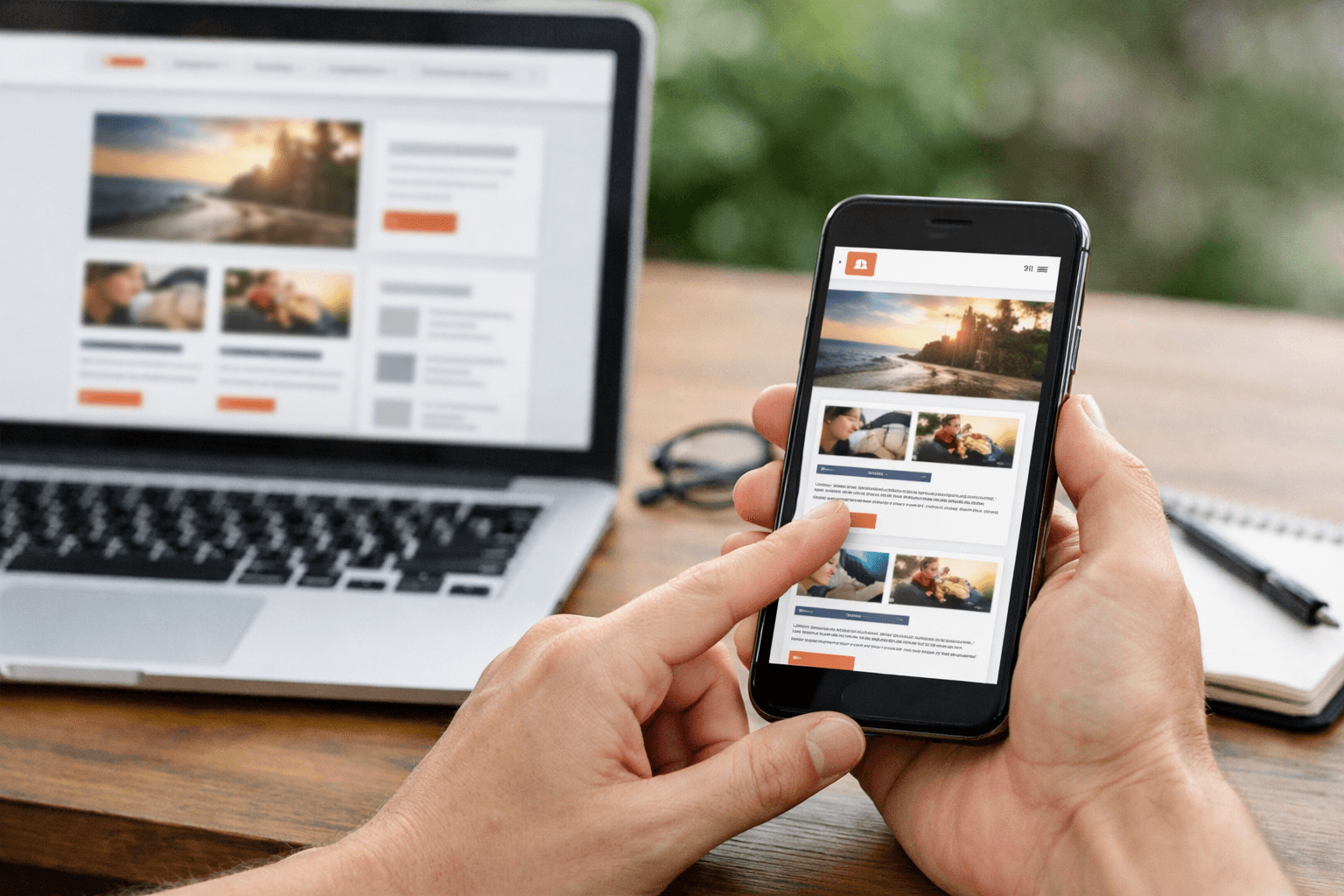
Do not check only in the admin interface. Copy your blog’s public URL, open it in a private window or a browser where you are not signed in, and check the following items:
| Item | How to check | Pass condition |
|---|---|---|
| Logo | Open the homepage and a post | The logo is clear, not distorted, and does not cover the content |
| Favicon | Reload the browser tab | The icon remains recognizable at a small size |
| Menu | Open each item | Each item leads to the correct destination, with no placeholder pages |
| Post | Open the sample post or a published post | The title, content, and images display correctly |
| Sidebar | Scroll from top to bottom | The gadgets support reading rather than competing with the post |
| Mobile | Tap the menu and links | Nothing is obscured, too small, horizontally overflowing, or difficult to tap |
On a phone, open the homepage, tap each menu item, open a post, scroll to the bottom, and then return to the homepage. If the menu works on a computer but is difficult to tap on a phone, reduce the number of items, shorten the item names, or try a different theme after preparing a way to restore the previous configuration.
Common problems and how to roll back
| Symptom | Possible cause | What to do |
|---|---|---|
| The logo is too large on a phone | The image is too wide, or the theme does not scale it appropriately | Use a smaller image, change how it is displayed, or restore the previous header configuration |
| The favicon has not changed | Cached data, the wrong blog, or the wrong file | Check that you selected the correct blog and file, then try reloading the page or using a private browsing window |
| The menu opens an error page | The URL is incorrect or the destination does not exist | Open the URL separately, edit the menu item, or remove it |
| The menu contains an item with no content yet | A new page or label was added even though it exists only in the plan | Remove the item from the menu until the destination actually exists |
| The sidebar is longer than the post | Too many gadgets | Disable or remove duplicate blocks, keeping only the necessary components |
| The page overflows horizontally | An image, table, or embedded code is wider than the screen | Resize the image, remove unnecessary elements, and check the page again on a phone |
If you have just changed several gadgets, record the current state and then undo the changes one at a time. If a new gadget caused the problem, disable or delete it; if the logo caused the problem, restore the blog-name display; if a menu item is incorrect, remove that item instead of deleting the entire layout. Do not paste in new code to fix a problem when you do not yet know its cause.
Exercise: Build a Minimal Layout
Practice on your blog and record your actual observations:
- Record the blog name, short description, and public URL. If you do not yet have a real URL, write
[địa chỉ Blogspot thực hành]and do not create a link. - Prepare a text logo and favicon that you have permission to use.
- Upload the favicon to the correct blog and check it in a browser tab.
- Open Layout, record the available regions, and place the logo or blog name at the top of the page.
- Keep the post area as the most prominent section.
- Add only the gadgets that have a reason to be used at this stage.
- Create the menu from pages, posts, or labels that you have verified are available.
- Open the URL in a private browsing window on a computer.
- Open the URL on a phone, tap each menu item, and record any errors.
| Component | Status | Observed result | Action needed |
|---|---|---|---|
| Logo | [Có/Chưa] | [Kết quả thật] | [Nếu có] |
| Favicon | [Có/Chưa] | [Kết quả thật] | [Nếu có] |
| Menu | [Có/Chưa] | [Tên và URL điểm đến] | [Nếu có] |
| Sidebar | [Có/Chưa] | [Tiện ích đang dùng] | [Nếu có] |
| Phone | [Có/Chưa] | [Lỗi hiển thị thực tế] | [Nếu có] |
Outcome and Next Steps
This article meets its goal when your blog has a clearly displayed logo or name, the favicon has been checked, the layout prioritizes content, the menu points only to real destinations, and the page does not overflow horizontally on a small screen. This does not prove that the blog has readers, has been indexed, or has a fully developed content structure.
The complete menu for SaibABC Blog remains planned for the stage when the corresponding pages and labels have been created. The next step is to distinguish between Posts, Pages and Labels, then create an index page and an appropriate navigation structure. When needed, you can move on to that article in the series: Blogger Posts, Pages, and Labels: Build a Blog People Can Navigate
If an item does not yet have any content, mark it as “planned” in your notes instead of adding it to the menu. A blog with fewer items that work correctly is easier to check and maintain than one with many empty links.
Reference source
- Manage your blog’s settings — Blogger Help.
- Change the design of your blog — Blogger Help.
- Add pages to your blog — Blogger Help.
- Page elements tags for layouts — Blogger Help.
